Keep Your Files Where Your Work Lives: Resource Management in UnDercontrol
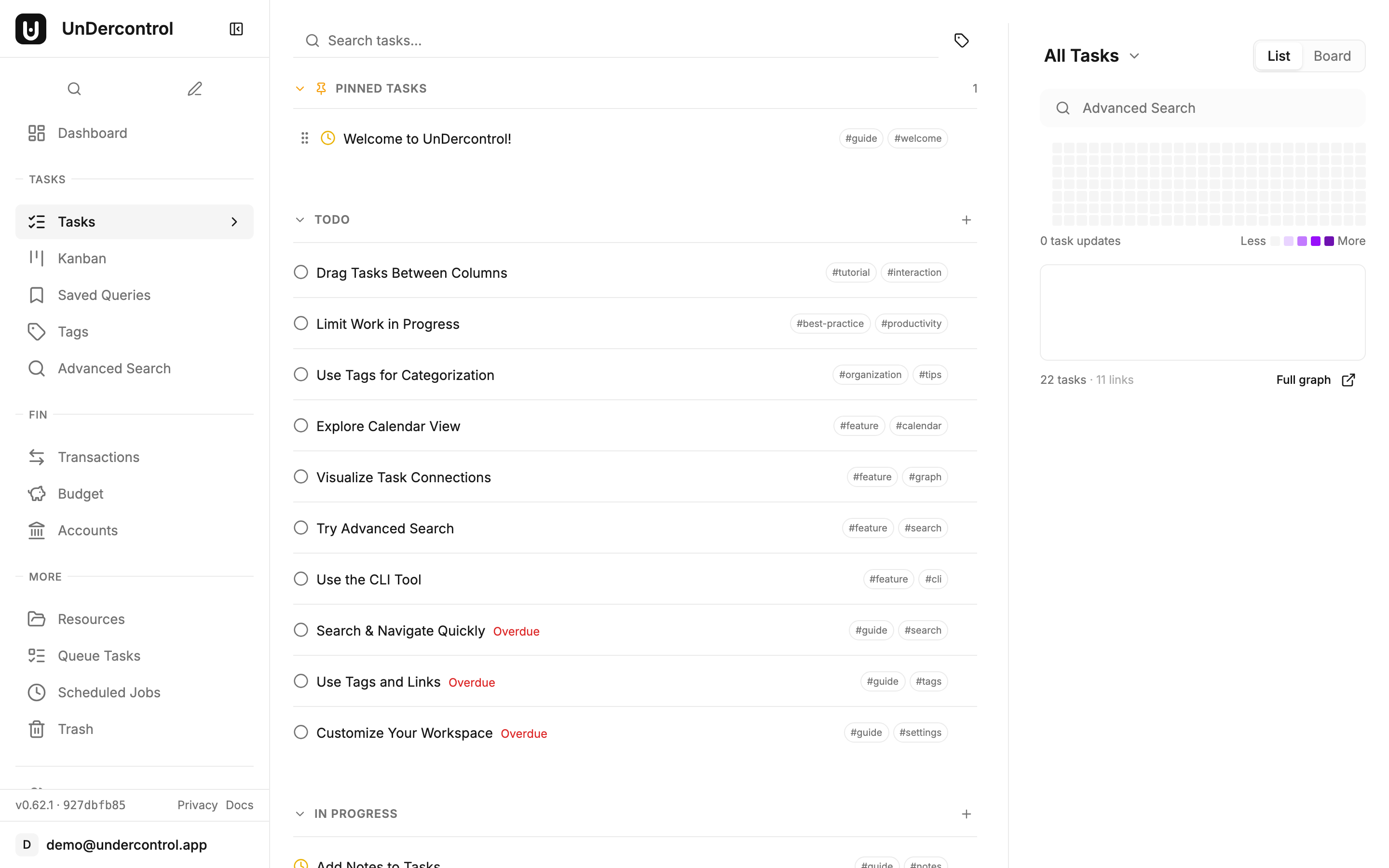
Most productivity apps treat file storage as an afterthought — a folder somewhere, disconnected from the work it supports. UnDercontrol takes a different approach: files live next to the tasks, expenses, and budgets they belong to, so a receipt stays with the expense it documents and a design diagram stays with the task it informs.
Here is how the resource management system works in practice.
Upload the Way You Actually Work
Getting files into UnDercontrol should not require a trip through a file picker every time. There are three main ways to upload:
Drag and drop — open the Resources page or an attachment panel on a task or expense, then drag a file in. Works for single files and batches.
Paste from clipboard — press Ctrl+V and the file in your clipboard uploads immediately. This is particularly useful for screenshots. Take a screenshot of a receipt or a bug in a UI, switch to UnDercontrol, paste. No saving to disk first.
CLI upload — if you live in the terminal, the ud CLI handles uploads directly:
ud upload resource ./receipt.png --entity-type expense --entity-id exp-456
This is useful for scripted workflows, like automatically attaching exported reports to a monthly budget review task.
Attach Once, Reference Everywhere
A single resource can be linked to multiple items. If you have a contract PDF that is relevant to both a budget and a task, you attach it to both — no duplicates, no hunting through folders. When the task gets marked done, you can unlink the file from it while keeping it attached to the budget.
The inspector panel shows you exactly where a file is attached, so you never lose track of which items reference it.
Find What You Need
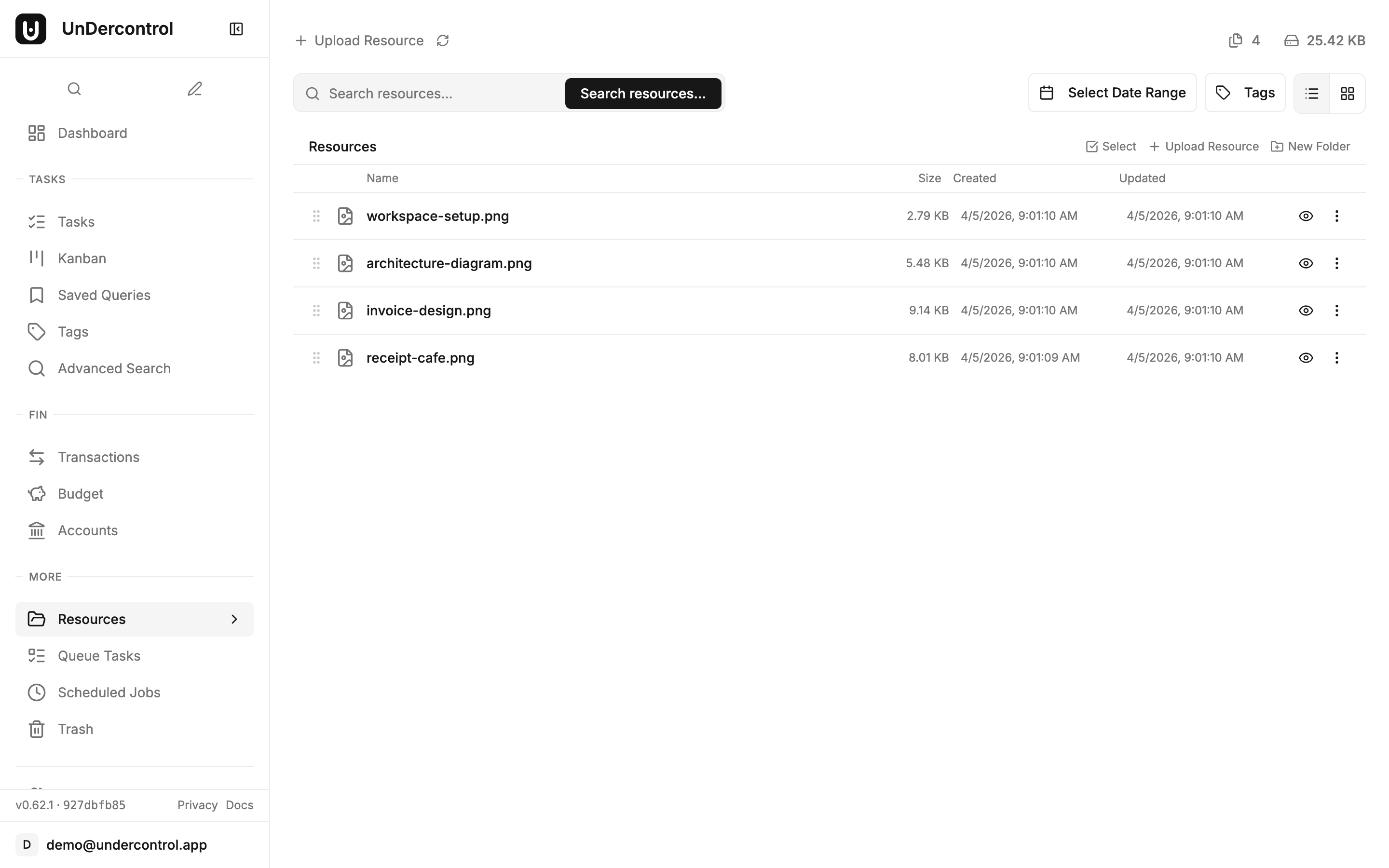
The Resources page gives you a full overview of uploaded files with filtering built in. You can narrow down by file type, by which entity type the file is attached to (tasks, expenses, budgets, accounts), or by a date range. For images, the gallery view shows thumbnails so you can visually scan a set of receipts or screenshots without opening each one.
The inspector also surfaces EXIF metadata for photos — useful if you need to confirm when a photo was taken or where.
Storage: Local or S3
Because UnDercontrol is self-hosted, you control where your files are stored. The default is local disk storage, which works fine for personal use on a home server or VPS. For larger setups or remote access, you can configure S3-compatible object storage — AWS S3, Backblaze B2, MinIO, whatever you already have.
The key point: your files do not flow through a third-party service. They go from your browser to your server.
Storage limits are configurable. Regular users get 1 GB and a 10 MB per-file cap by default. Admins can operate without limits.
Drawio Diagrams, In-App
If your workflow involves system diagrams, flow charts, or architecture sketches, UnDercontrol includes built-in drawio support. You can create and edit diagrams directly in the app. No export-to-PNG, no switching to a separate tool and re-uploading. The diagram file lives as a resource attached to whatever task or note it belongs to.
AI on Images
For receipts and document scans, the AI integration is worth knowing about. You can open an image resource and ask the AI to extract information from it — line items from a receipt, text from a scanned form. This feeds naturally into the expense tracking workflow: photograph a receipt, attach it to an expense, and let the AI pull out the amount and merchant name.
What This Looks Like Day-to-Day
A practical example: you are tracking a freelance project. There is a task for "Review client contract." You attach the contract PDF to that task. Later, you log an expense for software you purchased for the project. You attach the invoice to the expense. Both files show up in the Resources page, filtered by entity type if you want to see only expense attachments, or together if you want a full file audit for the project.
Everything is in one place. No external file hosting, no email threads to dig through.
Get Started
If you are already running UnDercontrol, the Resources page is available in the main navigation. If you are evaluating whether to self-host, the deployment guide covers setting up your instance including storage configuration.
The Resource Management documentation has the full reference for CLI commands, storage configuration, and entity attachment options.