Creator of UnderControl
View all authors

Access Anywhere — Web, Desktop, CLI, and Beyond

· 7 min read
Creator of UnderControl

When choosing a productivity tool, you often face a familiar dilemma: web apps are powerful but useless offline, desktop apps feel great but lock your data locally, and CLI tools are developer-friendly but lack a visual interface. The root cause is the absence of a Single Source of Truth — each platform is an island, and your data is scattered across them. UnDercontrol's answer: four form factors, one data source. And that data source is entirely under your control — self-hosted on your own server or stored on your local disk, never passing through any third party. Privacy and security are defined by you.

Single Source of Truth architecture

Rich Markdown in Your Tasks — Code, Diagrams, and More

· 7 min read
Creator of UnderControl

What Is a Task?

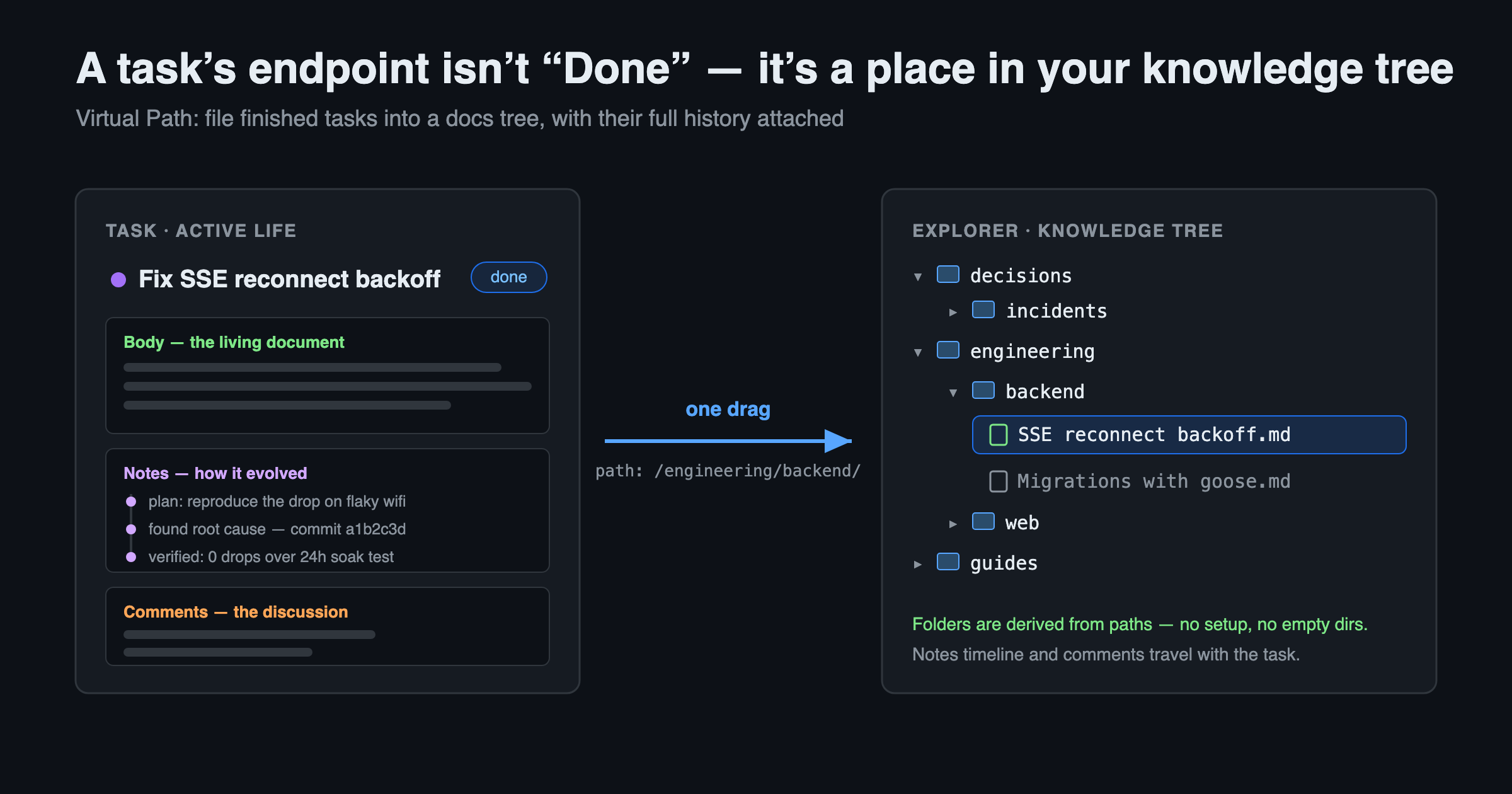
In UnDercontrol, a Task is the core unit of information. If you've used Jira, think of it as an Issue; if you've used Obsidian, think of it as a Note. A Task is essentially a piece of content bound to a status, with first-class attributes (title, tags, link relationships, etc.) and support for unlimited custom metadata fields (key-value pairs), so you can attach any information to it. Through the Notes mechanism, a Task can continuously evolve — recording progress, discussions, and decisions, accumulating into a complete knowledge context over time.

This post covers the rich-text capabilities shared across all text input surfaces in UnDercontrol. We say "tasks", but it's not just tasks — whether it's a task description, a note, an expense memo, or an account annotation, they all use the same Markdown editor. The code blocks, Mermaid diagrams, tables, and checklists you use in tasks work identically in notes and every other context.

Remote Workspace — Run AI Agents on Your Machine from the Browser

· 7 min read
Creator of UnderControl

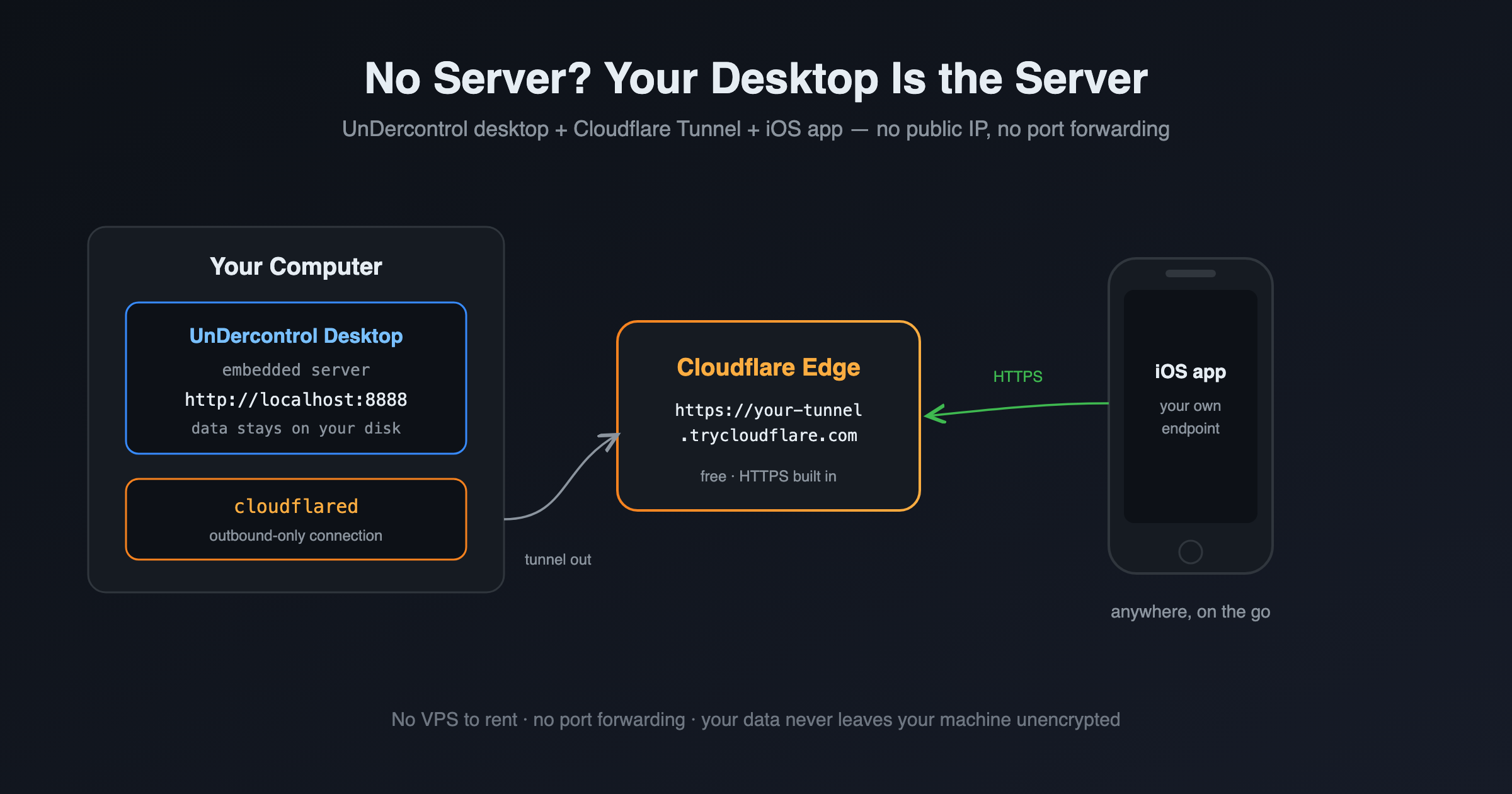
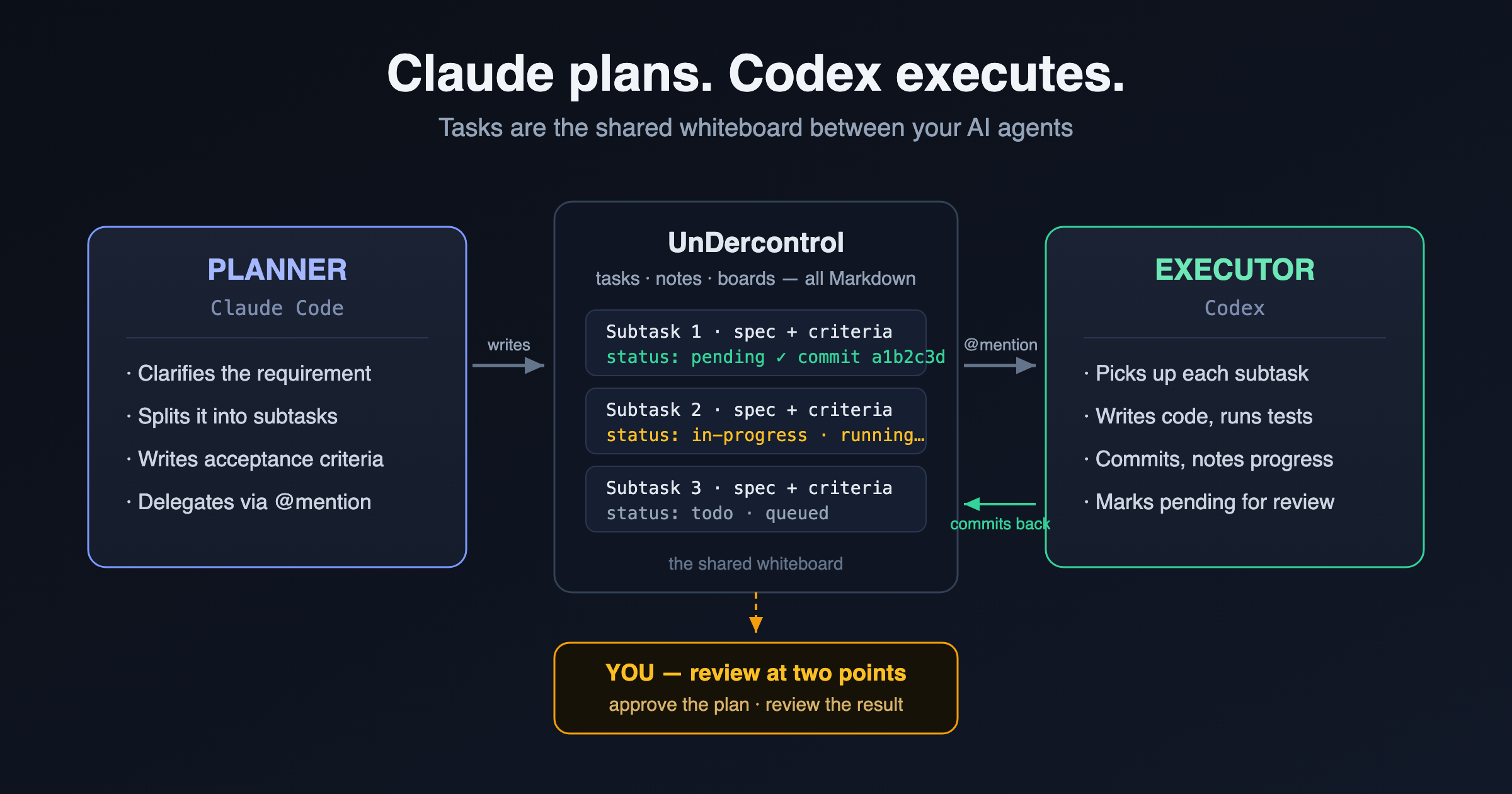
You write a task description in the web UI. You click a button. Thirty seconds later, an AI agent on your laptop is reading the task, writing code, running tests, and posting progress notes back to the same task page — all while you watch from the browser.

That's Remote Workspace. It bridges the gap between a cloud-based task manager and your local development environment, turning UnDercontrol into a remote control for AI-powered coding agents.

Share a Task Without Sharing Your Password

· 4 min read
Creator of UnderControl

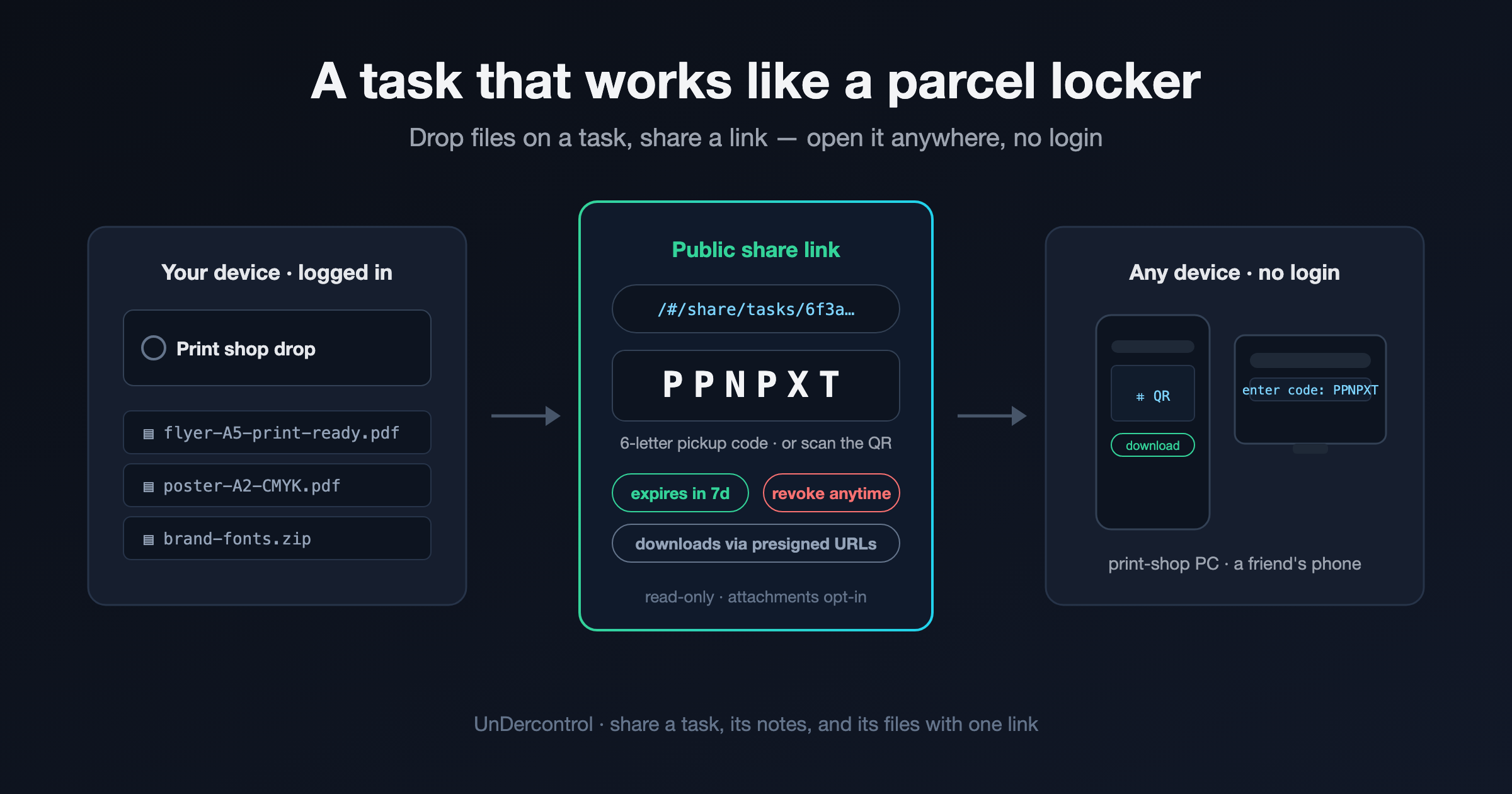
You're at a coffee shop. Someone asks about that project plan you've been working on. You could pull up your account, log in, and hand them your laptop — but you'd rather not.

UnDercontrol's task sharing solves this exact problem. Generate a public link, hand over a short access code, and anyone can view that specific task — your description, notes, attachments, the whole thing — without needing an account or touching your credentials.

Kanban Board Filters: 4 Levels from Broad Scope to Laser Focus

· 6 min read
Creator of UnderControl

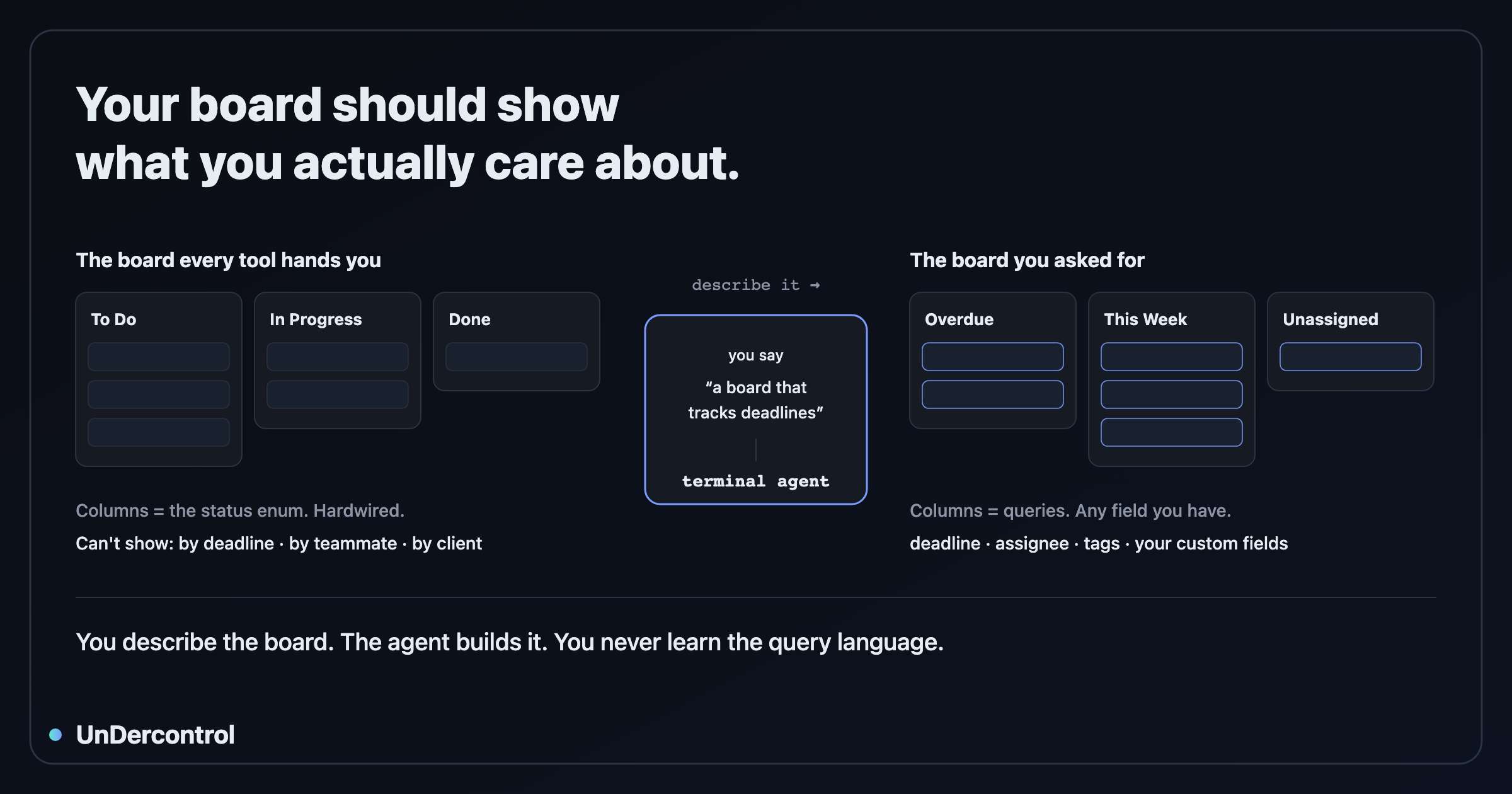
When you have dozens or hundreds of tasks, the kanban board needs to be more than a flat dump of everything. UnDercontrol's kanban boards use a layered filtering system that narrows your view step by step — from the broadest scope down to a real-time search. Understanding these four levels will change how you organize your work.

Reusable AI Skills — Prompt Templates You Own

· 5 min read
Creator of UnderControl

If you've spent any time working with AI assistants, you've probably built up a mental library of prompts that actually work. The refactoring prompt that always gets clean output. The commit message template that matches your team's style. The bug-triage checklist you paste in every time something breaks in production.

The problem is those prompts live in your head, or a sticky note, or buried in a Notion doc nobody remembers to open. UnDercontrol's skills system fixes that.

What Are Skills?

Skills are named, reusable prompt templates stored inside UnDercontrol. Each skill has a slug (e.g., refactor-ts, daily-standup, pr-review), a markdown body, and belongs to a group. That last part matters — skills are group-scoped, so a team can share a library of prompts without everyone maintaining their own copy.

You can create and edit skills through the web UI, manage them from the CLI, or apply them declaratively from a YAML file. The markdown content supports the full range of prompt structures: instructions, variables, multi-step workflows, whatever your use case needs.

Creating a Skill

From the web editor, creating a skill is about as straightforward as writing a note. Give it a name, a slug, and write your prompt in the markdown editor. Save it, and it's immediately available to everyone in the group.

From the CLI, you can apply a skill definition the same way you'd apply a task — as a markdown file with YAML frontmatter:

ud apply skill -f pr-review.md

Your file might look like this:

---
name: pr-review
description: PR Review Checklist
tags:
- ai
- development
---

Review the following pull request diff and provide feedback on:
- Logic correctness
- Error handling
- Test coverage
- Naming and readability

This makes skills portable. Check them into your dotfiles repo, version them with the rest of your configuration, and deploy them to a new UnDercontrol instance with a single command.

Skills page showing system and custom skills with search and tags

Using a Skill — The ud prompt Command

The real payoff is how you consume skills. The ud prompt command fetches a skill by slug and outputs its content to stdout. From there, you can pipe it anywhere.

Want to feed a skill into Claude Code?

claude-code $(ud prompt pr-review)

Want to compose it with other commands in a pipeline?

ud prompt pr-review | pbcopy

Because it's just stdout, ud prompt works with any tool that reads from stdin — Claude Code, other local AI agents, shell pipelines, whatever fits your workflow. UnDercontrol doesn't try to own the AI layer; it just manages the prompts so you don't have to.

Skill detail view with markdown content and CLI usage commands

Built-in System Skills

UnDercontrol ships with built-in system skills that are seeded on first startup. These are read-only — you can't accidentally overwrite them — and they serve as both useful defaults and examples of how skills are structured. The ud-cli system skill, for instance, provides a comprehensive reference for the CLI's command structure, making it immediately available to AI agents that need to interact with your tasks.

System skills are marked with a lock icon in the web UI and appear alongside your custom skills. You can reference them by slug just like any custom skill.

Managing Skills Over Time

Skills are first-class resources in UnDercontrol, which means full CRUD support through both the web UI and the CLI.

  • ud get skills — list all skills in your group
  • ud describe skill <id> — inspect a specific skill's full content
  • ud delete skill <id> — remove one you no longer need
  • ud apply skill -f skills/ — apply an entire directory of skill definitions at once

The web editor is useful for quick edits and browsing what's available. The CLI is better for automation, bulk updates, and treating your prompt library as code.

Why This Matters

The idea behind skills is simple: the prompts that work well are worth keeping. Storing them in a self-hosted, group-scoped system means they don't disappear when someone leaves the team, don't get lost in a chat history, and don't require everyone to reinvent the same workflow independently.

It also keeps your prompts private. Because UnDercontrol is self-hosted, your prompt library — which often encodes institutional knowledge, internal processes, and domain-specific context — stays on your own infrastructure.

Get Started

Skills are available in UnDercontrol today. If you're already running an instance, you'll find the Skills page in the sidebar. If you're setting up for the first time, the self-hosting guide walks through deployment in about ten minutes.

Read the documentation or deploy your own instance to get started.

Team Up Without Giving Up Control: Collaboration in UnDercontrol

· 4 min read
Creator of UnderControl

Most productivity apps treat collaboration as an afterthought — you get a basic share button, maybe a comments section, and that's it. UnDercontrol takes a different approach: groups, role-based permissions, and shared tasks are first-class features built on the same foundation as everything else in the app.

The best part? You're still self-hosted. You're not handing your data to a third-party service to enable multi-user workflows.

How Groups Work

A group in UnDercontrol is a shared workspace. Think of it as a container for people who need to see or work on the same things together. Common setups include a family tracking a shared budget, a small team coordinating project tasks, or two people splitting household expenses.

Creating a group takes about ten seconds: give it a name, add a description, and you're the owner. From there, you generate invite links to bring people in.

Invite links are flexible. You can set an expiration date so a link becomes invalid after a day or a week — useful when you're adding a temporary collaborator. You can also revoke any link at any time. It's a small detail, but it matters when you care about who has access to your workspace.

Group management for team collaboration

Role-Based Permissions

Once people are in a group, roles determine what they can do. There are three group-level roles:

  • Owner — full control over the group, including members, settings, and all shared content
  • Admin — can manage members and invites, access all shared content
  • Member — can view and interact with shared resources based on the permission level set on each item

Beyond group roles, UnDercontrol also has system-level roles: Admin, User, and Visitor. If you're running a self-hosted instance for a small organization, you can create custom roles with specific permission sets covering tasks, expenses, budgets, files, and more. This is the kind of access control you'd expect from enterprise tools, available in a self-hosted app you run yourself.

Sharing Tasks with the Right Level of Access

When you share a task with a group, you choose the permission level: read-only or read-write.

Read-only is useful when you want someone to stay informed without being able to modify anything — a manager reviewing a task list, for example, or a partner who needs to see what's on the agenda without accidentally editing it.

Read-write sharing enables real collaboration. Group members can update the task, check off items, and work alongside you. Shared tasks show up in each member's task list, so nothing gets buried.

Files attached to a shared task are automatically accessible to group members. There's no separate file-sharing step — if you've attached a PDF or an image to a task, everyone with access to that task can see it.

Kanban Boards and Shared Workflows

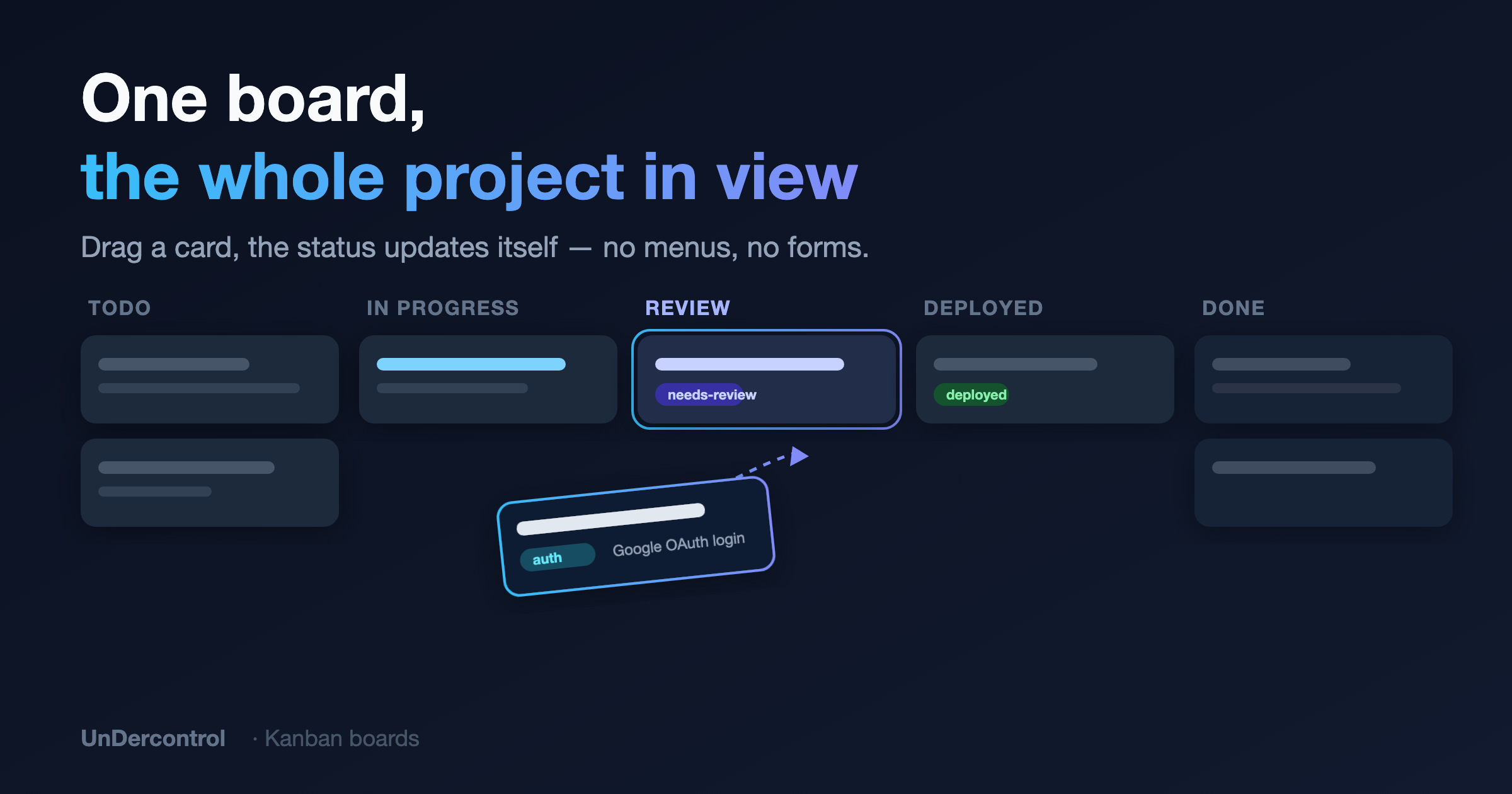
Shared kanban boards integrate directly with the group system. When you create a shared board, it automatically creates a group behind the scenes. The board creator becomes the group admin, and collaborators join as members. This means your team's workflow is always tied to a proper access model — not just an open link that anyone can stumble into.

Shared kanban board for team collaboration

Practical Tips

A few things worth knowing before you set up your first group:

Currently, each user can belong to one group at a time, so think about how you structure your workspace. If you're coordinating a work project and a household budget, the people involved will need to choose which group they're part of — or you handle both under a single group with clear task naming conventions.

Use descriptive group names from the start. "Family Budget 2026" or "Backend Team Q2" is far more useful three months later than "My Group."

Set expiration dates on invite links whenever you're adding someone for a limited purpose. It takes two extra seconds and removes the need to remember to revoke the link later.

Review your member list occasionally. People change roles, projects end, living situations shift. Keeping the member list current is basic hygiene for any shared workspace.

Get Started

If you already have a self-hosted instance running, head to the Groups page and create your first group. If you haven't set up UnDercontrol yet, the self-deployment guide walks through the full setup — you can be running in under an hour with Docker.

The collaboration documentation covers every feature in detail, including the full permission system and how groups interact with budgets and resources.

Real-Time Multi-Client Sync with Server-Sent Events

· 5 min read
Creator of UnderControl

If you have UnDercontrol open in a browser tab, on your desktop app, and on your phone at the same time, you probably expect them to stay in sync. Adding a task in one place should show up in the others without a page refresh. Logging an expense should reflect in your budget immediately, everywhere.

That kind of real-time sync sounds simple but gets complicated fast when you factor in reconnects, offline states, and the cost of keeping connections alive. Here is how UnDercontrol handles it.

Why Server-Sent Events

WebSockets are the obvious choice for real-time features, but they come with overhead — bidirectional connections, custom protocol handling, and more complexity on both ends. For UnDercontrol, the update flow is almost entirely one-directional: the server pushes changes down to clients. That maps perfectly onto Server-Sent Events (SSE), which is a standard HTTP mechanism built into every modern browser.

SSE gives us persistent connections over plain HTTP, automatic reconnection built into the browser spec, and no additional infrastructure beyond the Go backend that already runs your instance. It keeps the self-hosted model clean.

How It Works

When you open UnDercontrol, the frontend establishes an SSE connection to the backend. Your session is registered in a per-user connection hub — a structure that tracks every active connection for your account across tabs, devices, and the Electron desktop app. When something changes (a task is updated, an expense is logged, a file is renamed), the backend emits an event onto an internal async event bus. That event fans out to every connection registered under your user ID.

This means if you log an expense on your phone, your browser tab sees it within milliseconds. No polling, no manual refresh.

The connection lifecycle is managed deliberately. Connections are kept alive for up to 30 minutes, after which they cycle and reconnect. This prevents resource leaks on long-running instances and plays nicely with load balancers and reverse proxies that have their own timeout rules. If a connection drops for any reason — network hiccup, sleep/wake cycle, proxy timeout — the client reconnects automatically using exponential backoff. It starts with a short delay and increases gradually, so a briefly offline device does not hammer your server the moment it comes back online.

Smart Cache Updates on the Client

Getting an event is one thing. Knowing what to do with it is another. UnDercontrol does not blindly refetch the entire dataset when an SSE event arrives. Instead, the frontend applies differential cache updates: it looks at what changed, finds the relevant entry in the local Zustand store, and patches only that record.

For example, if a task's status changes from "in progress" to "done," the event carries just that task's updated state. The client merges it into the existing cache. The list re-renders with the new status. Everything else stays untouched.

Kanban board with live status updates pushed via SSE

This keeps the UI fast and prevents the jarring full-reload effect you see in apps that refetch aggressively.

Optimistic UI and Server Reconciliation

SSE works alongside UnDercontrol's optimistic update model. When you make a change locally, the UI updates immediately — no spinner, no waiting. The write goes to the server in the background. If it succeeds, the server emits an SSE event that propagates to your other clients. If it fails, the local state reverts and you see an error.

The result is that your primary device feels instant, while your secondary devices stay consistent. The server is the source of truth, and SSE is the mechanism that keeps everyone aligned with it.

Practical Benefits You Will Notice

Open the same UnDercontrol instance in two browser tabs. Make a change in one. Watch it appear in the other without touching anything.

Task list view — changes sync in real-time across all connected clients

This is particularly useful when you have a budget overview open on one screen and you are logging transactions on another.

Budget overview — expense changes propagate instantly to all open views

The Electron desktop app participates in the same sync. Changes made through the CLI or the Chrome extension propagate back through SSE to whatever else you have open. The whole multi-platform story depends on this layer working reliably.

Try It Yourself

All of this runs on your own hardware. There is no cloud dependency, no third-party sync service, and no data leaving your control. The SSE endpoint is part of the standard UnDercontrol backend.

If you are not running UnDercontrol yet, the self-deployment guide covers getting started with Docker in a few minutes. If you are already running an instance, the sync is already active — just open a second tab and see for yourself.

Check the documentation for deployment instructions and configuration options.

Terminal-First Task Management with the ud CLI

· 4 min read
Creator of UnderControl

If you spend most of your day in a terminal, switching to a browser tab just to log a task or check what's on your plate is friction you don't need. The ud CLI was built to eliminate that context switch. It brings the full power of UnDercontrol — task CRUD, notes, querying, kanban boards — into your shell, and it follows a command structure you already know.

kubectl-style Commands, Because It Works

The CLI uses the same verb-resource pattern that made kubectl feel intuitive to so many engineers. You get, describe, apply, and delete resources. No new mental model required.

# List all tasks
ud get task

# Show full details on a task (short ID prefix supported)
ud describe task 3de9f82b

# Create or update from a markdown file
ud apply -f task.md

# Delete a task
ud delete task abc123

The apply command deserves a highlight. Your task is a markdown file with YAML frontmatter. If the file has an id field, it updates the existing task. No id? It creates a new one. This makes bulk updates, scripted workflows, and version-controlled task definitions straightforward.

echo '---
title: Write release notes
status: in-progress
tags:
- release
deadline: 2026-04-10
---

Draft the changelog and update the docs site.' | ud apply -f -

Task list view — what the ud CLI manages from your terminal

Query Syntax That Actually Filters

ud task query gives you a SQL-like filter language over your tasks. It is useful when you have enough tasks that "scroll through the list" stops being a real strategy.

# Tasks with a deadline this week
ud task query "deadline BETWEEN 'today' AND '+7d'"

# Active tasks tagged urgent
ud task query "(status = 'todo' OR status = 'in-progress') AND tags = 'urgent'"

# Title search
ud task query "title ILIKE '%api%'"

If you would rather not think about syntax at all, ud task nlquery accepts plain English and translates it via AI:

ud task nlquery "show me overdue tasks"
ud task nlquery "tasks tagged with work that are not done"

Both commands accept --sort, --order, and --limit flags for pagination and ordering, so they compose cleanly into scripts or shell aliases.

Notes as a Progress Log

Every task supports notes — short freeform entries that act as a running log. This is useful for tracking what you actually did, not just the end state.

ud task note add 3de9f82b "Finished the backend changes, opening PR now"
ud task note ls 3de9f82b

Notes also make the CLI a natural fit for AI agent workflows. An agent can create a task from a plan file, append progress notes at each step, and mark the task done — all without touching a browser. The human side of the team sees the full history in the UnDercontrol web UI or desktop app. It is a low-ceremony handoff that actually works in practice.

Interactive TUI for When You Want a Visual

Running ud with no arguments opens the terminal UI — a keyboard-driven kanban-style interface with vim bindings.

Built-in terminal with ud CLI commands

KeyAction
j / kMove through tasks
EnterOpen task detail
iCreate a new task
xToggle status
/Search
fFile picker (fuzzy search local files to create tasks from)

The file picker is a nice touch. Press f, fuzzy-search a markdown file in your current directory, and it becomes a task — first line is the title, the rest becomes the description. Useful when you keep notes in a project repo and want them tracked.

Multi-Context for Multiple Servers

If you self-host UnDercontrol across multiple environments — personal, work, a staging instance — the context system handles it the same way kubectl does.

ud config set-context work --api-url https://ud.company.com
ud login --context work

# Use a different context for a single command
UD_CONTEXT=personal ud get task

Config lives in ~/.config/ud/config.yaml. You can also drive the CLI entirely through environment variables (UD_API_URL, UD_API_KEY, UD_TOKEN), which makes it usable in CI pipelines without touching config files.

Getting Started

Install via npm, Homebrew, or a single curl command:

npm install -g @oatnil/ud
# or
brew install oatnil-top/ud/ud
# or
curl -fsSL https://get.oatnil.com/ud | bash

Then point it at your UnDercontrol instance:

ud login

The full command reference — including file attachment, multi-context auth, and advanced query syntax — is in the CLI Reference docs. If you are not running UnDercontrol yet, the self-hosting guide covers getting a server up with Docker in a few minutes.