Team Up Without Giving Up Control: Collaboration in UnDercontrol
Most productivity apps treat collaboration as an afterthought — you get a basic share button, maybe a comments section, and that's it. UnDercontrol takes a different approach: groups, role-based permissions, and shared tasks are first-class features built on the same foundation as everything else in the app.
The best part? You're still self-hosted. You're not handing your data to a third-party service to enable multi-user workflows.
How Groups Work
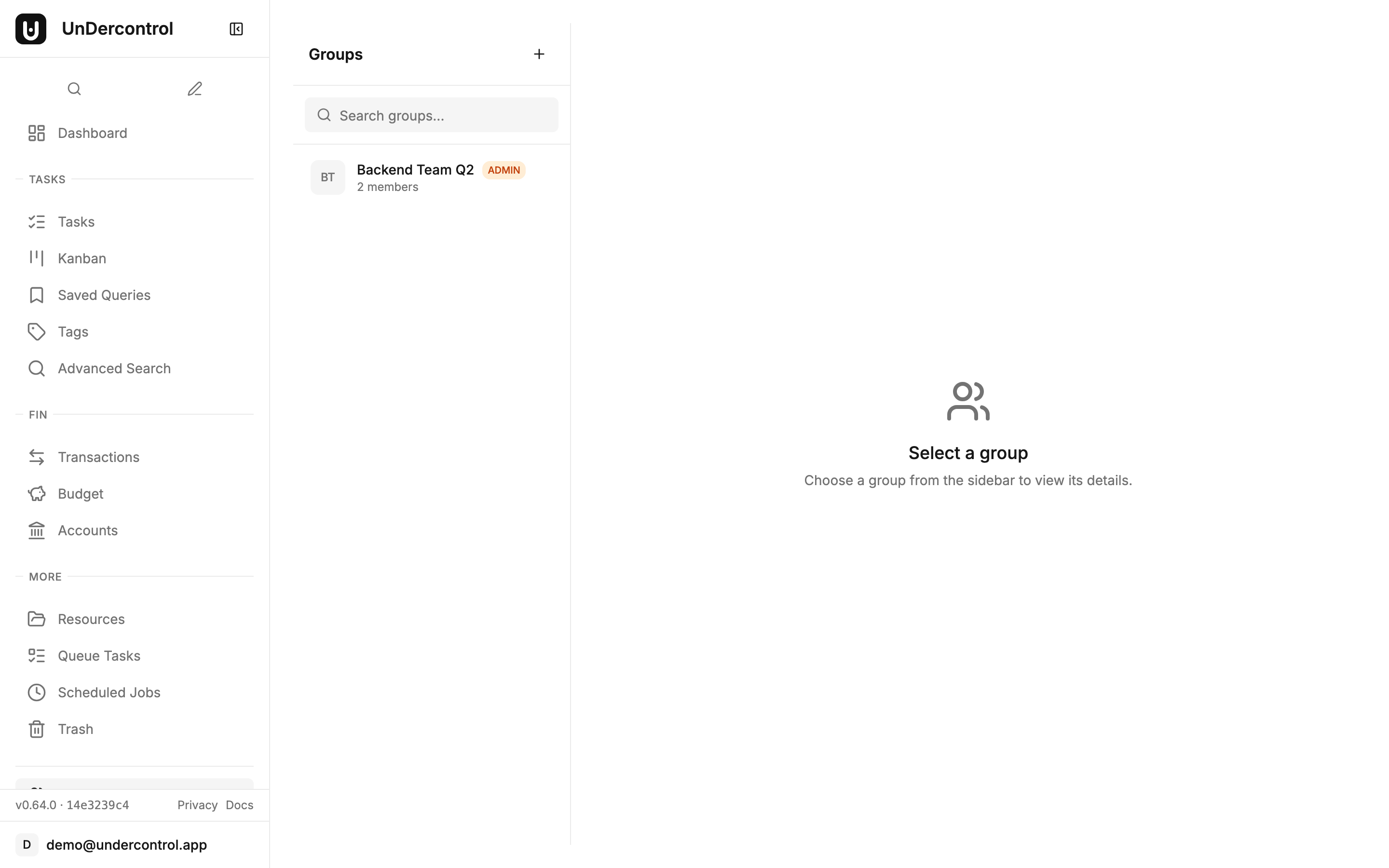
A group in UnDercontrol is a shared workspace. Think of it as a container for people who need to see or work on the same things together. Common setups include a family tracking a shared budget, a small team coordinating project tasks, or two people splitting household expenses.
Creating a group takes about ten seconds: give it a name, add a description, and you're the owner. From there, you generate invite links to bring people in.
Invite links are flexible. You can set an expiration date so a link becomes invalid after a day or a week — useful when you're adding a temporary collaborator. You can also revoke any link at any time. It's a small detail, but it matters when you care about who has access to your workspace.
Role-Based Permissions
Once people are in a group, roles determine what they can do. There are three group-level roles:
- Owner — full control over the group, including members, settings, and all shared content
- Admin — can manage members and invites, access all shared content
- Member — can view and interact with shared resources based on the permission level set on each item
Beyond group roles, UnDercontrol also has system-level roles: Admin, User, and Visitor. If you're running a self-hosted instance for a small organization, you can create custom roles with specific permission sets covering tasks, expenses, budgets, files, and more. This is the kind of access control you'd expect from enterprise tools, available in a self-hosted app you run yourself.
Sharing Tasks with the Right Level of Access
When you share a task with a group, you choose the permission level: read-only or read-write.
Read-only is useful when you want someone to stay informed without being able to modify anything — a manager reviewing a task list, for example, or a partner who needs to see what's on the agenda without accidentally editing it.
Read-write sharing enables real collaboration. Group members can update the task, check off items, and work alongside you. Shared tasks show up in each member's task list, so nothing gets buried.
Files attached to a shared task are automatically accessible to group members. There's no separate file-sharing step — if you've attached a PDF or an image to a task, everyone with access to that task can see it.
Kanban Boards and Shared Workflows
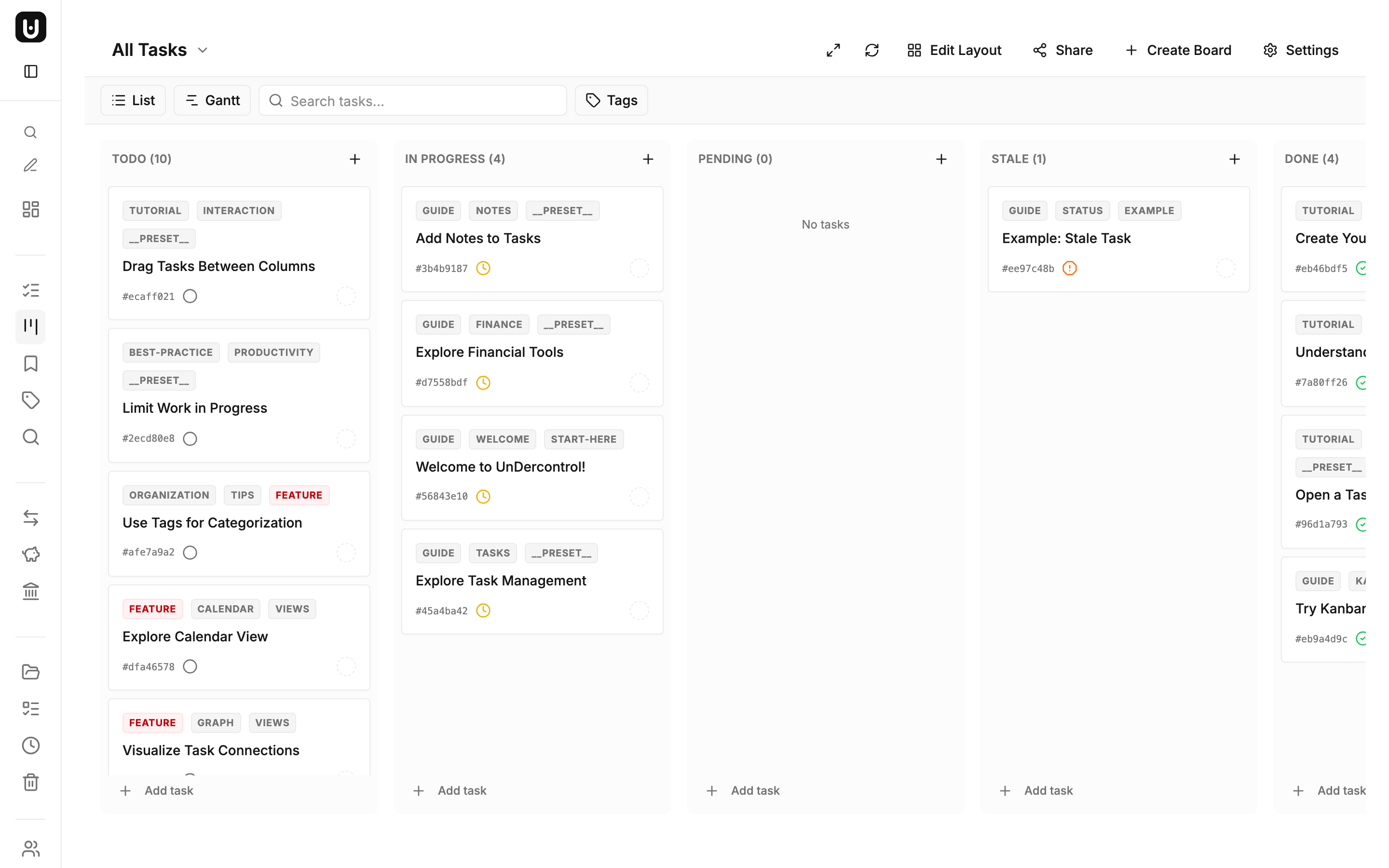
Shared kanban boards integrate directly with the group system. When you create a shared board, it automatically creates a group behind the scenes. The board creator becomes the group admin, and collaborators join as members. This means your team's workflow is always tied to a proper access model — not just an open link that anyone can stumble into.
Practical Tips
A few things worth knowing before you set up your first group:
Currently, each user can belong to one group at a time, so think about how you structure your workspace. If you're coordinating a work project and a household budget, the people involved will need to choose which group they're part of — or you handle both under a single group with clear task naming conventions.
Use descriptive group names from the start. "Family Budget 2026" or "Backend Team Q2" is far more useful three months later than "My Group."
Set expiration dates on invite links whenever you're adding someone for a limited purpose. It takes two extra seconds and removes the need to remember to revoke the link later.
Review your member list occasionally. People change roles, projects end, living situations shift. Keeping the member list current is basic hygiene for any shared workspace.
Get Started
If you already have a self-hosted instance running, head to the Groups page and create your first group. If you haven't set up UnDercontrol yet, the self-deployment guide walks through the full setup — you can be running in under an hour with Docker.
The collaboration documentation covers every feature in detail, including the full permission system and how groups interact with budgets and resources.