8 posts tagged with "Feature"

Feature updates and highlights

View All Tags

Terminal-First Task Management with the ud CLI

· 4 min read
Creator of UnderControl

If you spend most of your day in a terminal, switching to a browser tab just to log a task or check what's on your plate is friction you don't need. The ud CLI was built to eliminate that context switch. It brings the full power of UnDercontrol — task CRUD, notes, querying, kanban boards — into your shell, and it follows a command structure you already know.

kubectl-style Commands, Because It Works

The CLI uses the same verb-resource pattern that made kubectl feel intuitive to so many engineers. You get, describe, apply, and delete resources. No new mental model required.

# List all tasks
ud get task

# Show full details on a task (short ID prefix supported)
ud describe task 3de9f82b

# Create or update from a markdown file
ud apply -f task.md

# Delete a task
ud delete task abc123

The apply command deserves a highlight. Your task is a markdown file with YAML frontmatter. If the file has an id field, it updates the existing task. No id? It creates a new one. This makes bulk updates, scripted workflows, and version-controlled task definitions straightforward.

echo '---
title: Write release notes
status: in-progress
tags:
- release
deadline: 2026-04-10
---

Draft the changelog and update the docs site.' | ud apply -f -

Task list view — what the ud CLI manages from your terminal

Query Syntax That Actually Filters

ud task query gives you a SQL-like filter language over your tasks. It is useful when you have enough tasks that "scroll through the list" stops being a real strategy.

# Tasks with a deadline this week
ud task query "deadline BETWEEN 'today' AND '+7d'"

# Active tasks tagged urgent
ud task query "(status = 'todo' OR status = 'in-progress') AND tags = 'urgent'"

# Title search
ud task query "title ILIKE '%api%'"

If you would rather not think about syntax at all, ud task nlquery accepts plain English and translates it via AI:

ud task nlquery "show me overdue tasks"
ud task nlquery "tasks tagged with work that are not done"

Both commands accept --sort, --order, and --limit flags for pagination and ordering, so they compose cleanly into scripts or shell aliases.

Notes as a Progress Log

Every task supports notes — short freeform entries that act as a running log. This is useful for tracking what you actually did, not just the end state.

ud task note add 3de9f82b "Finished the backend changes, opening PR now"
ud task note ls 3de9f82b

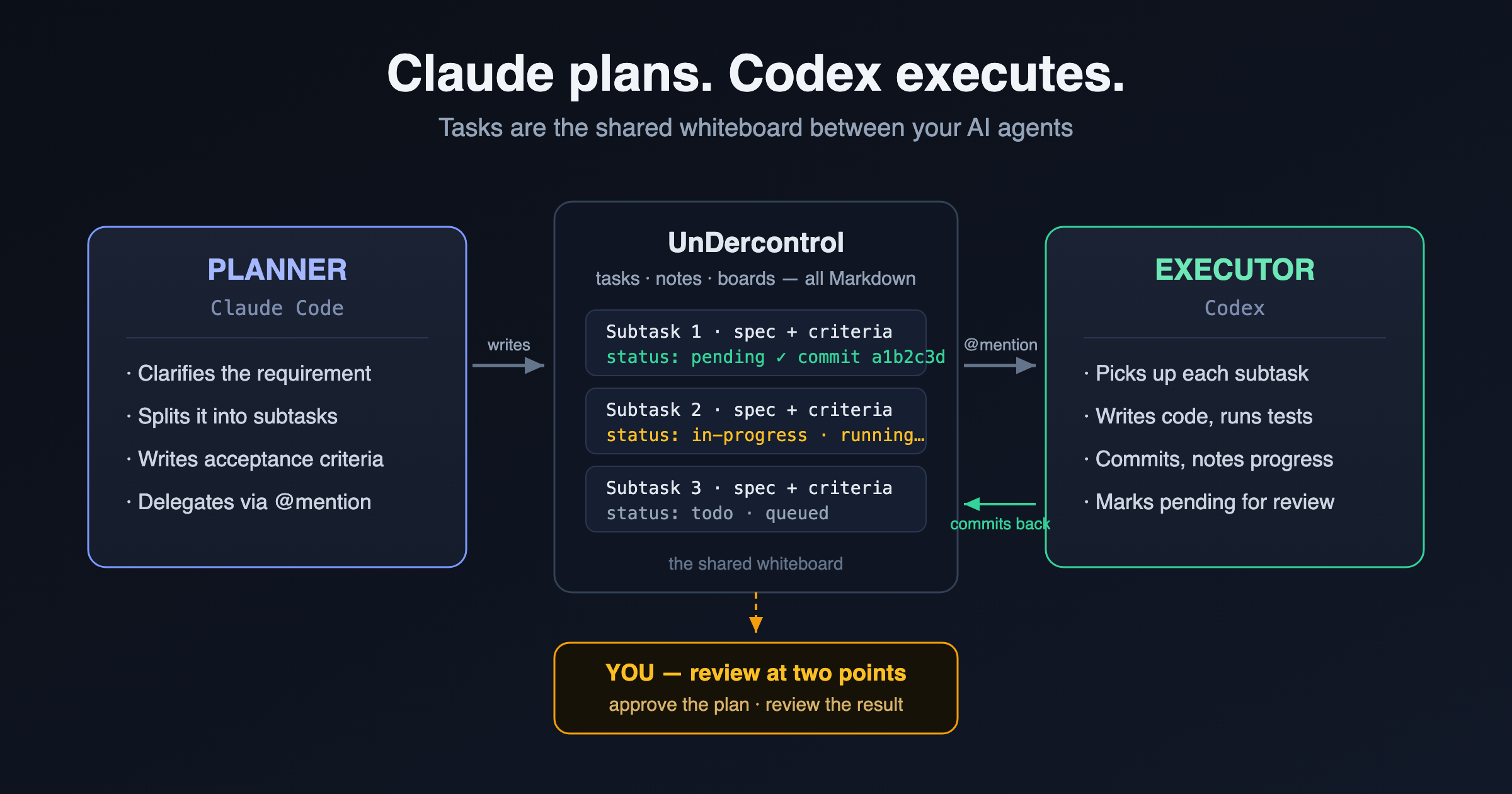
Notes also make the CLI a natural fit for AI agent workflows. An agent can create a task from a plan file, append progress notes at each step, and mark the task done — all without touching a browser. The human side of the team sees the full history in the UnDercontrol web UI or desktop app. It is a low-ceremony handoff that actually works in practice.

Interactive TUI for When You Want a Visual

Running ud with no arguments opens the terminal UI — a keyboard-driven kanban-style interface with vim bindings.

Built-in terminal with ud CLI commands

KeyAction
j / kMove through tasks
EnterOpen task detail
iCreate a new task
xToggle status
/Search
fFile picker (fuzzy search local files to create tasks from)

The file picker is a nice touch. Press f, fuzzy-search a markdown file in your current directory, and it becomes a task — first line is the title, the rest becomes the description. Useful when you keep notes in a project repo and want them tracked.

Multi-Context for Multiple Servers

If you self-host UnDercontrol across multiple environments — personal, work, a staging instance — the context system handles it the same way kubectl does.

ud config set-context work --api-url https://ud.company.com
ud login --context work

# Use a different context for a single command
UD_CONTEXT=personal ud get task

Config lives in ~/.config/ud/config.yaml. You can also drive the CLI entirely through environment variables (UD_API_URL, UD_API_KEY, UD_TOKEN), which makes it usable in CI pipelines without touching config files.

Getting Started

Install via npm, Homebrew, or a single curl command:

npm install -g @oatnil/ud
# or
brew install oatnil-top/ud/ud
# or
curl -fsSL https://get.oatnil.com/ud | bash

Then point it at your UnDercontrol instance:

ud login

The full command reference — including file attachment, multi-context auth, and advanced query syntax — is in the CLI Reference docs. If you are not running UnDercontrol yet, the self-hosting guide covers getting a server up with Docker in a few minutes.

Managing Multiple Accounts with CLI Contexts

· 4 min read
Creator of UnderControl

If you run more than one UnDercontrol instance — say, a personal server and a work server — you've probably felt the friction of juggling different API endpoints and credentials. The ud CLI ships with a context system modeled after kubectl, so switching between accounts is a single command.

Power User Queries and Saved Filters in UnDercontrol

· 4 min read
Creator of UnderControl

If you have more than a handful of tasks in UnDercontrol, you have probably hit the point where "scroll and scan" stops working. You know what you are looking for — overdue items, everything tagged work that is still in progress, tasks with no deadline yet — but getting to them quickly takes more than a status filter.

This post covers the query system built into UnDercontrol: a SQL-like syntax that works across the web UI, the CLI, custom views, kanban boards, and saved queries. Once it clicks, you will use it constantly.

The Query Syntax

The syntax is deliberately close to SQL WHERE clauses. If you have ever written a database query, it will feel familiar immediately. If you have not, the basics take about five minutes to pick up.

A simple query looks like this:

status = 'todo' AND deadline <= 'today'

That finds every task that is still todo and due today or earlier — in other words, overdue todo items.

You can build on that with tags, text search, date ranges, and custom fields:

(deadline <= 'today' OR tags = 'urgent') AND status != 'done' AND status != 'archived'

This is a reliable "needs attention now" query. Pin it as a saved query (more on that below) and you have a one-click urgent task list.

Task search with query syntax filtering

Datetime Expressions

One of the more practical parts of the syntax is the relative date support. Instead of hardcoding dates, you write things like '-7d', '+1w', or just 'today'.

-- Tasks created in the last week
created_at >= '-7d'

-- Due within the next month
deadline BETWEEN 'today' AND '+1m'

-- Updated today
updated_at >= 'today'

The supported units are days (d), weeks (w), months (m), and years (y), with + for future and - for past. Standard ISO 8601 dates like 2025-06-01 also work when you need a fixed date.

Text Search and Custom Fields

Text search uses LIKE (case-sensitive) and ILIKE (case-insensitive) with % as a wildcard:

title ILIKE '%api%'

For custom fields, prefix with cf.:

cf.priority > 3 AND cf.department = 'engineering'

Custom fields support the full range of comparison operators depending on their type — numbers, text, selects, checkboxes, and user references all work.

Natural Language Queries

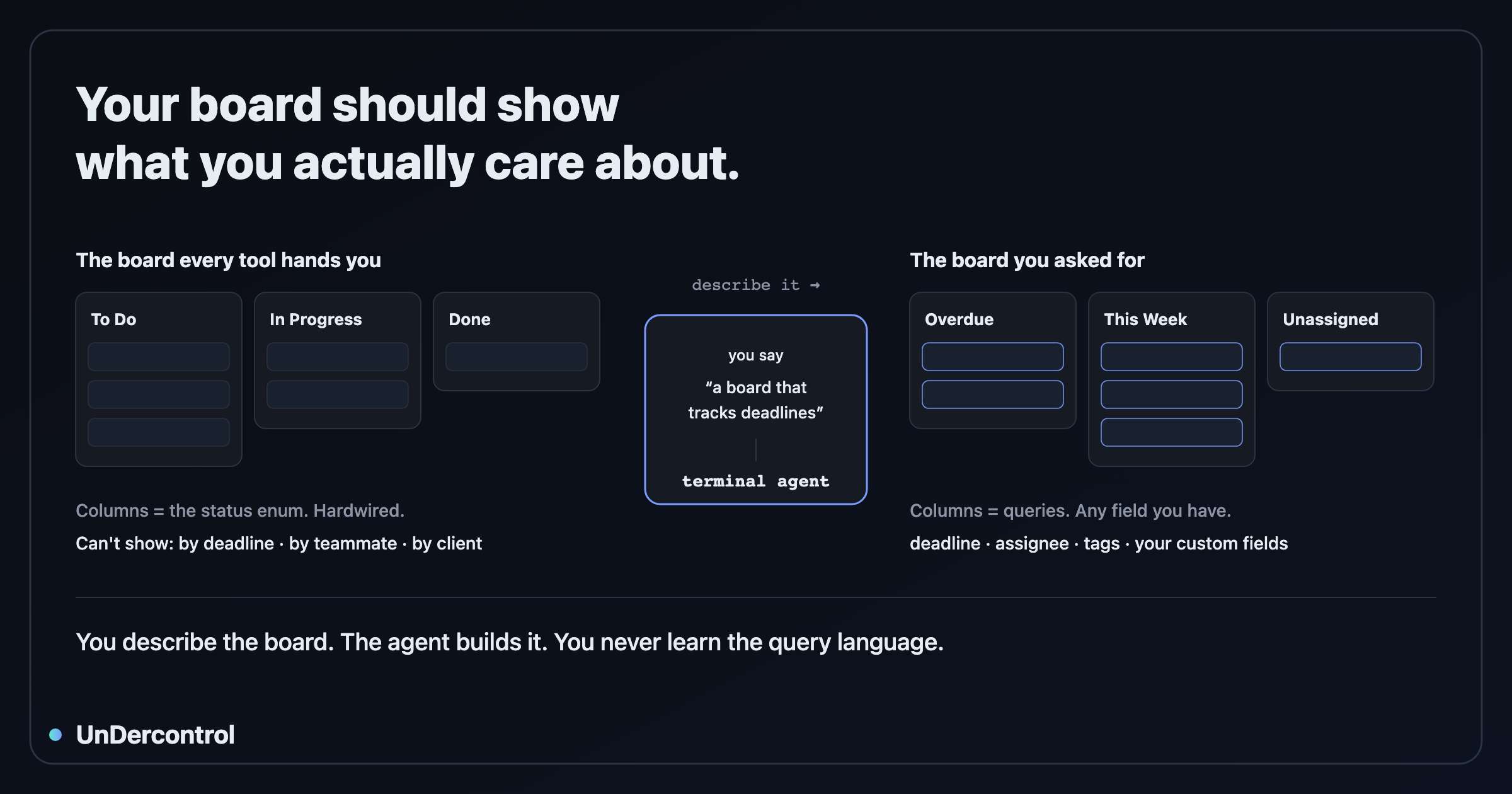
Writing queries manually is fast once you know the syntax. But if you would rather just describe what you want, the AI integration handles the translation.

In the web UI, open the AI Chat panel on the task page and type something like "show me overdue tasks that have the work tag". The AI generates the structured query and runs it.

From the CLI, use ud task nlquery:

ud task nlquery "tasks I need to finish this week"
ud task nlquery "high priority engineering items with no deadline"

The nl alias also works if you want to save a few keystrokes. This requires an AI provider to be configured, but once it is set up it handles surprisingly natural phrasing.

Saved Queries

This is where the query system becomes genuinely useful day-to-day. Saved Queries let you name and store any query, then run it with a single click from the sidebar.

A few worth setting up immediately:

NameQuery
Overduedeadline < 'today' AND status != 'done' AND status != 'archived'
Due This Weekdeadline BETWEEN 'today' AND '+7d' AND status != 'done'
Unplanneddeadline IS NULL AND status = 'todo'
Recently Activeupdated_at >= '-7d' AND status IN ('todo', 'in-progress')

Saved queries for quick access to filtered views

You can pin queries to keep your most-used ones at the top, reorder them by drag and drop, and edit them at any time. When you click a saved query, results expand inline — no navigation required.

Using Queries in the CLI

The CLI supports the same query syntax through ud task query:

ud task query "status = 'todo'" --sort deadline --order asc
ud task query "(status = 'todo' OR status = 'in-progress') AND tags = 'work'"

Flags for pagination (--page, --limit) and sorting (--sort, --order) are available. This makes it straightforward to pipe results into other tools or use queries inside shell scripts.

Getting Started

The full query syntax reference is in the Query Syntax documentation, including every operator, all datetime expression formats, and a full set of practical examples to copy and adapt.

If you are not running UnDercontrol yet, the self-hosting guide covers deployment with Docker. Your data stays on your own infrastructure — that is the whole point.

Keep Your Files Where Your Work Lives: Resource Management in UnDercontrol

· 5 min read
Creator of UnderControl

Most productivity apps treat file storage as an afterthought — a folder somewhere, disconnected from the work it supports. UnDercontrol takes a different approach: files live next to the tasks, expenses, and budgets they belong to, so a receipt stays with the expense it documents and a design diagram stays with the task it informs.

Here is how the resource management system works in practice.

Upload the Way You Actually Work

Getting files into UnDercontrol should not require a trip through a file picker every time. There are three main ways to upload:

Drag and drop — open the Resources page or an attachment panel on a task or expense, then drag a file in. Works for single files and batches.

Paste from clipboard — press Ctrl+V and the file in your clipboard uploads immediately. This is particularly useful for screenshots. Take a screenshot of a receipt or a bug in a UI, switch to UnDercontrol, paste. No saving to disk first.

CLI upload — if you live in the terminal, the ud CLI handles uploads directly:

ud upload resource ./receipt.png --entity-type expense --entity-id exp-456

This is useful for scripted workflows, like automatically attaching exported reports to a monthly budget review task.

Attach Once, Reference Everywhere

A single resource can be linked to multiple items. If you have a contract PDF that is relevant to both a budget and a task, you attach it to both — no duplicates, no hunting through folders. When the task gets marked done, you can unlink the file from it while keeping it attached to the budget.

The inspector panel shows you exactly where a file is attached, so you never lose track of which items reference it.

Task list view — files attach directly to tasks, expenses, and budgets

Find What You Need

The Resources page gives you a full overview of uploaded files with filtering built in. You can narrow down by file type, by which entity type the file is attached to (tasks, expenses, budgets, accounts), or by a date range. For images, the gallery view shows thumbnails so you can visually scan a set of receipts or screenshots without opening each one.

Resource management page showing uploaded files with thumbnails and metadata

The inspector also surfaces EXIF metadata for photos — useful if you need to confirm when a photo was taken or where.

Storage: Local or S3

Because UnDercontrol is self-hosted, you control where your files are stored. The default is local disk storage, which works fine for personal use on a home server or VPS. For larger setups or remote access, you can configure S3-compatible object storage — AWS S3, Backblaze B2, MinIO, whatever you already have.

The key point: your files do not flow through a third-party service. They go from your browser to your server.

Storage limits are configurable. Regular users get 1 GB and a 10 MB per-file cap by default. Admins can operate without limits.

Drawio Diagrams, In-App

If your workflow involves system diagrams, flow charts, or architecture sketches, UnDercontrol includes built-in drawio support. You can create and edit diagrams directly in the app. No export-to-PNG, no switching to a separate tool and re-uploading. The diagram file lives as a resource attached to whatever task or note it belongs to.

AI on Images

For receipts and document scans, the AI integration is worth knowing about. You can open an image resource and ask the AI to extract information from it — line items from a receipt, text from a scanned form. This feeds naturally into the expense tracking workflow: photograph a receipt, attach it to an expense, and let the AI pull out the amount and merchant name.

What This Looks Like Day-to-Day

A practical example: you are tracking a freelance project. There is a task for "Review client contract." You attach the contract PDF to that task. Later, you log an expense for software you purchased for the project. You attach the invoice to the expense. Both files show up in the Resources page, filtered by entity type if you want to see only expense attachments, or together if you want a full file audit for the project.

Everything is in one place. No external file hosting, no email threads to dig through.

Budget overview — receipts and invoices attach to expenses within budgets

Get Started

If you are already running UnDercontrol, the Resources page is available in the main navigation. If you are evaluating whether to self-host, the deployment guide covers setting up your instance including storage configuration.

The Resource Management documentation has the full reference for CLI commands, storage configuration, and entity attachment options.

AI-Powered Workflows in UnDercontrol — From Receipt to Record in Seconds

· 5 min read
Creator of UnderControl

The part of personal finance and task management that nobody enjoys is the data entry. You finish lunch, you have a receipt, and now you have to open an app, tap through a form, type in the amount, pick a category, and save. Multiply that by every coffee, taxi, and grocery run and it becomes a real friction point.

UnDercontrol's AI assistant is built to eliminate that friction. Here is how it actually works in practice.

UnDercontrol dashboard — AI assistant integrates across all features

Snap a Receipt, Skip the Form

The most immediately useful AI feature is receipt scanning. When you create a new expense, you can upload a photo — drag and drop, paste from clipboard, or select a file. The AI reads the image and extracts the amount, currency, merchant name, date, and a suggested category.

It handles crumpled receipts, tilted angles, and different receipt formats reasonably well. The key practical tip: good lighting matters more than perfect alignment. A clear photo in decent light will almost always parse correctly. A blurry photo taken in a dim restaurant probably will not.

You can also batch-upload multiple receipts at once, which is useful after a work trip or a week where you let things pile up.

Text Input for Quick Logging

Not every expense comes with a receipt. For those, you can just describe it in plain English:

  • "Lunch at the noodle place, 18 dollars"
  • "Uber home from the airport, 34 EUR"
  • "Monthly Figma subscription 15 USD"

The AI parses the description into a structured expense with the right fields filled in. It is faster than tapping through a form, especially on mobile.

The same pattern works for tasks. Instead of filling out a task form, you describe what needs to happen:

  • "Follow up with the accountant about Q1 taxes"
  • "Buy a birthday gift for Sarah before Friday"
  • "Research self-hosted backup solutions"

Task list — AI can create and manage tasks from text or voice input

UnDercontrol creates a structured task from the description, including a title, any relevant tags it can infer, and a description. You review it, adjust anything that looks off, and save.

AI assistant chat interface for logging expenses and creating tasks

Natural Language Queries

Once you have tasks and expenses in the system, you can ask questions about them in plain language. Things like "show me overdue tasks" or "what is due this week" get translated into a query and return the matching results. It is not magic — it works best with straightforward questions — but it removes the need to remember UnDercontrol's query syntax for everyday lookups.

Apple Shortcuts Integration

On iOS and macOS, UnDercontrol provides Apple Shortcuts that wire the AI features into the system share sheet and shortcut automation. The practical upside is one-tap capture from anywhere on your device.

The most useful shortcut: snap a photo with your camera, run the shortcut, and the receipt gets logged as an expense without ever opening the app. You can also share text — a copied email snippet, a message, a note — and have a task created from it directly.

The shortcuts are available to download from the Subscribe/Download page in your UnDercontrol instance.

Bring Your Own AI Provider

UnDercontrol does not lock you into one AI backend. You can connect your own API key from OpenAI, Anthropic, or any OpenAI-compatible service. There is also support for local models via Ollama or LM Studio if you want everything running on your own hardware with no external API calls at all.

Setup is straightforward: go to Profile settings, find the AI Providers section, add your provider and API key, pick a model, and test the connection. You can add multiple providers and prioritize them. The first working provider in your list is what gets used.

If you are running a shared UnDercontrol instance, an administrator can also configure system-level providers that are available to all users — useful for a family server or a small team.

What to Keep in Mind

AI extraction is good but not perfect. Always glance at the parsed result before saving, especially the amount and date fields. A receipt where the total is visually close to a subtotal line can confuse the parser. Two seconds of review is faster than hunting down a mis-logged expense later.

For text input, more specific descriptions give better results. "Coffee" is harder to categorize than "coffee at the airport before the flight, 6.50 USD."

Getting Started

If you are already running UnDercontrol, head to your Profile settings and add an AI provider. Then try uploading a receipt the next time you log an expense — the difference in workflow is noticeable immediately.

If you have not set up UnDercontrol yet, the self-hosting guide covers everything from Docker deployment to configuration: UnDercontrol Documentation.

Take Control of Your Personal Finances with UnDercontrol's Budget Tracker

· 5 min read
Creator of UnderControl

Most personal finance tools make you choose between privacy and functionality. Either you hand over your financial data to a cloud service, or you settle for a spreadsheet that breaks the moment your situation gets even slightly complicated. UnDercontrol takes a different approach: a full-featured budget tracker that runs on your own infrastructure, with your data staying exactly where it belongs.

Here's a practical look at how budget tracking works in UnDercontrol.

Creating a Budget That Reflects Reality

Setting up a budget in UnDercontrol starts with the basics: a name, an initial amount, a start date, and a recurrence frequency. Weekly, monthly, quarterly, or yearly — pick whatever matches how you actually think about money.

But the real power comes from budget plans. Instead of locking you into a single fixed amount, UnDercontrol lets you add new plans over time. Say you start the year with a $500/month grocery budget, then prices go up and you need to revise it to $650 in March. You add a new plan with the updated amount. The system handles the math — calculating totals based on which plan was active during which periods — so your historical data stays accurate and your current view is always up to date.

One-time adjustments fill in the gaps that recurring plans can't cover. Got an unexpected refund? A bonus allocation from a project? A correction to fix a data entry mistake? Each adjustment records an amount, a date, and an optional reason. Future you will appreciate those reasons when reconciling months later.

Logging Expenses and Linking Them to Budgets

Expenses in UnDercontrol are first-class records. When you log an expense, you can link it to a specific budget. That link is what powers the "budget vs. actual" view — the expense amount rolls up into the budget's spent total, and it appears in that budget's ledger.

Transaction list with expense entries

This design means you can also have expenses that aren't tied to any budget, which is intentional. Not every transaction needs to be categorized immediately. You can log it, come back later, and link it when it makes sense.

The budget detail page brings everything together: a hero section showing total allocated, total spent, and remaining balance at a glance, plus a spending trend chart that plots your actual spend against the budget line over 7, 30, or 90 days. If you're running a monthly grocery budget and the chart shows you've crossed the allocation line by day 22, that's a clear signal — no mental math required.

Budget detail with spending trend chart

Multi-Account Support and the Full Picture

UnDercontrol's account system lets you track money across multiple sources — checking, savings, a separate business account, whatever your setup looks like. Budget accounts contribute to your overall available balance, so when you're planning a new budget, you're working with real numbers rather than guesswork.

This becomes especially useful when you're managing finances for a small team or household. The collaboration system lets you share budgets with other users, so multiple people can log expenses against the same budget and see the same real-time totals. No more emailing spreadsheets back and forth or manually reconciling two separate tracking systems.

Staying on Top of Spending Without the Overhead

The budget list page is designed to give you a quick read on everything at once. Progress bars, spent and remaining amounts, and a summary sidebar with aggregated totals across all budgets. Search to find specific budgets quickly. A "Show hidden" toggle for budgets you want to archive without deleting.

Budget overview with progress bars showing spent vs remaining

Privacy mode deserves a mention: toggle it to hide all monetary amounts across the interface. Useful when you're screen sharing during a meeting and don't need to explain your personal grocery budget to coworkers.

For reporting and data portability, UnDercontrol supports data export so you can pull your expense history out in a structured format. Since you're self-hosting, you also have direct access to the underlying database if you need to run your own queries or pipe data into another tool.

Self-Hosted, Your Rules

Everything described here runs on your own server. Your financial data doesn't pass through anyone else's infrastructure. You control the backups, the access, and the retention policy. For anyone who's ever felt uncomfortable typing their bank transactions into a third-party app, that matters.

If you want to get started, the self-deployment guide walks through setting up UnDercontrol with Docker. The budget documentation covers every feature in detail, including how budget totals are calculated and how to use adjustments effectively.

Set up your first budget, link a few expenses, and check back in a week. The spending trend chart will tell you more than any spreadsheet ever did.

Visual Project Management with Kanban Boards in UnderControl

· 4 min read
Creator of UnderControl

If you have been managing tasks through a flat list and wondering when things started feeling unwieldy, kanban boards are probably the answer. UnderControl's kanban view gives you a column-based layout over your existing tasks — no separate system to maintain, no data duplication, just a better way to see what is actually happening.

The Board is a View, Not a Silo

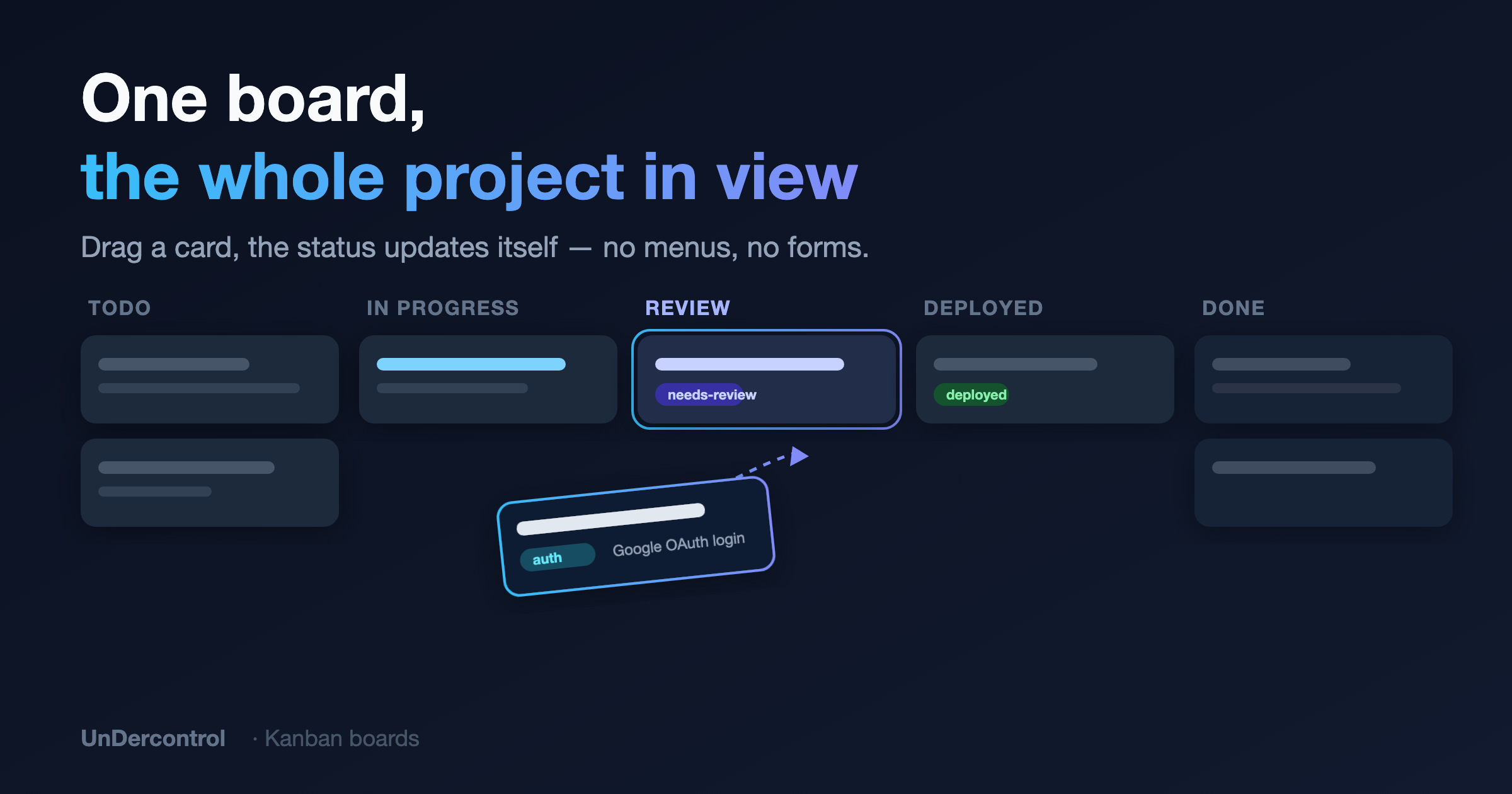
This is the part worth understanding before anything else. In UnderControl, a kanban board is a visual layer on top of your task system. When you drag a card from "Todo" to "In Progress," you are not just moving a card on a board — you are updating the task's status. That change shows up immediately in your task list, your CLI queries, everywhere. There is no synchronization problem because there is only one source of truth.

This means you can switch between kanban and list views freely without worrying about things getting out of sync.

Getting Started: The All Tasks Board

Every account comes with a built-in "All Tasks" board. Open it and you will see all your tasks organized across six columns: Todo, In Progress, Pending, Stale, Done, and Archived. This board cannot be deleted and it always appears first.

It is a good place to start. Drag a task from Todo to In Progress, and watch the status update instantly. That is the basic loop — visual placement drives task state, not the other way around.

Custom Boards with Query-Based Columns

Where things get interesting is when you create your own boards. Each column is defined by a filter condition — essentially a query that determines which tasks belong there. A "Blocked" column might filter for tasks tagged blocked. A "Due This Week" column could filter on due date. The column is not just a label; it is a live query.

When you configure column actions, moving a card becomes a trigger. Drag a task into the "Done" column and it gets marked done automatically. Move something into a "Needs Review" column and it can be tagged and assigned in one gesture. You define what dragging into a column means, and the board handles the bookkeeping.

This is genuinely useful for multi-step workflows. If your process is something like Draft -> Review -> Ready to Ship -> Done, you can model that exactly — with each column transition doing the right thing to the underlying task data.

Private and Shared Boards

Private boards are scoped to you. You can create as many as you need — one for a side project, one for your weekly planning, one for a home renovation. They all pull from your full task pool, filtered through whatever columns you configure.

Shared boards work differently. When you share a board with a group, the board only shows tasks that belong to that group. Everyone in the group can see the board and move cards around based on their permissions. It is a clean model: the board's scope is the group, and access is controlled through group membership.

This makes shared boards practical for small teams. A sprint board for a two- or three-person team, where everyone can see what is in progress and what is blocked, is easy to set up and does not require any additional tooling.

A Few Workflow Patterns Worth Trying

If you are not sure how to structure a board, here are a few approaches that work well:

A status-based board mirrors the default setup — Todo, In Progress, Done. Simple, low-overhead, good for solo work.

A time-based board uses columns like Backlog, This Week, Today, and Done. The filter conditions look at due dates or custom fields rather than status. Dragging a task into "Today" can update a priority field automatically.

A project board with shared access uses the group feature to scope tasks to a specific project. Columns map to your team's actual workflow stages, and everyone operates from the same board.

Everything Stays Connected

Because boards are built on top of the same task and tag system as the rest of UnderControl, they compose naturally with other features. Tags you use in task filters work as column conditions. Custom fields you create for a project can drive column membership and be updated by column actions. The board is not a separate module — it is the task system made visual.

If you want to see how this fits into the broader setup, the Kanban Boards documentation covers column configuration, automatic actions, and sharing in detail. And if you are not running UnderControl yet, the self-hosting guide will get you up and running in under an hour — your data stays on your infrastructure, always.

How UnderControl Handles Task Management: Views, Links, and the CLI

· 4 min read
Creator of UnderControl

Most task managers give you a list. Maybe a kanban board if you're lucky. UnderControl takes a different approach: your tasks are a data structure you can view, query, and manipulate from multiple angles — whether you're in the browser, the desktop app, or a terminal.

Here's a practical walkthrough of how the task system works.

Six Statuses That Actually Mean Something

Tasks in UnderControl move through six statuses: Todo, In Progress, Pending, Done, Stale, and Archived.

The distinction between Pending and Stale is one I find genuinely useful. Pending means you're deliberately waiting — on a reply, a dependency, a decision. Stale means the task just hasn't been touched in a while. That difference matters when you're doing a weekly review and trying to figure out what to act on versus what to clean up.

Pick the View That Matches Your Mental Model

Different work calls for different views. UnderControl gives you seven:

  • List — The default. Fast, filterable, keyboard-friendly.
  • Kanban — Drag cards between status columns. Good for sprint-style work.
  • Calendar — Tasks plotted by deadline. Useful before a busy week.
  • Tree — Hierarchical view of parent and child tasks. Great for projects with nested sub-tasks.
  • Graph — A node-link diagram of all your bidirectional task relationships. Looks cool, but also genuinely useful for spotting how things connect.
  • Mindmap — Freeform brainstorming layout.
  • Trash — Review and restore deleted tasks.

Switching between views doesn't change your data — it's the same tasks, just rendered differently. The Graph view in particular is worth trying if you use linked tasks heavily.

Bidirectional Linking

You can link any two tasks together, and the connection is bidirectional — follow it from either side. Over time, this turns your task list into something closer to a knowledge graph. The Graph view is where this becomes visible: nodes are tasks, edges are links, and you can see clusters form around related work.

Derived tasks (parent-child relationships) work differently. When you create a task from an existing one, the child inherits context from the parent and links back to it automatically. This is the right pattern for breaking down a large project into concrete steps.

Markdown Notes with Edit History

Every task has a notes section. Notes support full markdown — headers, code blocks, lists, links. More importantly, every note keeps a full edit history. If you wrote something, changed your mind, and want to go back, you can revert to any previous version.

I use notes for things like decision logs, blockers, and meeting summaries attached to a task. It keeps everything in one place instead of scattered across documents and chat threads.

Filtering and Queries

The quick filters cover the common cases: filter by status, tags, or deadline range (overdue, today, this week, and so on). For more specific needs, there's a structured query language:

status = 'pending' AND tag:work = 'true'

If you don't want to write the query yourself, the AI assistant accepts plain English — something like "show me overdue tasks tagged with client work" — and translates it into a filter.

File Attachments and Sharing

Attach any file to a task — images, PDFs, diagrams, exported reports. The attachments live on your server, under your control.

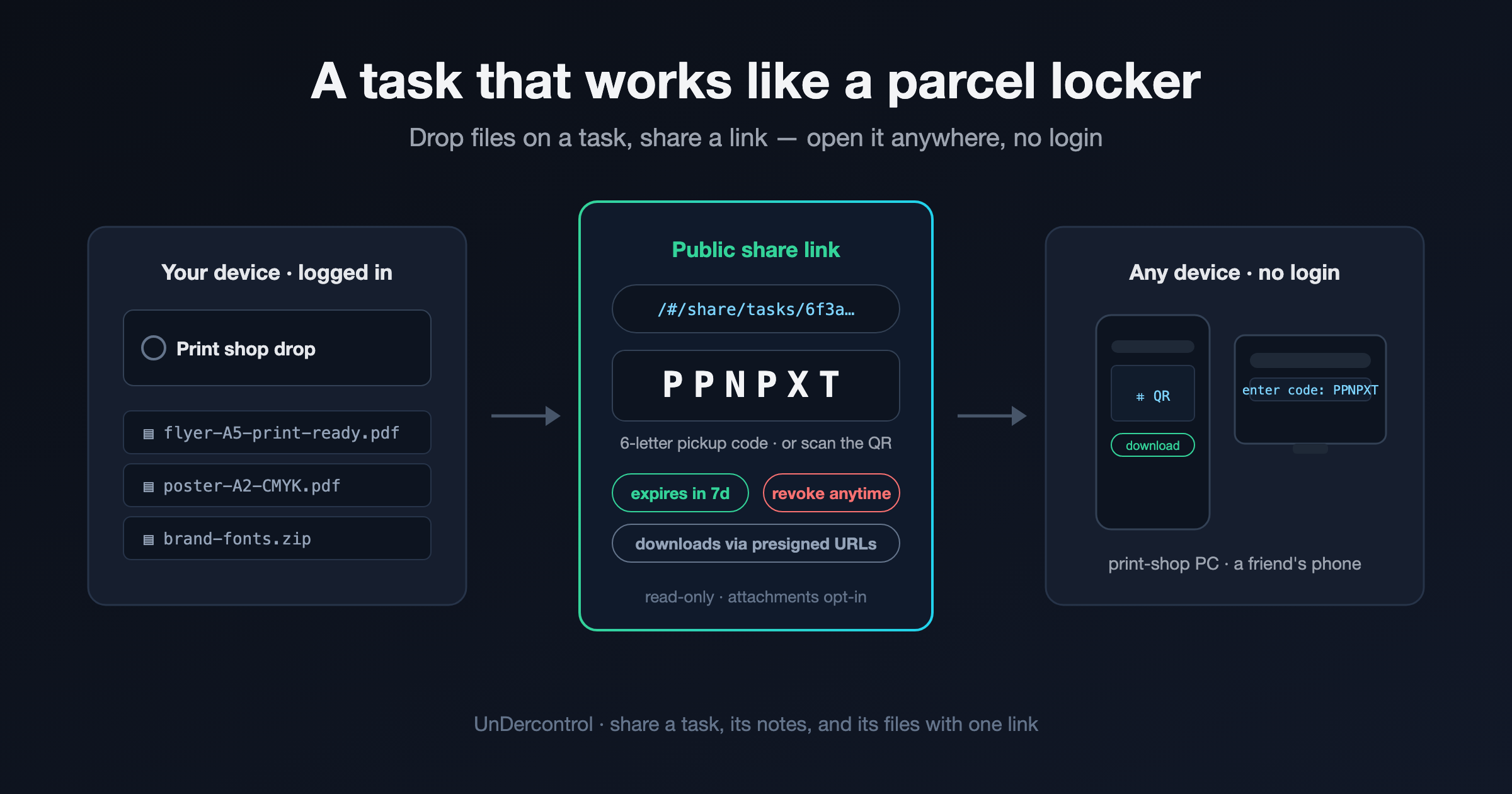
For sharing, you can generate a public link to a specific task with an optional expiration date. Or share with a group and set whether they get read or read-write access.

The CLI Is a First-Class Interface

If you work in a terminal, ud gives you the full task API from the command line:

ud task list
ud task create "Review Q2 metrics"
ud task done <id>
ud task query "status = 'todo' AND deadline < '2026-05-01'"
ud task apply -f task.md

The apply command is particularly useful — you can write a task in a markdown file and push it to UnderControl, which fits nicely into scripting and automation workflows. The CLI follows kubectl-style conventions, so if you spend time in Kubernetes or similar tools, the patterns feel familiar.

Recurring Tasks and Check-ins

For repeating work, recurring tasks generate new task instances on a schedule — daily standups, weekly reviews, monthly reports. You can use presets or write a custom CRON expression.

Check-ins are a lighter-weight alternative for habit tracking: each check-in increments a counter and records a timestamp, giving you a simple log of consistency without the overhead of a full task lifecycle.

Try It Yourself

All of this runs on your own infrastructure. No data leaves your server, no subscriptions, no vendor lock-in.

The full task management documentation is at undercontrol.dev/docs/tasks, and the self-hosting guide covers deployment with Docker or the prebuilt binaries. If you run into anything, the GitHub repo is the right place to file issues or ask questions.