Rich Markdown in Your Tasks — Code, Diagrams, and More
What Is a Task?
In UnDercontrol, a Task is the core unit of information. If you've used Jira, think of it as an Issue; if you've used Obsidian, think of it as a Note. A Task is essentially a piece of content bound to a status, with first-class attributes (title, tags, link relationships, etc.) and support for unlimited custom metadata fields (key-value pairs), so you can attach any information to it. Through the Notes mechanism, a Task can continuously evolve — recording progress, discussions, and decisions, accumulating into a complete knowledge context over time.
This post covers the rich-text capabilities shared across all text input surfaces in UnDercontrol. We say "tasks", but it's not just tasks — whether it's a task description, a note, an expense memo, or an account annotation, they all use the same Markdown editor. The code blocks, Mermaid diagrams, tables, and checklists you use in tasks work identically in notes and every other context.
WYSIWYG — A Markdown Editor Built on Tiptap 3
UnDercontrol's editor is built on Tiptap 3. You can write directly in Markdown syntax or use the visual toolbar — the editor renders in real time, what you write is what you see. No switching between "edit mode" and "preview mode" — the input is the final output.
The editor also supports switching to Source Mode to view and edit the raw Markdown directly — for users who prefer plain text editing or need precise format control, you can freely toggle between WYSIWYG and raw Markdown at any time.
Slash Commands — Format Without Leaving the Keyboard
Type / anywhere to open the command menu. Insert headings, code blocks, tables, Mermaid diagrams, checklists, and more — all without touching the mouse.
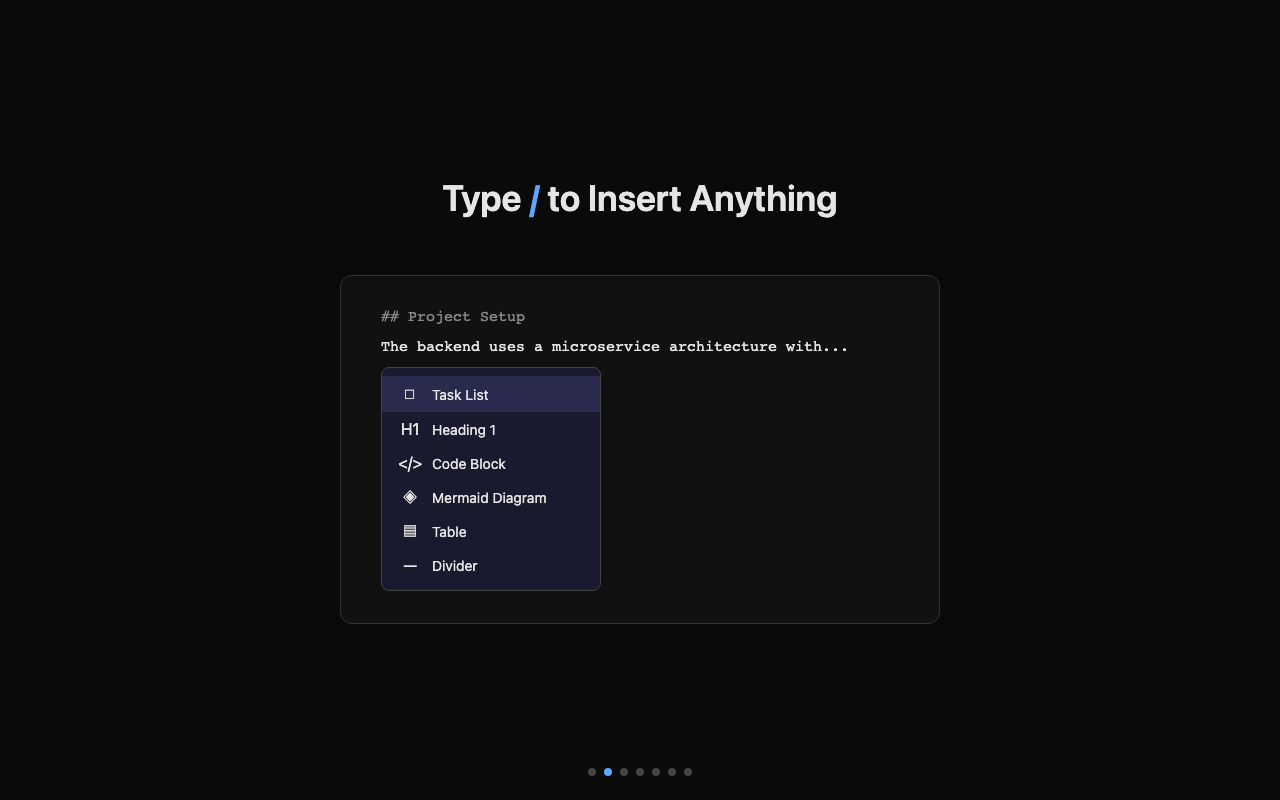
The slash menu supports:
- Headings (H1–H5) for document structure
- Task lists with interactive checkboxes
- Code blocks with language selection and syntax highlighting
- Mermaid diagrams for flowcharts, sequence diagrams, and more
- Tables with full cell editing
- Blockquotes, dividers, and images
Syntax-Highlighted Code Blocks
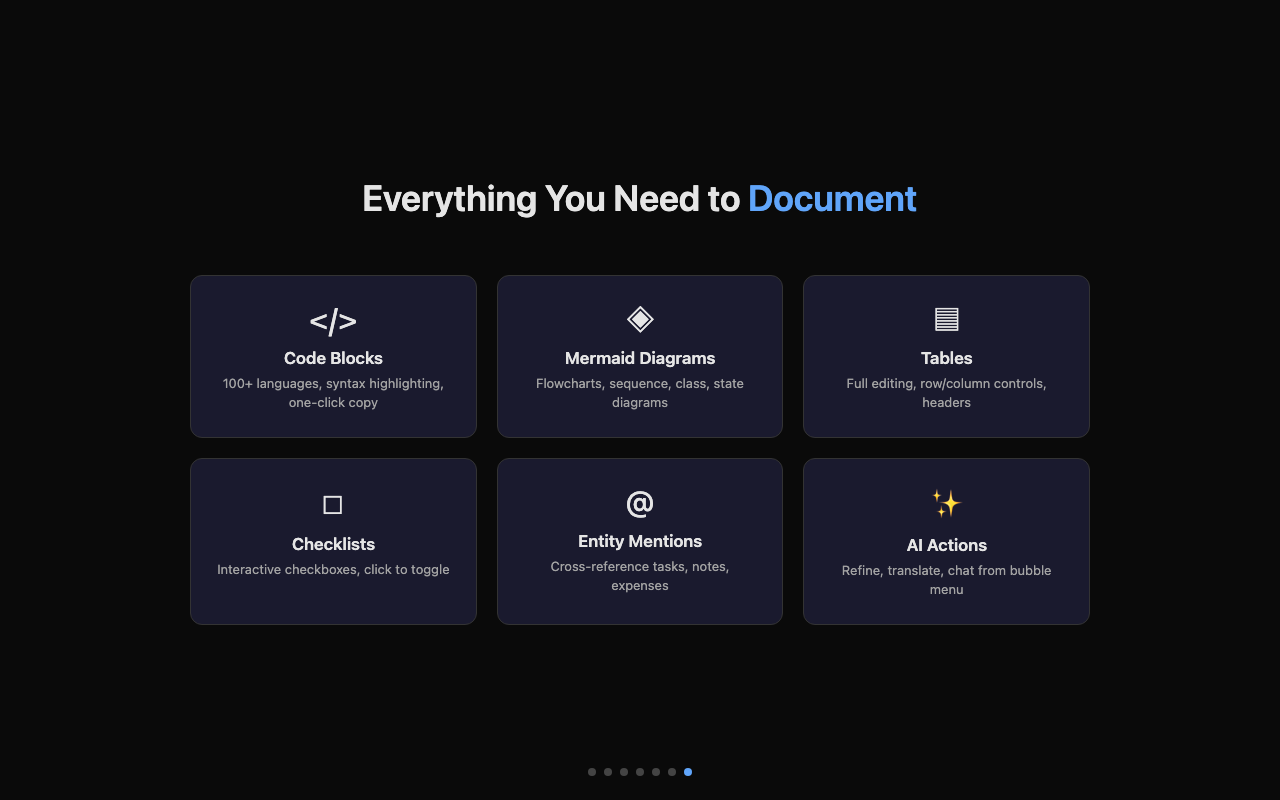
Paste code snippets directly into your tasks. The editor supports 100+ programming languages with proper syntax highlighting — from TypeScript and Go to SQL and YAML.
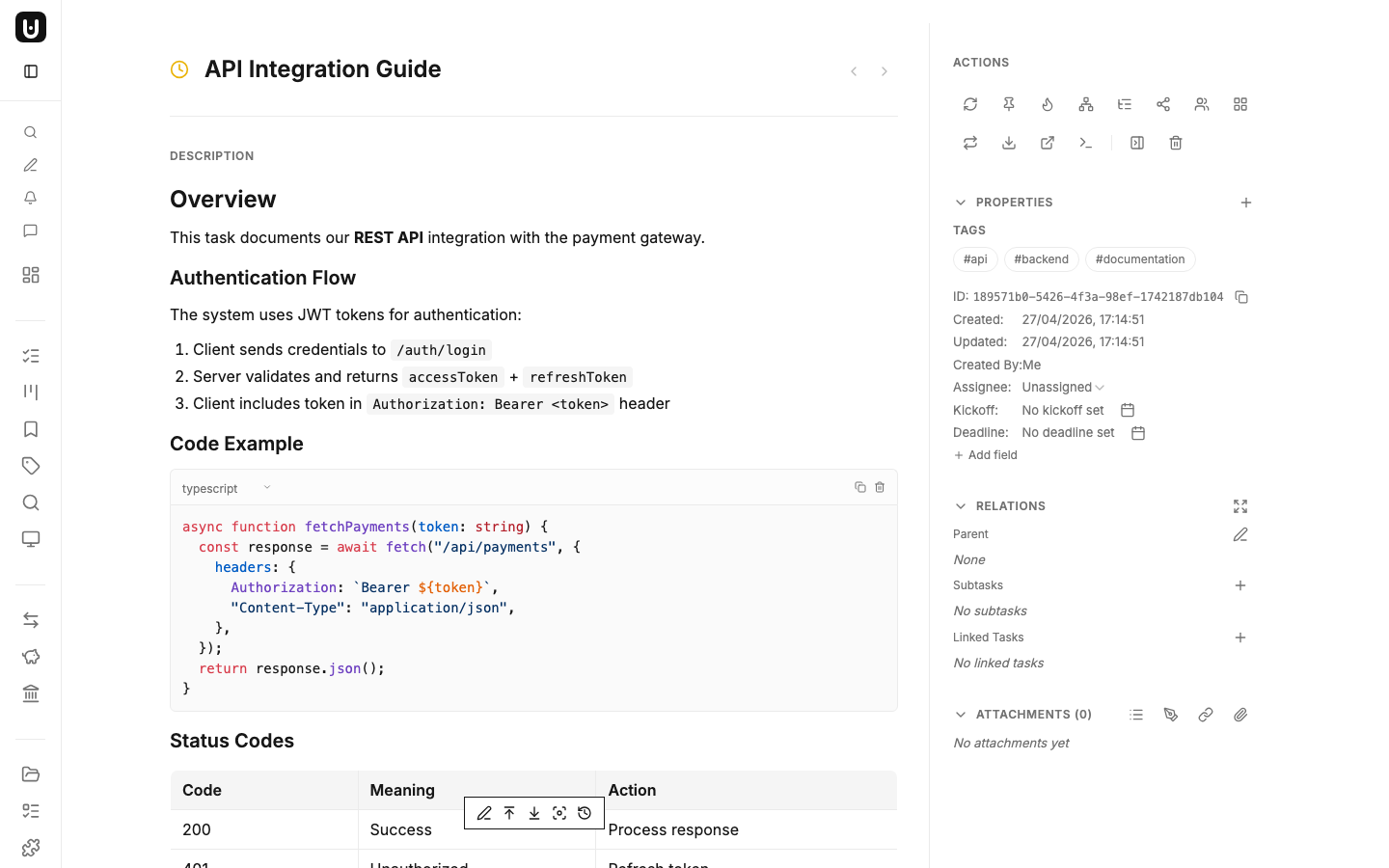
Code blocks include a language selector dropdown and a one-click copy button. Your code stays readable and properly formatted, whether you're documenting an API endpoint or saving a useful shell command.
Mermaid Diagrams — Visualize Architecture Inline
One of the most powerful features: embed Mermaid diagrams directly in your task descriptions. Insert a Mermaid block via the slash menu, write your diagram syntax, and it renders live.
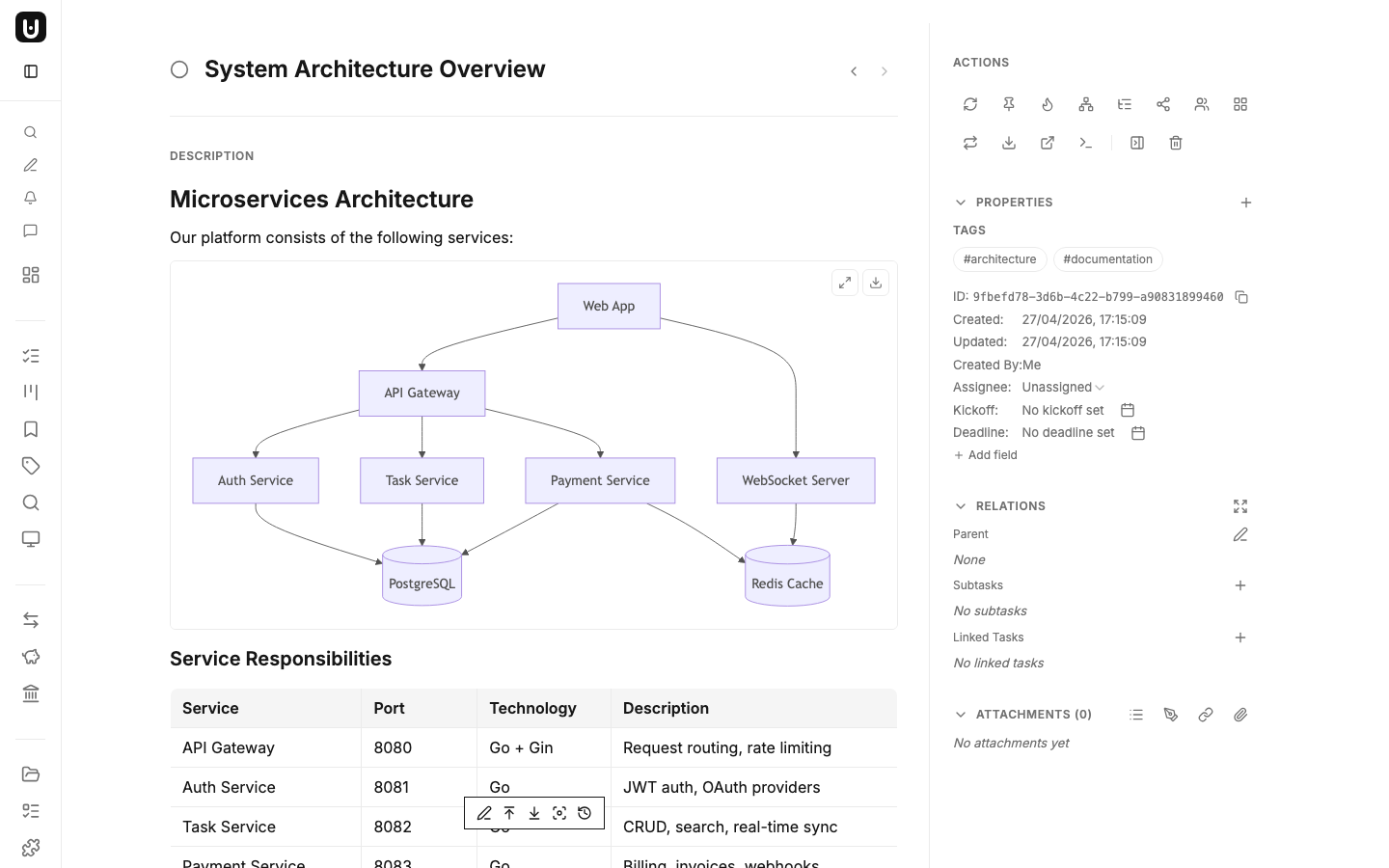
Supported diagram types include:
- Flowcharts — system architecture, decision trees
- Sequence diagrams — API flows, authentication handshakes
- Class diagrams — data models, entity relationships
- State diagrams — workflow states, lifecycle tracking
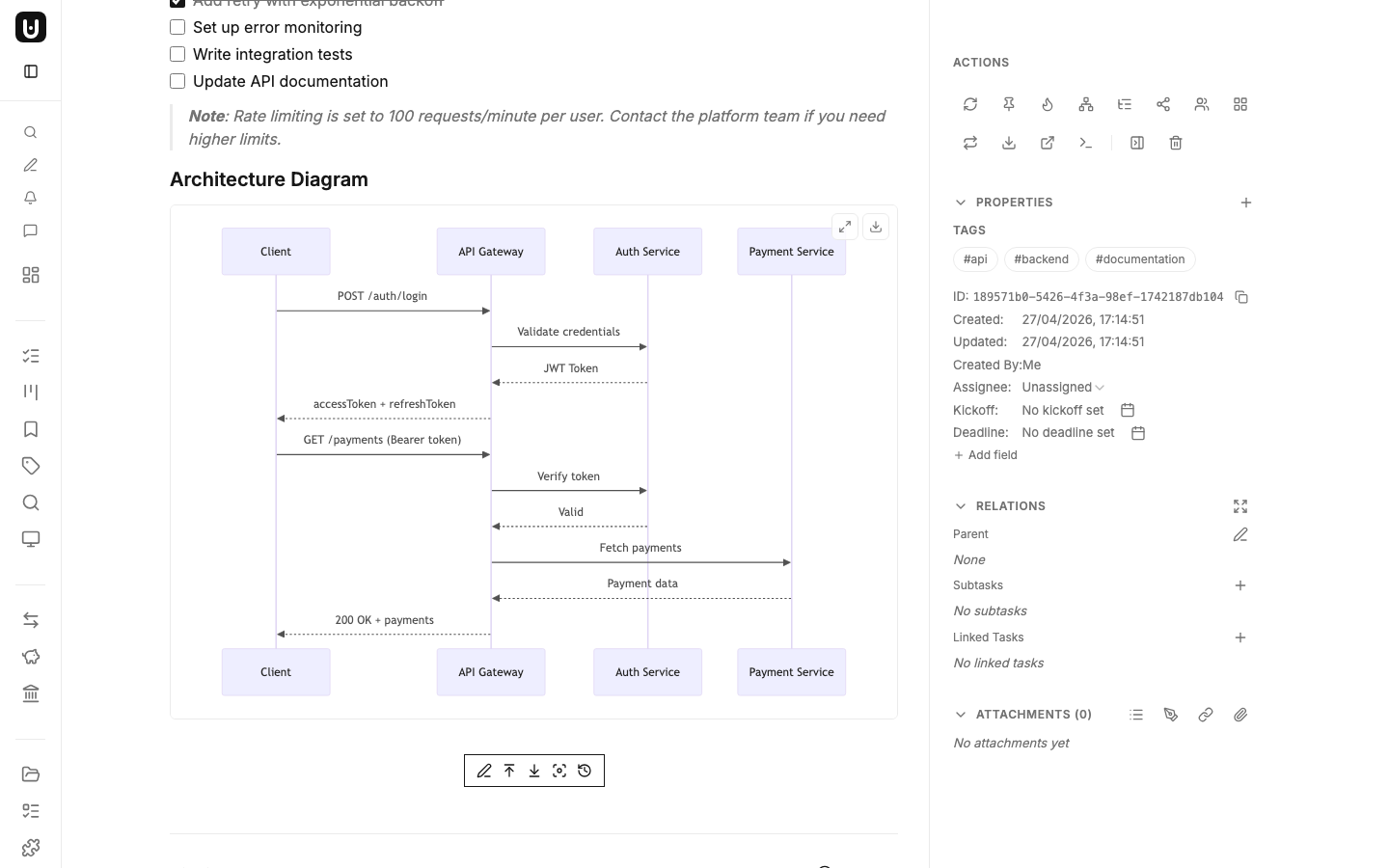
The diagram viewer supports fullscreen preview, SVG download, and automatic dark/light theme switching.
Tables for Structured Data
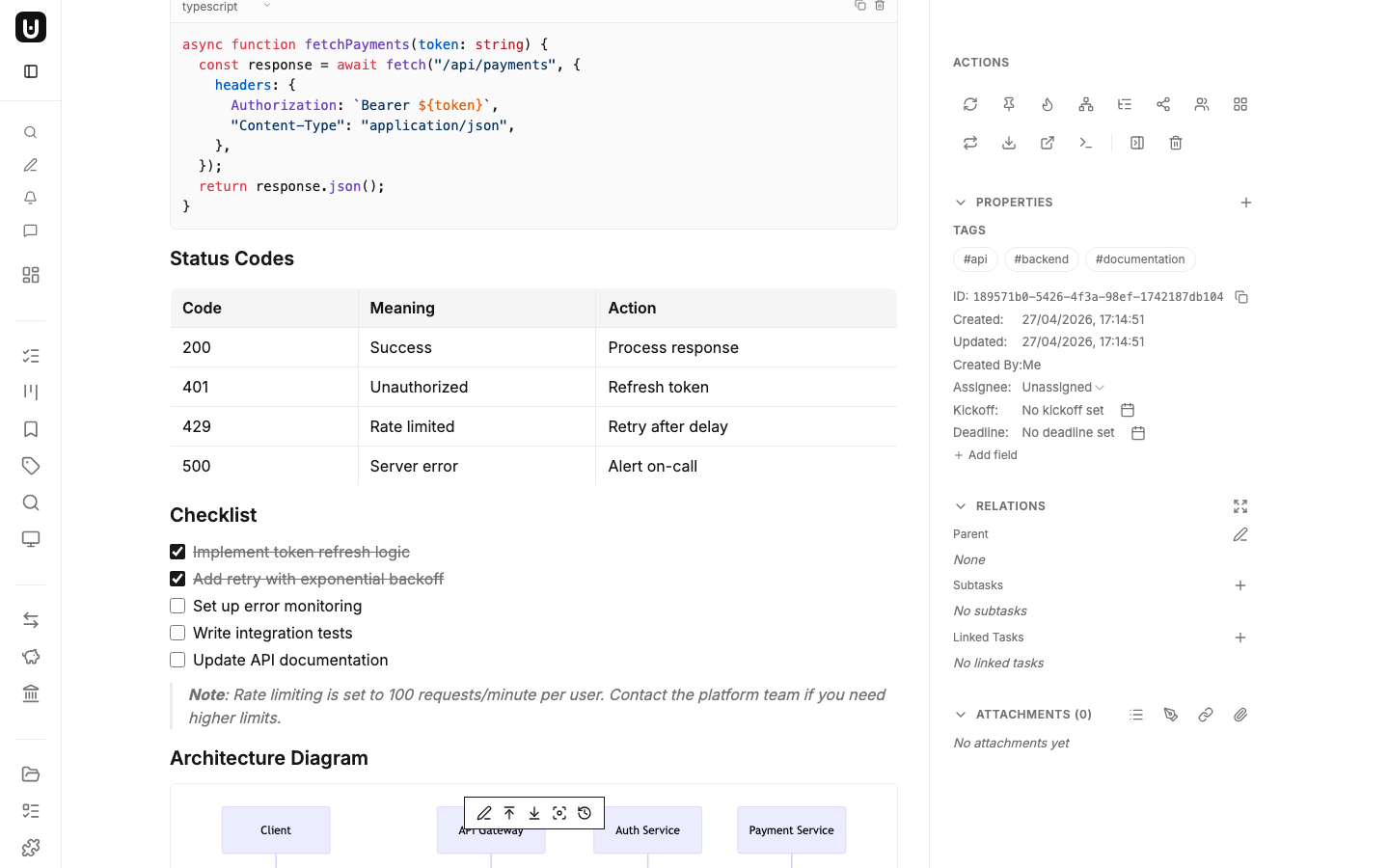
Need to document status codes, compare metrics, or track a feature matrix? Insert a table and edit cells directly. Add or remove rows and columns, toggle header rows, and merge cells — all from a context menu.
Checklists That Actually Work
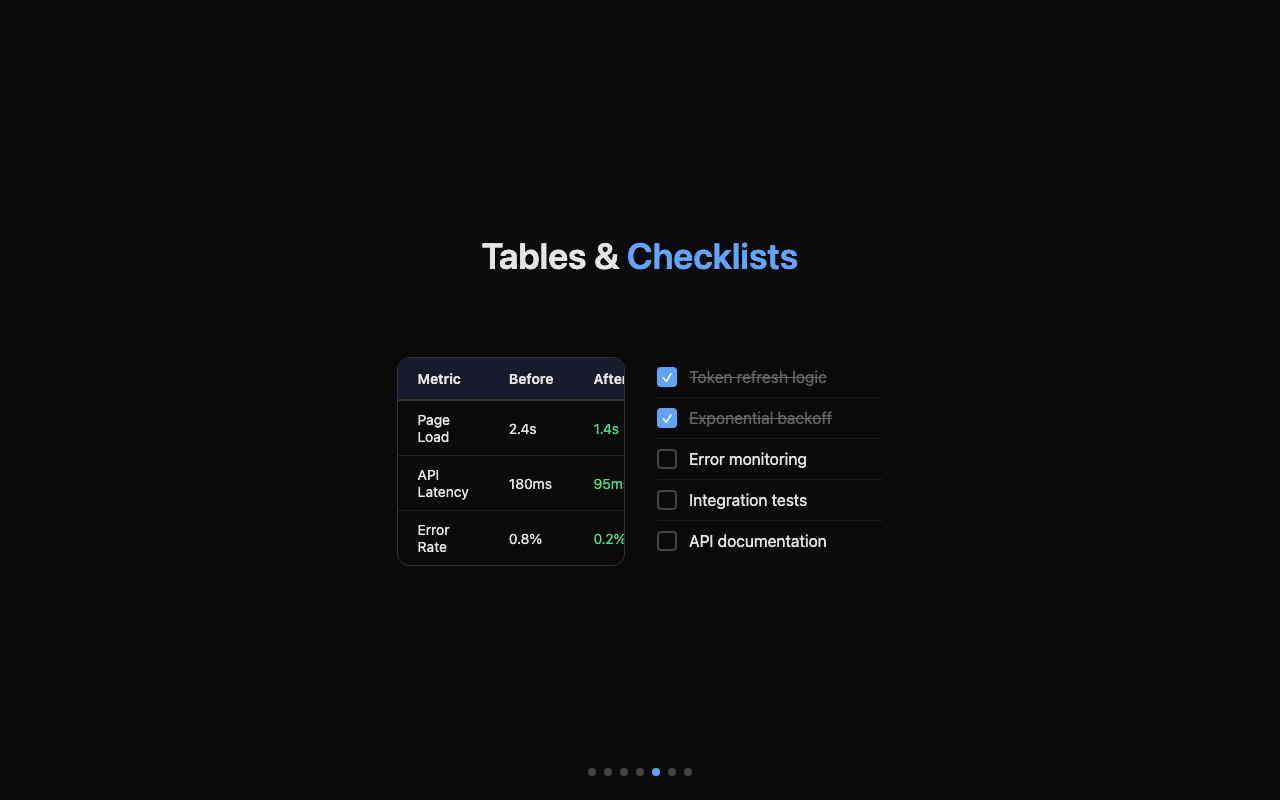
Task lists render as interactive checkboxes. Check items off directly in the rendered view — no need to switch to edit mode. Great for tracking sub-steps, acceptance criteria, or deployment checklists.
Images & Attachments — No More Obsidian-Style Resource Management Headaches
If you've managed notes with images in Obsidian, you've probably experienced the pain: images scattered across local folders, paths break when you move things, attachments disappear on another device, multi-device sync creates endless conflicts. The root cause — Obsidian delegates resource management to the filesystem, and filesystems are inherently bad at cross-device sync.
UnDercontrol solves this at the foundation. All images and attachments are managed through the resource:// protocol — upload once, stored in the database, no dependency on local paths. Whether you view content on the web, desktop, or via a shared link, images are always available — because resources follow the database, not the filesystem.
UnDercontrol also provides bidirectional local folder sync, keeping files in a local directory synchronized with the server resource library. We'll cover this feature in detail in a future post.
Image Size Control
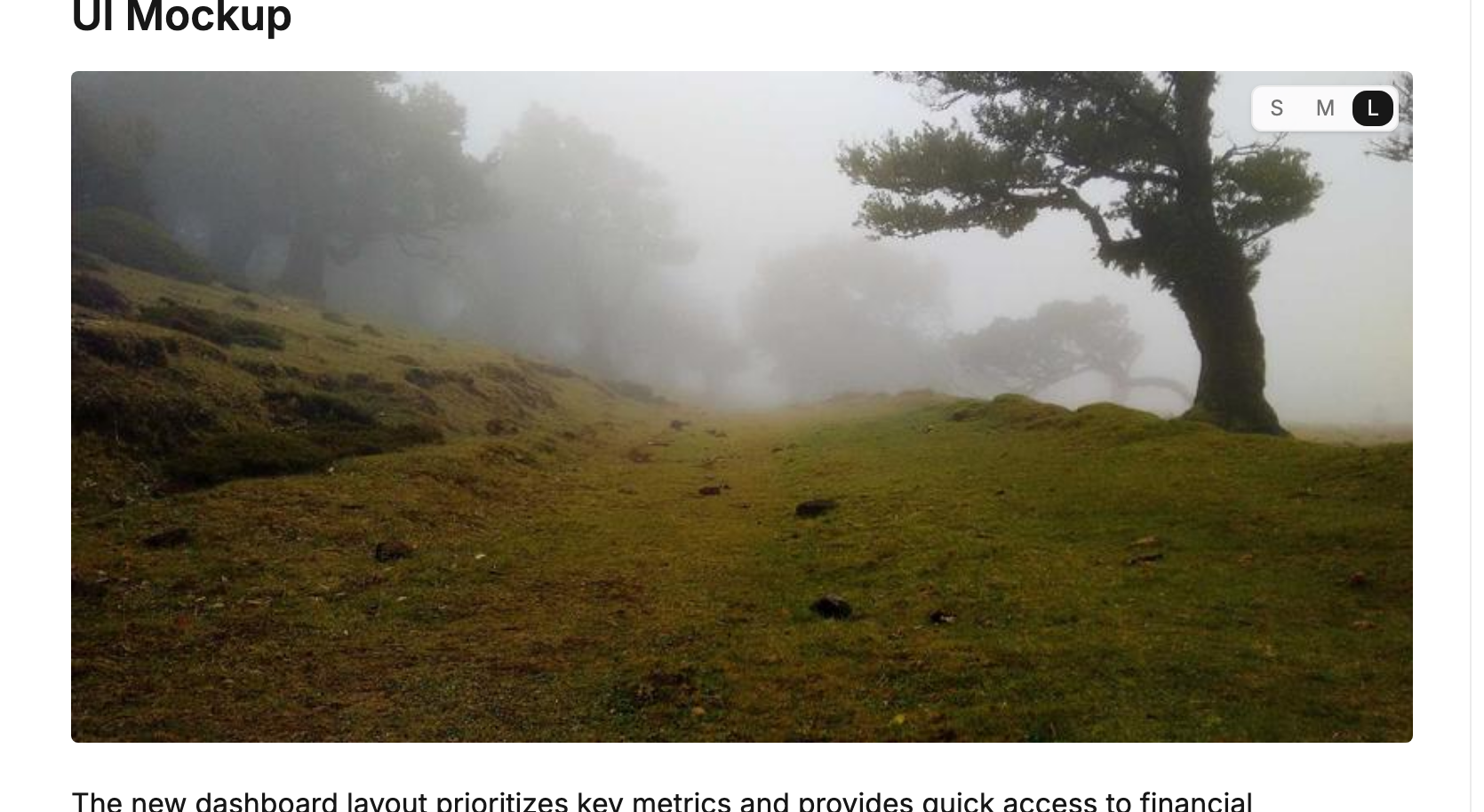
Inserted images support three size presets — hover in edit mode to switch:
- Small (25%) — thumbnail, suitable for inline display
- Medium (50%) — moderate size
- Large (100%) — full width
Size information is stored in Obsidian-compatible format (). Click any image for fullscreen preview.
Draw.io Diagrams — Built-in Visual Drawing
UnDercontrol includes a built-in Draw.io editor, supporting .drawio and .drawio.png formats. Upload or create a Draw.io file, then edit it directly in the app — no desktop software needed. Saved as PNG with embedded XML source data, so it renders as a preview and can be re-edited at any time.
Thanks to the resource:// protocol, Draw.io diagrams are managed as unified resources — no local path dependencies or sync issues.
AI-Powered Text Actions
Select any text to reveal the bubble menu. Beyond standard formatting (bold, italic, strikethrough), you get AI-powered actions:
- Refine — rewrite selected text for clarity
- Translate — translate to another language instantly
- Chat — ask questions about the selected content
Entity Links — Connect Tasks Like a Wiki
Link to other tasks, notes, expenses, budgets, and accounts directly in your descriptions using custom protocols like task://, note://, and more. The links render as clickable references — click to jump straight to the referenced entity.
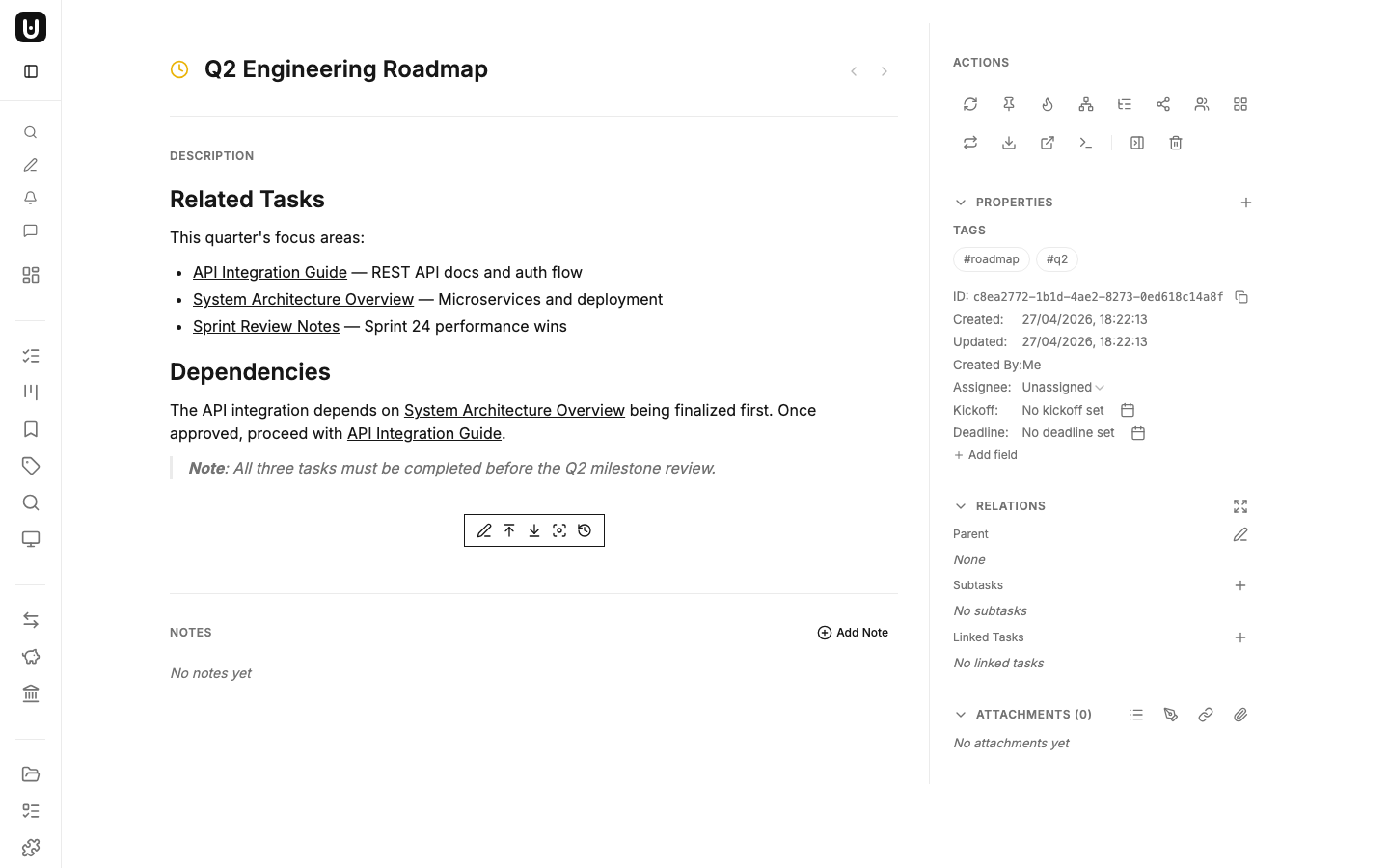
Switch to source mode to see the raw markdown — each link uses a custom protocol like [API Integration Guide](task://189571b0-...):
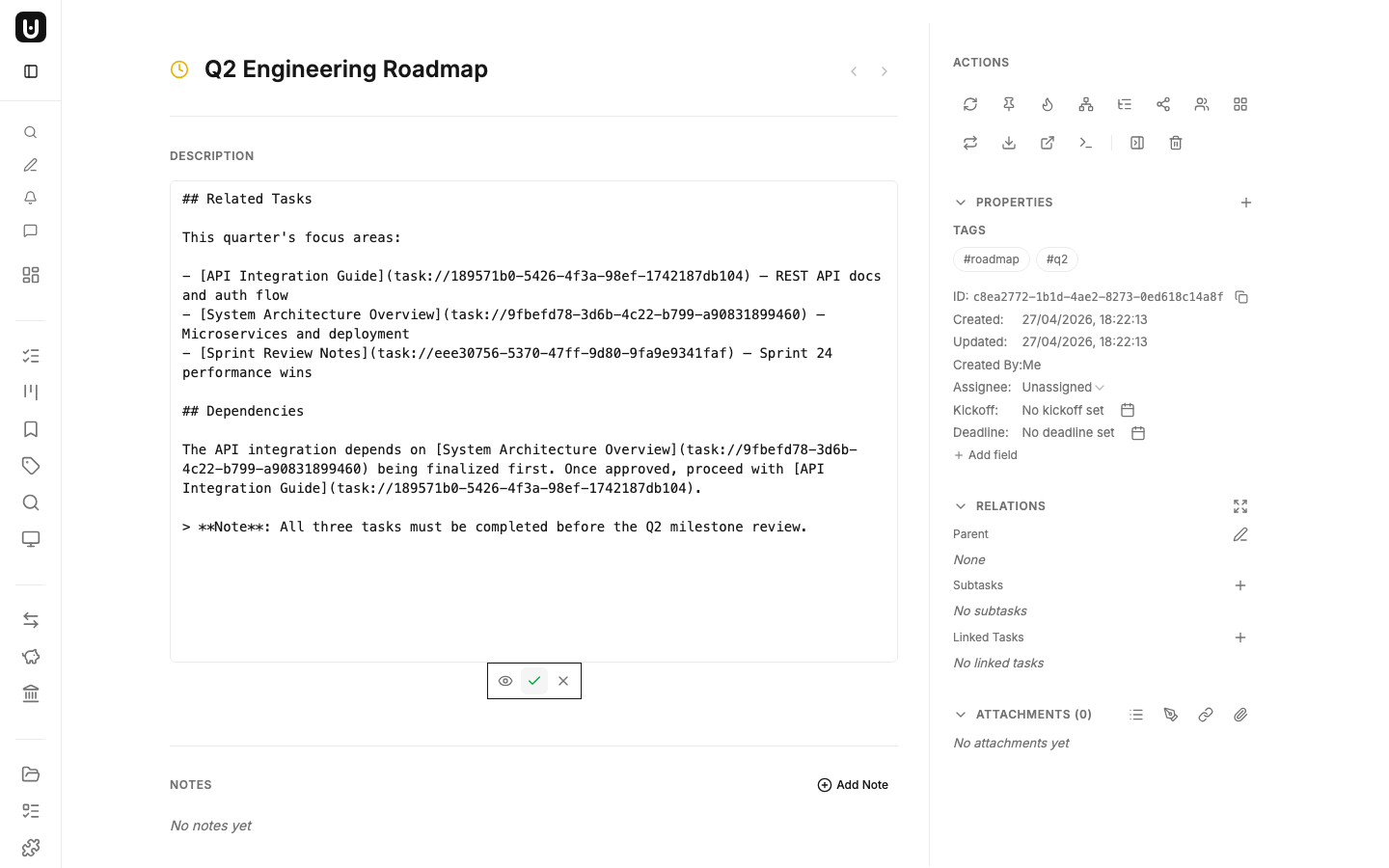
This turns your task descriptions into a connected wiki, where context flows naturally between related items.
CLI + AI Agent — Let AI Write Your Content
Because Markdown is plain text, it's a natural fit for AI agent collaboration. Through the ud CLI, you can let Claude Code, Codex, OpenCode, or any terminal-based AI tool read, write, and update task content directly:
- Summarize — have AI read a set of tasks and generate a weekly report or sprint review
- Refine & restructure — turn scattered notes into structured documentation
- Classify & tag — automatically add tags and categories based on content
- Batch create — generate multiple tasks from meeting notes or requirement docs
Content pipes directly in:
cat <<'EOF' | ud apply -f -
---
title: API Integration Guide
status: in-progress
tags: [api, backend]
---
## Authentication Flow

1. Client sends credentials to `/auth/login`
2. Server returns JWT token
3. Include in `Authorization: Bearer <token>` header
EOF
AI-generated Markdown renders identically to hand-written Markdown across web, desktop, and shared views. Your content stays portable and version-controllable.
Markdown support in UnDercontrol means your tasks can be as detailed and technical as they need to be — without leaving the tool where the work gets tracked. Code blocks, diagrams, tables, and checklists all live alongside your task status, deadlines, and collaboration context.
Try it out — create a task and type / to see what's possible.