Share a Task Without Sharing Your Password
You're at a coffee shop. Someone asks about that project plan you've been working on. You could pull up your account, log in, and hand them your laptop — but you'd rather not.
UnDercontrol's task sharing solves this exact problem. Generate a public link, hand over a short access code, and anyone can view that specific task — your description, notes, attachments, the whole thing — without needing an account or touching your credentials.
How It Works
From any task detail page, click the share icon to open the share dialog. You get two things:
- A direct link — a full URL that opens the task in a clean, read-only view
- An access code — a short alphanumeric code (like
QJVOFL) that someone can type into the share code page
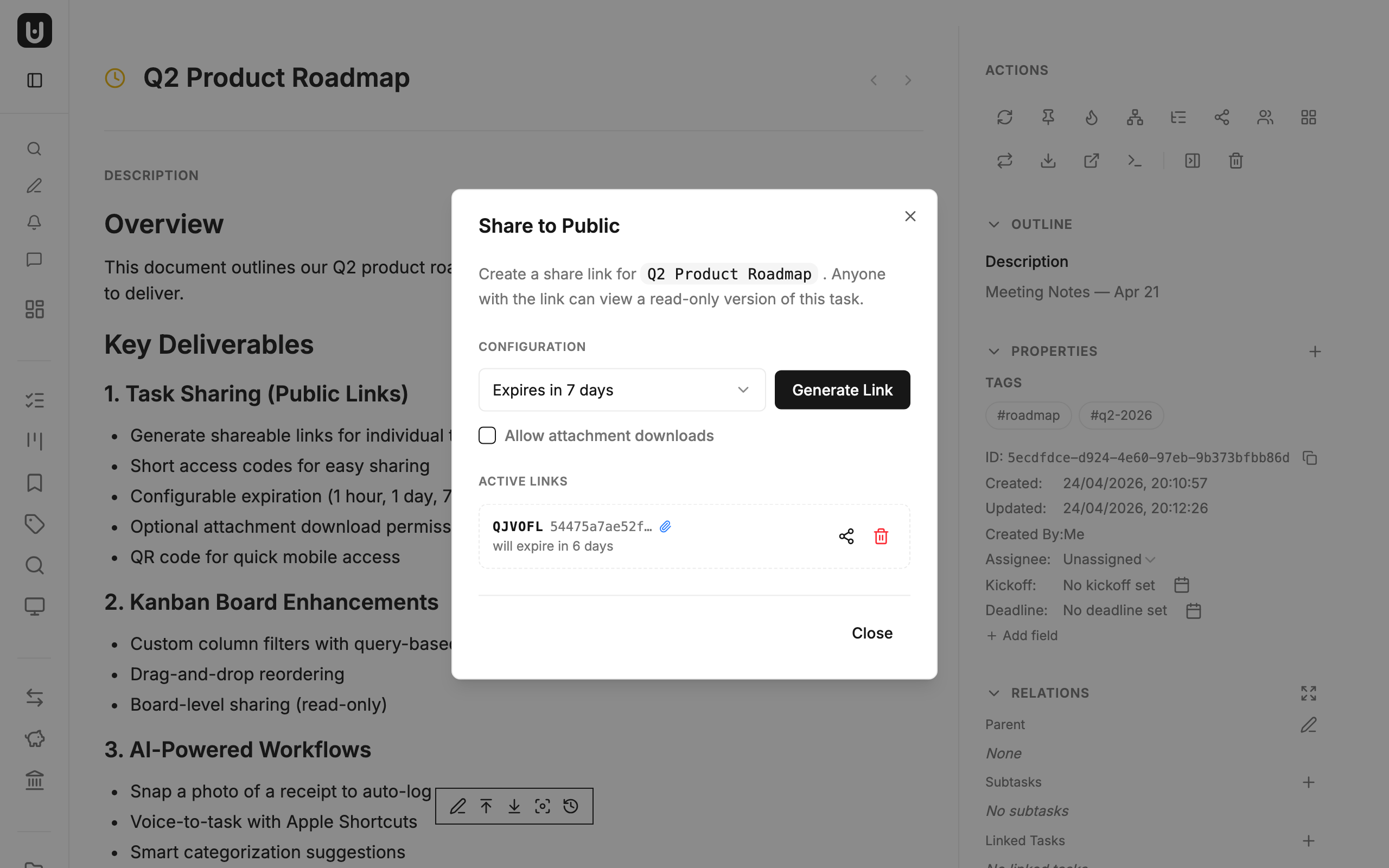
The access code is designed for situations where you can't easily send a link — like telling someone over the phone, writing it on a whiteboard, or dropping it in a chat where long URLs get mangled.
Control What Gets Shared
Not every task should be shared the same way. The share dialog gives you two controls:
Expiration: Choose how long the link stays active. Options range from 1 hour (for quick look-overs) to 7 days (for ongoing collaboration) to never (for permanent reference links).
Attachment access: By default, attachments are listed but not downloadable. Toggle "Allow attachments" if you want viewers to download files attached to the task.
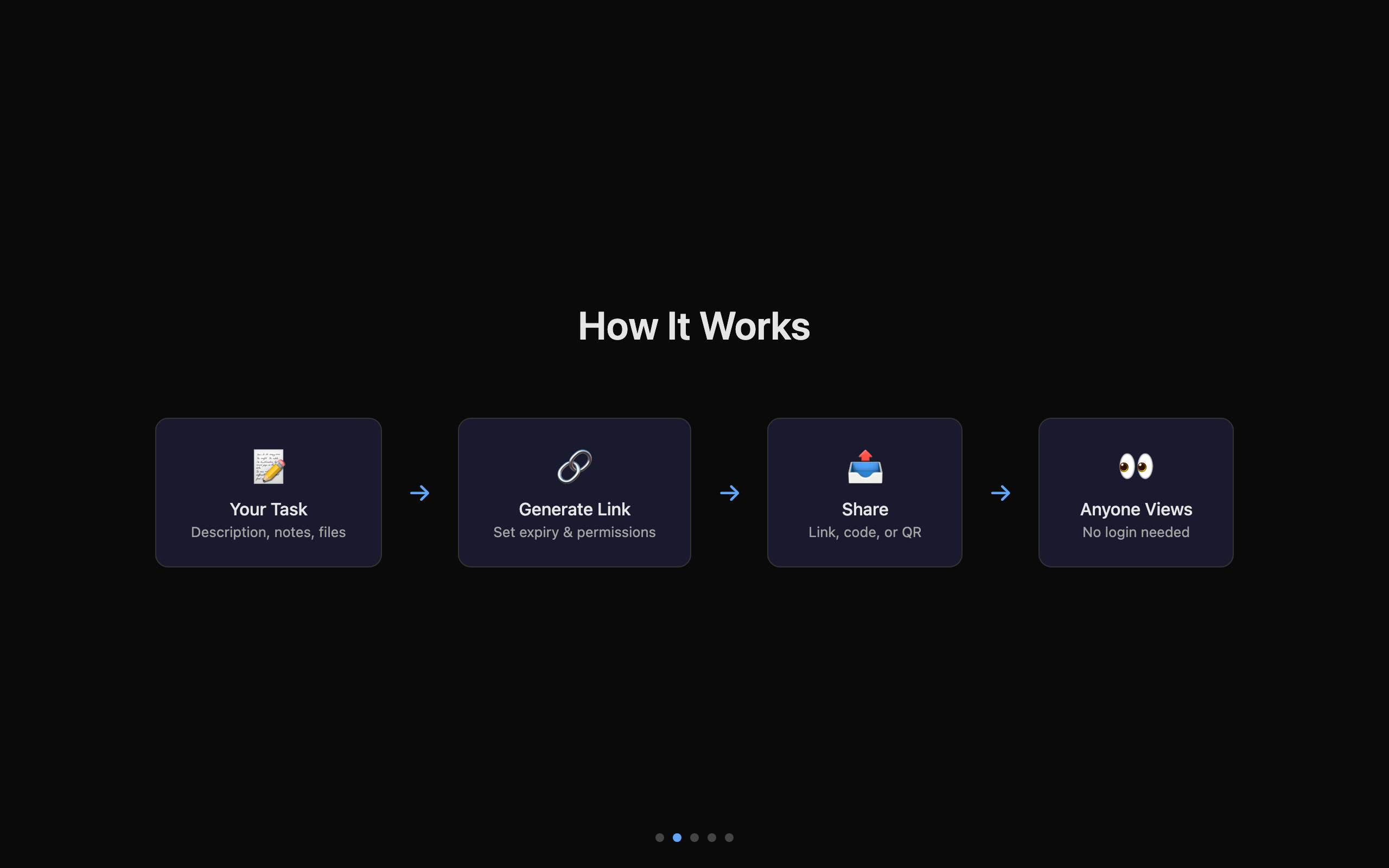
You can create multiple share links for the same task with different settings — maybe a 1-hour link for a quick review and a 7-day link for a collaborator.
The Viewer Experience
When someone opens a shared link, they see a clean, focused view of the task:
- Title and status with the familiar status icon
- Tags for context
- Full markdown description rendered with all formatting, tables, and images
- Notes sorted by most recent, also fully rendered
- Attachments (downloadable if the link allows it)
- Linked items shown as references
- QR code in the corner for easy re-sharing on mobile
- Expiration countdown so viewers know how long the link is valid
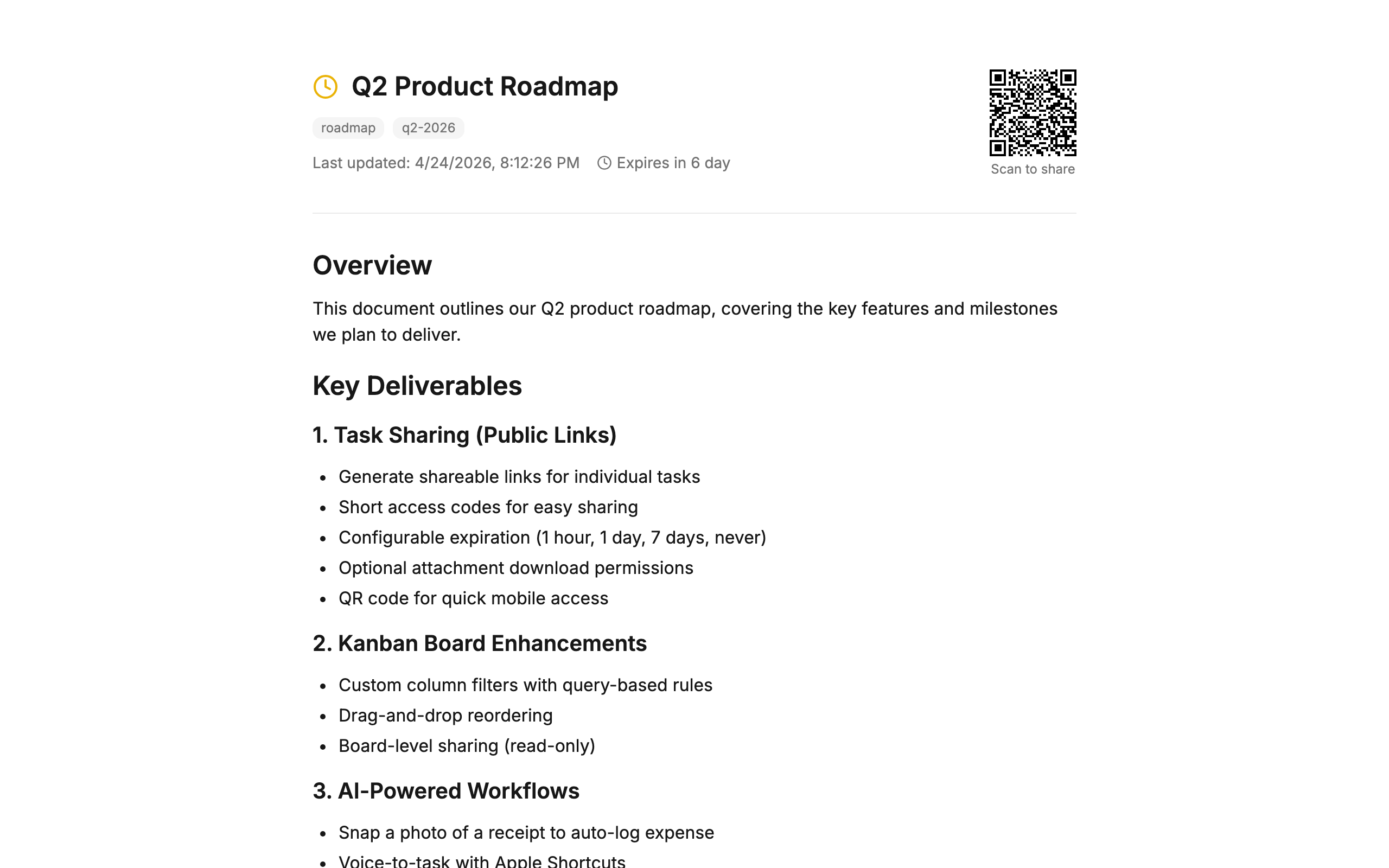
The page is self-contained. No navigation chrome, no login prompts, no app shell. Just the content.
Access Codes — The Analog Bridge
The access code feature deserves its own mention. Navigate to the share page (/share), type in the code, and you're redirected to the shared task.
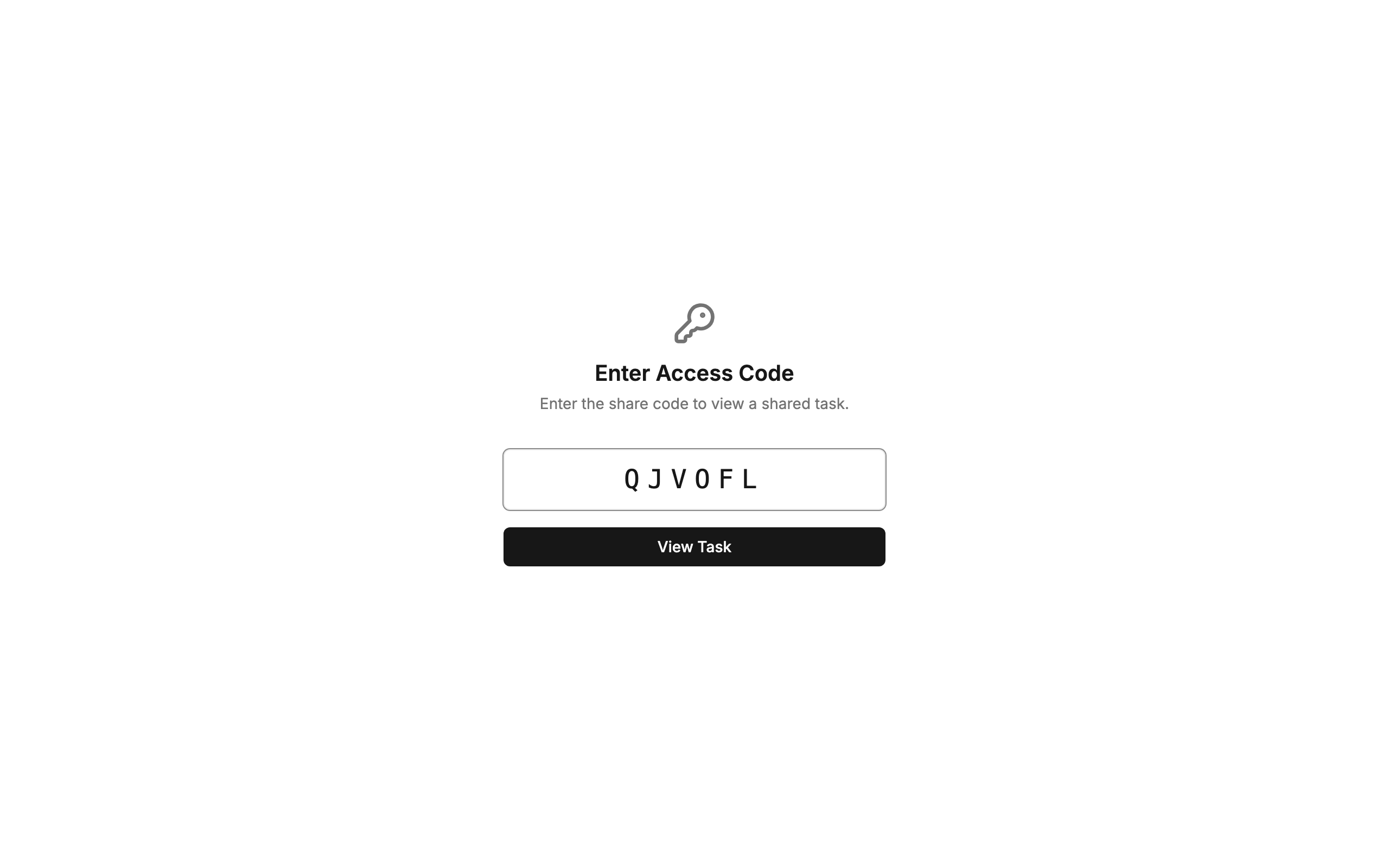
This is particularly useful for:
- Presentations: Put the code on a slide, let the audience look up the reference material
- Phone calls: "Check out task code QJVOFL" is easier than reading a 60-character URL
- Physical spaces: Write the code on a sticky note or whiteboard
Managing Share Links
Back in the share dialog, you can see all active links for a task. Each entry shows:
- The access code and a truncated token
- Whether attachments are enabled (paperclip icon)
- When it expires (relative time)
Revoke any link instantly with the delete button. The shared view will immediately show an error for anyone who tries to access it.
Under the Hood
Sharing is token-based. Each share link gets a unique token that maps to the task. The public endpoint (/share/todolist/:token) requires no authentication — it's a true public route. Resources embedded in the markdown description (images, diagrams) are resolved through the share token too, so inline images render correctly without exposing your storage credentials.
The access code is a separate entity that maps to the token, providing an additional access path without compromising security. Codes are uppercase alphanumeric for readability.
When to Use This
A few scenarios where task sharing shines:
- Cross-team handoffs: Share a requirements doc with someone outside your organization
- Client updates: Send a project status task to a client without giving them app access
- Meeting prep: Share an agenda task before a meeting via access code
- Knowledge sharing: Create a permanent link to a reference document or runbook
- Quick reviews: Generate a 1-hour link for a quick peer review
The key insight is that not every piece of information needs to live behind a login wall. Sometimes you just need to show someone a thing, quickly, without friction.
Task sharing is available now in UnDercontrol. Open any task, click share, and try it out.