Kanban Board Filters: 4 Levels from Broad Scope to Laser Focus
When you have dozens or hundreds of tasks, the kanban board needs to be more than a flat dump of everything. UnDercontrol's kanban boards use a layered filtering system that narrows your view step by step — from the broadest scope down to a real-time search. Understanding these four levels will change how you organize your work.
The Four Levels
Here is the mental model: each filter level narrows what the previous level passed through. Think of it as a pipeline.
Level 1: Board Scope (private vs shared) → Level 2: Scope Tags (board-level tag filter) → Level 3: Column Query (per-column conditions) → Level 4: Ephemeral Filter (search, tags, assignees in the toolbar)
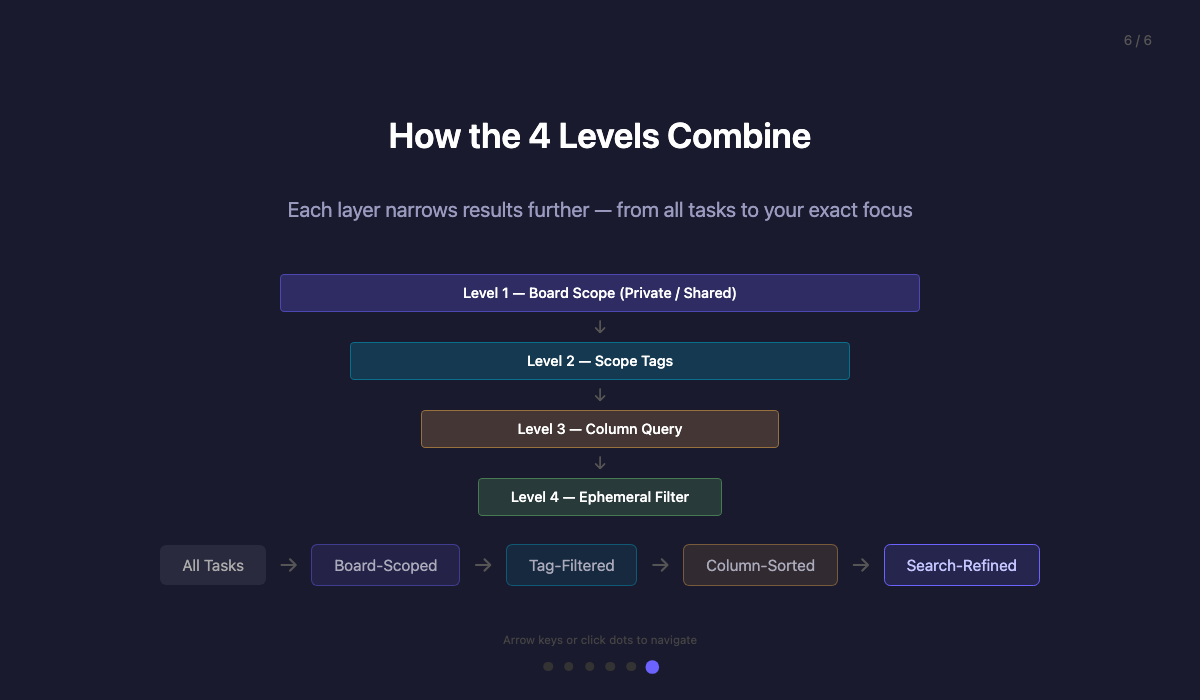
Let us walk through each one.
Level 1: Board Scope — Who Sees What
This is the implicit layer. When you create a board, you choose between private and shared.
- Private boards show all tasks you have access to — your own tasks plus tasks others have shared with you. This means tasks from multiple people can appear together on one board, giving you a single place to see everything relevant to you. Only you can see this board and its arrangement.
- Shared boards are tied to a group. The board only shows tasks that belong to that group, and everyone in the group can see and interact with it based on their permissions.
You do not configure this as a "filter" — it is baked into the board's identity. But it is the first gate that determines which tasks are even candidates for display.
The private board model is particularly useful when several people share tasks with you individually. Instead of jumping between different sources, you see all of them in one kanban view — your own work alongside tasks shared by teammates, collaborators, or managers.
Level 2: Scope Tags — Narrowing the Board's Focus
This is where things get powerful. Each board can have scope tags (also called default tags) — a set of tags that act as a persistent filter for the entire board.
When you set scope tags on a board:
- Only tasks with ALL specified tags appear on the board
- New tasks created on the board automatically get these tags, so they match the filter from the start
For example, a "Sprint 1" board with scope tag sprint-1 will only show tasks that have the sprint-1 tag. Your "All Tasks" view might show 40+ tasks across all sprints, but the Sprint 1 board shows only the 8 that matter right now.
This is configured in Settings → Edit Board Details → Scope Tags.

The key insight: scope tags create a named, persistent view over your task pool. You can have a "Frontend" board (scope tag: frontend), a "Sprint 2" board (scope tag: sprint-2), and they all draw from the same tasks. Change a task's tags and it automatically appears or disappears from the relevant boards.
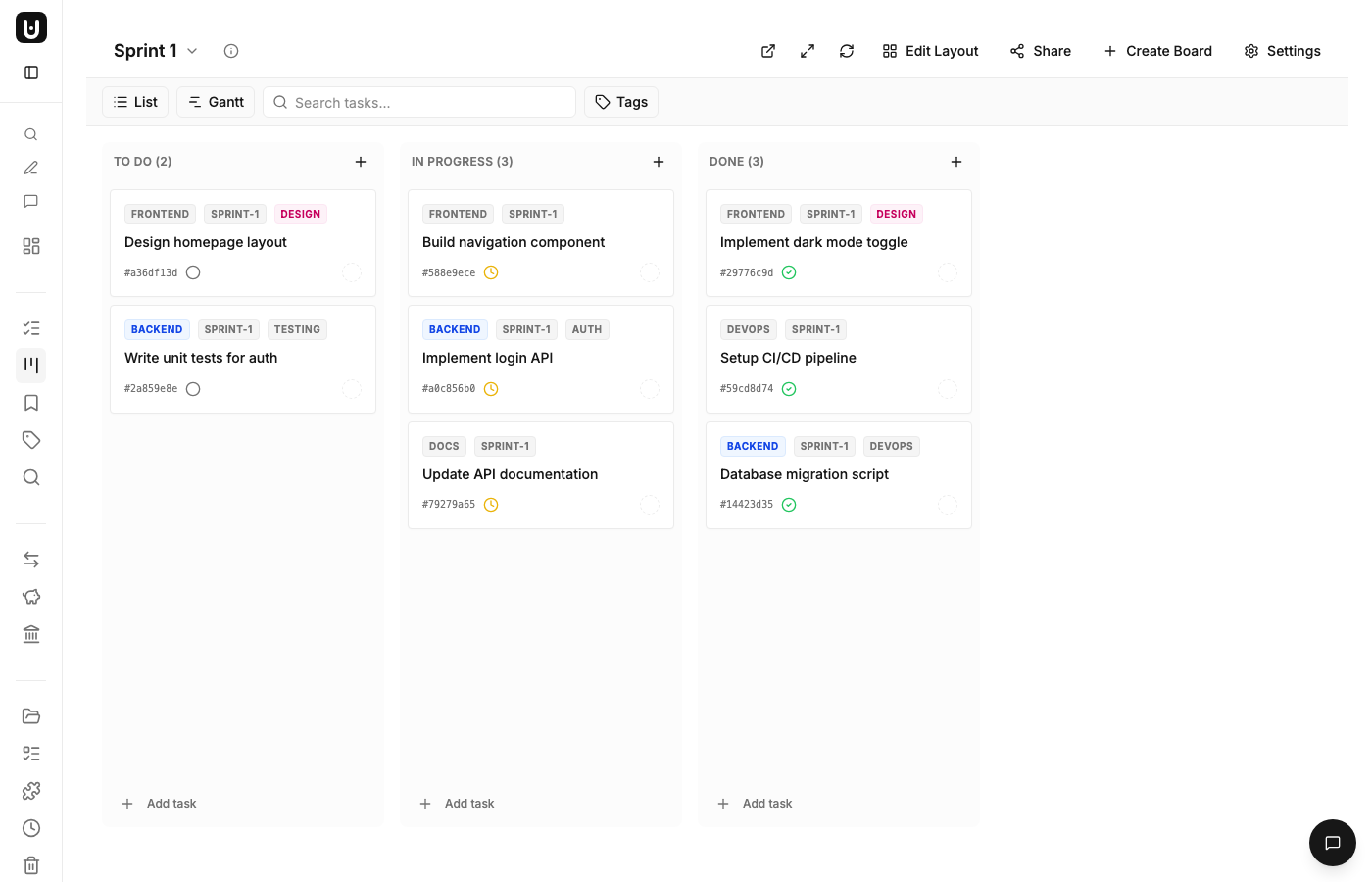
Level 3: Column Query — Sorting Tasks into Lanes
Within each board, every column has its own match condition — a query that determines which tasks land in that column.
The most common pattern is filtering by status:
- To Do column:
Status = 'todo' - In Progress column:
Status = 'in-progress' - Done column:
Status = 'done'
But columns can use any field and operator. You could create a column for tags CONTAINS 'urgent', or cf.priority >= '3', or combine multiple conditions with AND/OR logic.
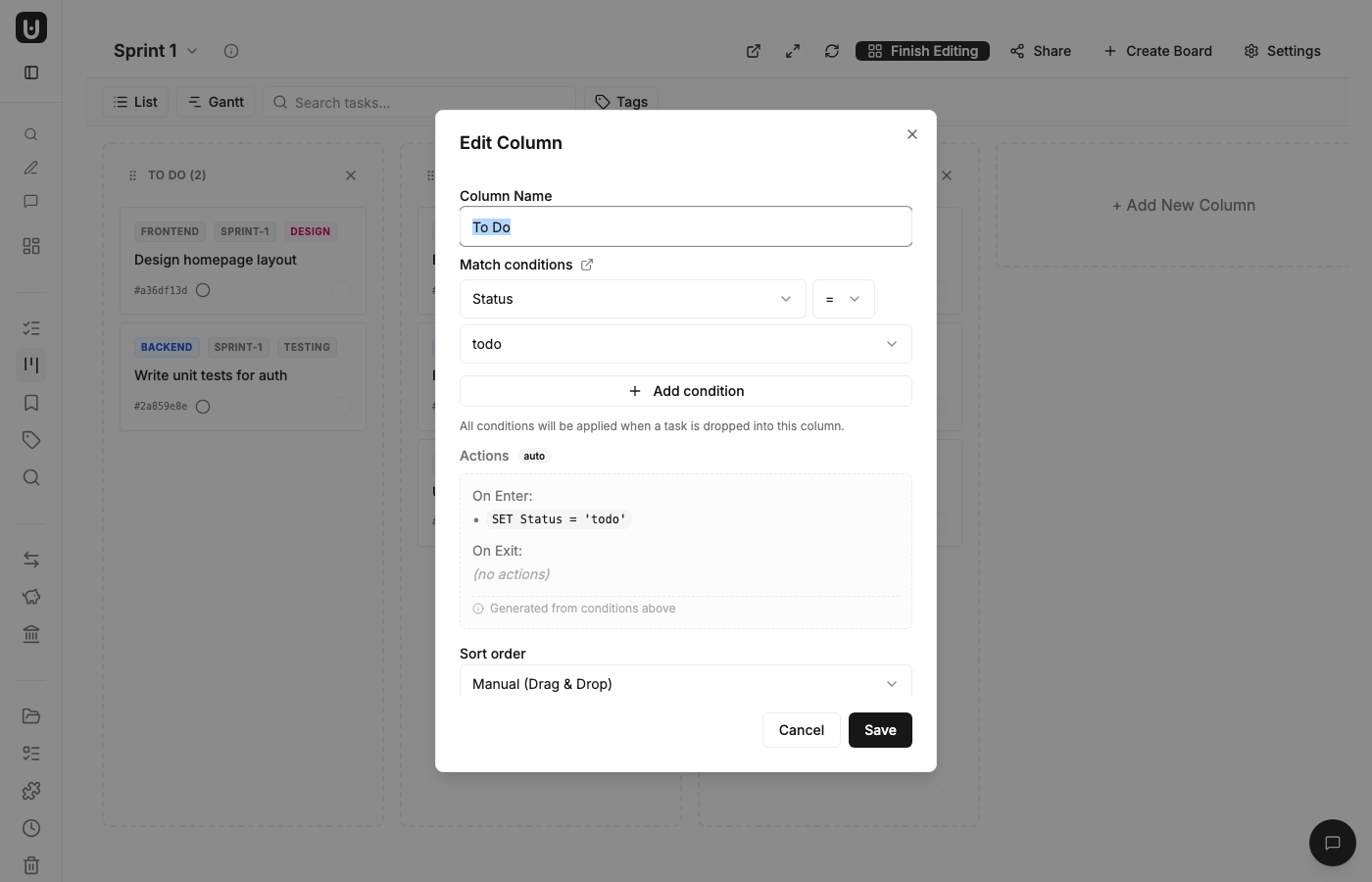
The powerful part: columns also have auto-actions. When you drag a task into a column, its conditions are applied automatically. Drag a task into "Done" and its status changes to done. Drag it into a column filtered by tags CONTAINS 'reviewed' and the tag gets added. The board does the bookkeeping.
Level 4: Ephemeral Board Filter — Real-Time Refinement
The top toolbar provides three real-time filters that layer on top of everything else:
- Search: Type in the search bar to filter by task title across all columns
- Tags: Click the Tags button to select one or more tags — only tasks with ALL selected tags appear
- Assignees: Filter by who is assigned to the task
These filters are ephemeral — they do not modify the board permanently. Close the tab and they are gone. But they are URL-persisted: the filter state is encoded in the URL as query parameters like ?tags=backend&search=API.
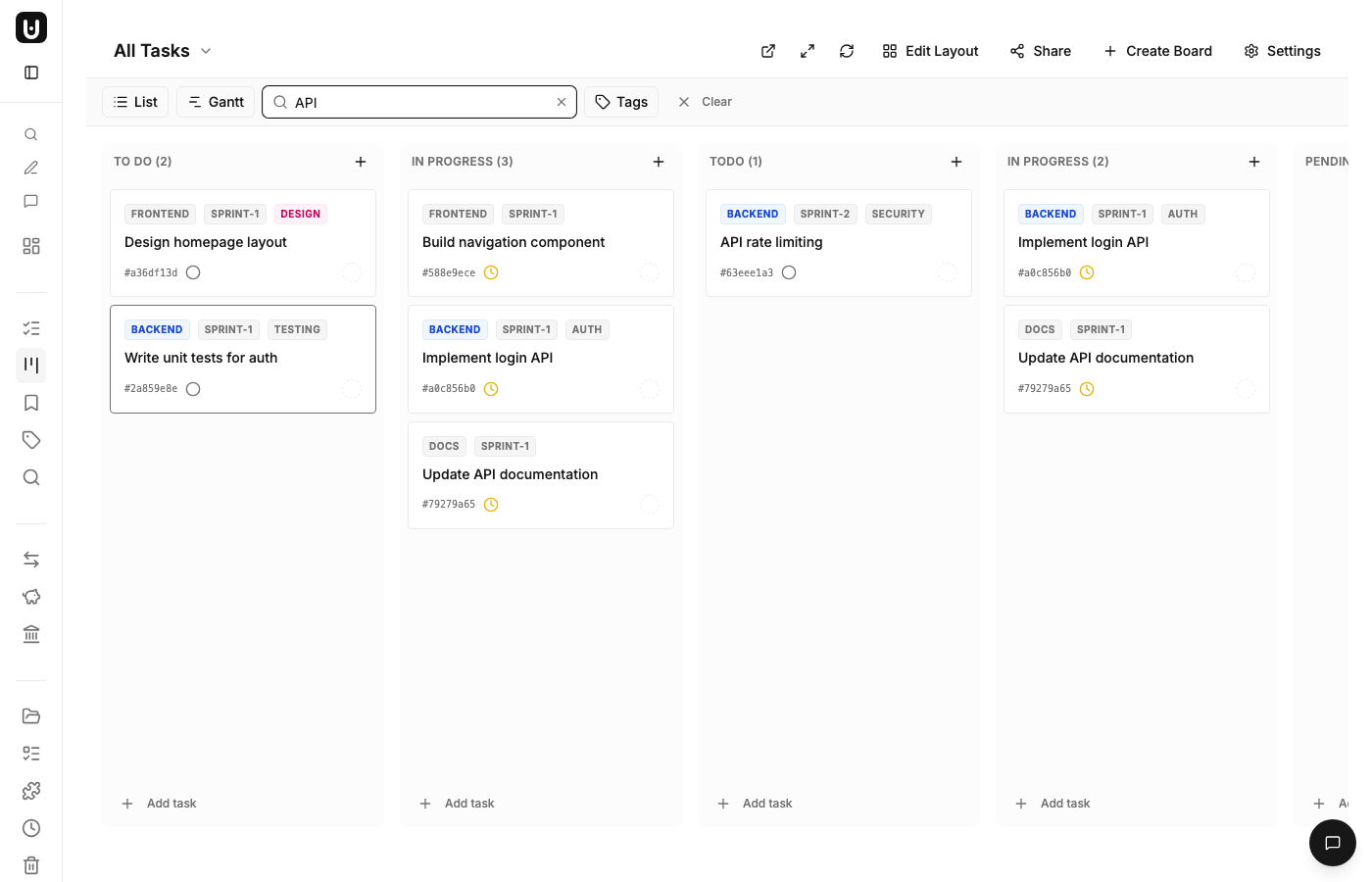
This means you can bookmark a filtered view, or share the URL with a teammate to show them exactly the subset of tasks you are looking at.
How the Levels Combine
Here is a concrete example showing all four levels working together:
- Board Scope: You open your private "Sprint 1" board
- Scope Tags: The board has scope tag
sprint-1, narrowing from 40+ tasks to 8 - Column Query: The "In Progress" column shows
status = 'in-progress', narrowing to 3 tasks - Ephemeral Filter: You type "API" in the search bar, narrowing to 1 task — "Update API documentation"
Each level operates independently. You can change any layer without affecting the others. Switch the scope tags and the columns still work. Apply a search filter and the column queries remain unchanged.
Practical Patterns
Sprint planning: Create a board per sprint with the sprint tag as scope tag. All sprints share the same tasks, but each board shows only its sprint.
Cross-cutting views: A "Frontend" board and a "Backend" board can both show tasks from Sprint 1 and Sprint 2 — they just use different scope tags. A task tagged frontend + sprint-1 appears on both the Frontend board and the Sprint 1 board.
Quick triage: Use ephemeral filters to zoom into a specific area during a standup. Filter by assignee to see what each person is working on, then clear the filter to see the full picture.
Complex columns: Instead of simple status columns, create columns like "Blocked Backend" (status = 'in-progress' AND tags CONTAINS 'blocked' AND tags CONTAINS 'backend') for specialized workflow views.
The Filter is the Control
This layered approach follows one of UnDercontrol's core design principles: the filter is the control. You are not navigating through menus to manage what appears where. The board's scope tags, each column's query, and the toolbar's search and tag badges are all visible, interactive, and directly editable. You can see exactly what is filtering your view, and change it with a click.
The URL-persisted ephemeral filter takes this further — your current view state is always shareable and bookmarkable, turning a transient search into a reusable link.