Remote Workspace — Run AI Agents on Your Machine from the Browser
You write a task description in the web UI. You click a button. Thirty seconds later, an AI agent on your laptop is reading the task, writing code, running tests, and posting progress notes back to the same task page — all while you watch from the browser.
That's Remote Workspace. It bridges the gap between a cloud-based task manager and your local development environment, turning UnDercontrol into a remote control for AI-powered coding agents.
The Problem
Most task management tools live entirely in the browser. Your code lives on your machine. When you want an AI agent to work on something, you switch to a terminal, paste context, babysit the process, and manually update the task when it's done. The task tracker and the execution environment are two separate worlds.
Remote Workspace collapses that distance. Your task descriptions become executable instructions. Your browser becomes a control panel. Your machine does the work.
How It Works
The architecture has four pieces:
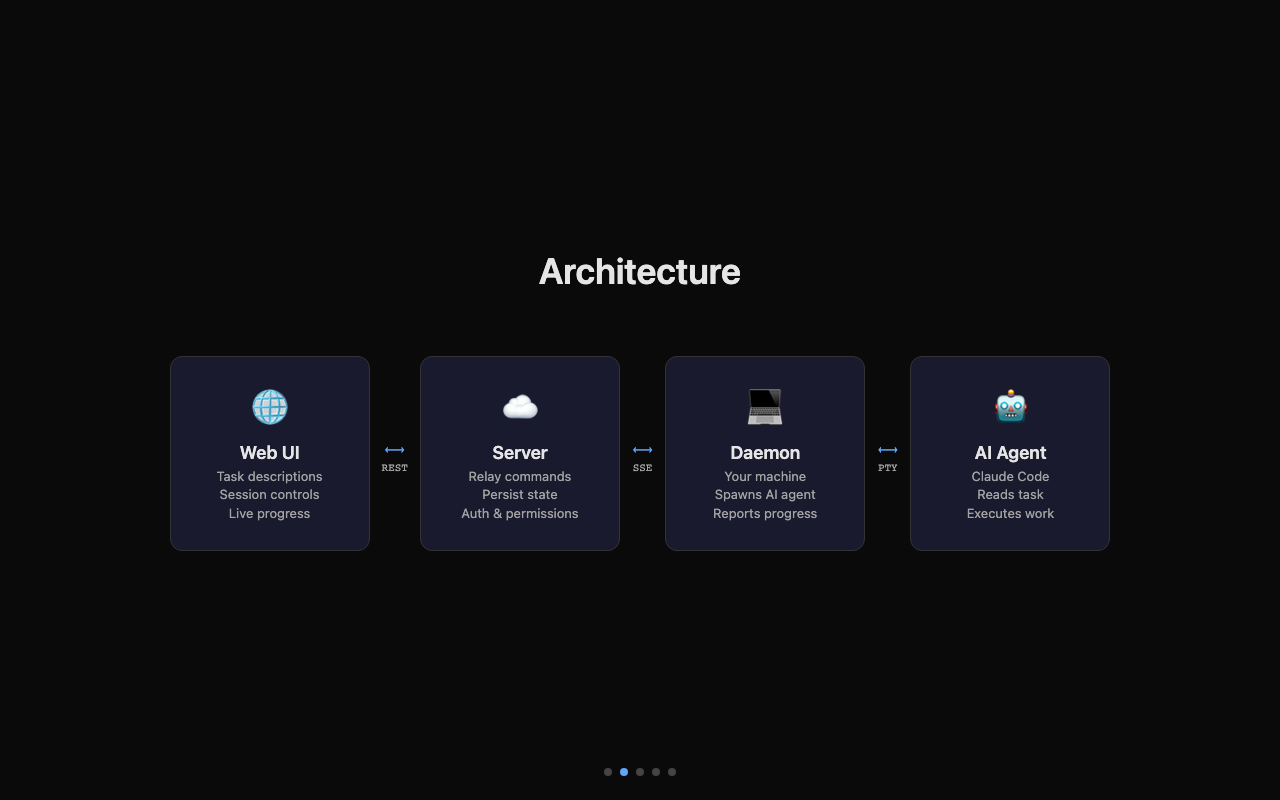
1. The Electron Desktop App — runs on your machine and acts as the daemon. When you register your device in the Workspaces page, the app connects to the UnDercontrol server via Server-Sent Events (SSE) and waits for instructions.
2. The Server — relays commands between the web UI and the daemon. Persists session state, notes, and status updates.
3. The Daemon Core — the "brain" inside the Electron renderer. It holds auth tokens, manages SSE connections, and drives all API calls. When a workspace session starts, it forwards the init event to the Electron main process.
4. The AI Agent — a coding tool (like Claude Code) spawned in a pseudo-terminal by the Electron main process. It reads the task, does the work, and reports progress through task notes.
Setting It Up
Open the UnDercontrol desktop app and navigate to the Workspaces page. Click Register this device — the app detects your machine name and platform automatically. That's it. Your machine is now a daemon, connected and ready.
The Electron app handles everything behind the scenes: daemon registration, SSE connection, heartbeat, and reconnection. No terminal commands needed.
For the AI agent to work, you'll need Claude Code installed on your machine:
npm install -g @anthropic-ai/claude-code
Triggering a Session
Once your device is registered and online, go to any task in the web UI (or the desktop app itself). Click the globe icon in the actions bar. You'll see a list of your connected daemons — pick one, and the session starts.
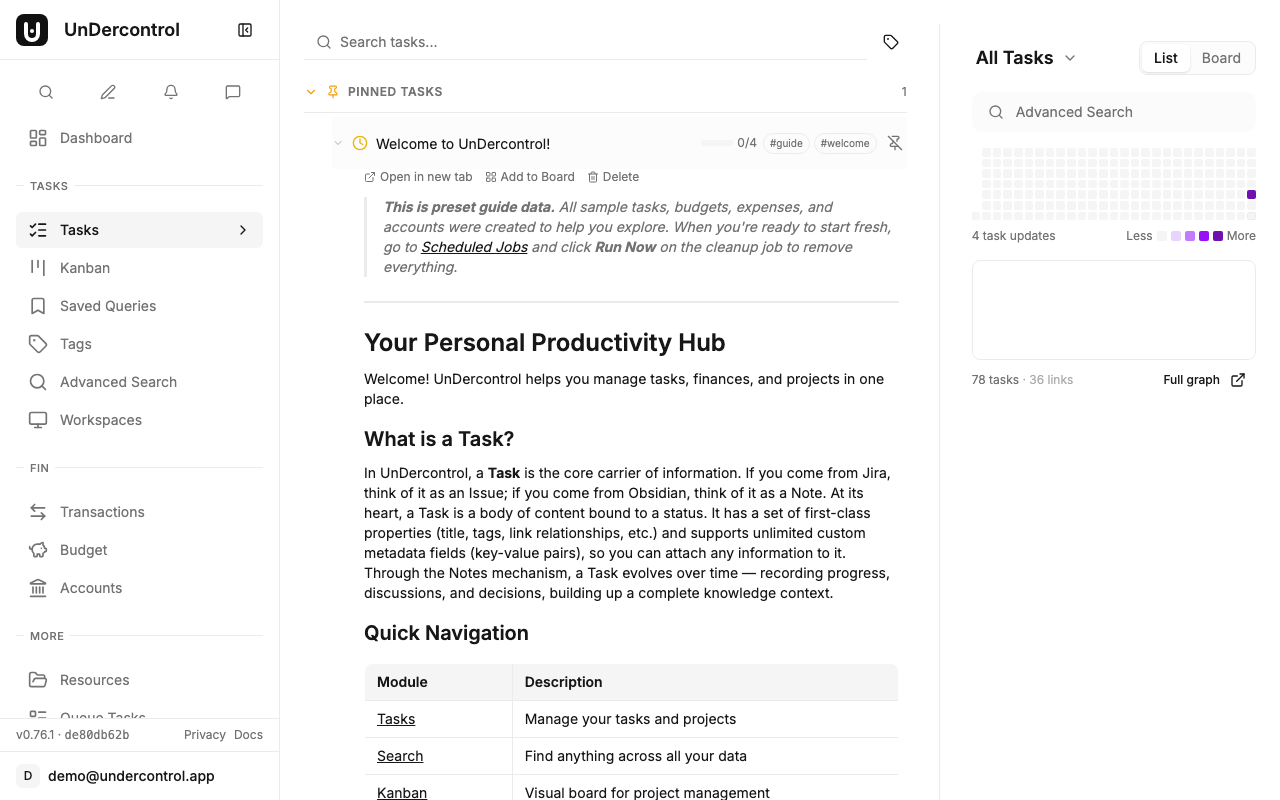
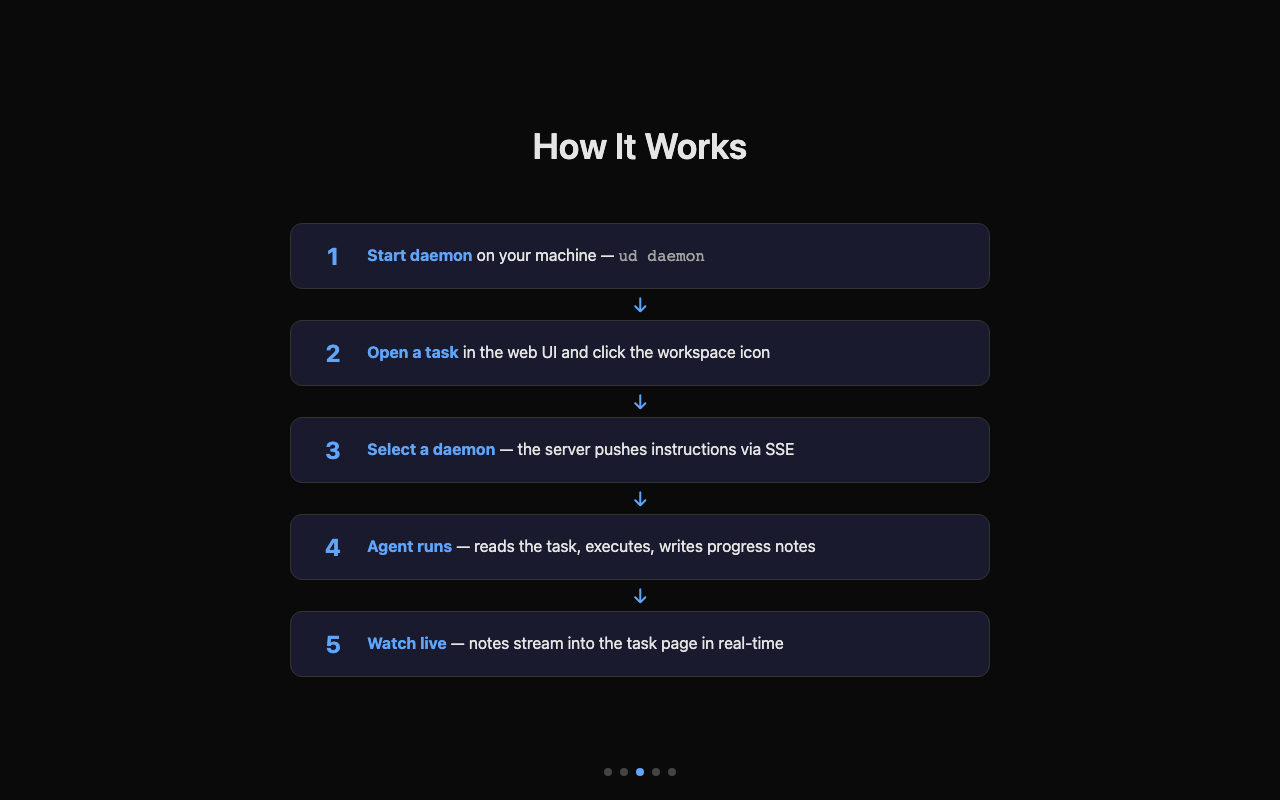
The daemon receives the init event, and the Electron main process spawns the AI agent in a PTY window. From this point, everything happens automatically:
- The agent reads the task description and notes
- It plans and executes the work
- Progress notes appear on the task in real-time
- When done, it updates the task status
Watching It Work
This is where it gets satisfying. As the agent runs on your machine, you see its progress in the browser — live.
Notes stream in as the agent works: what it's reading, what it changed, which files it committed. You get a running log of the entire session without touching the terminal.
The session panel shows:
- Status — running, planning, awaiting input, idle, or stopped
- Duration — how long the session has been active
- Daemon info — which machine is doing the work
- Notes stream — real-time updates from the agent
Interactive Control
Remote Workspace isn't fire-and-forget. You can interact with the agent while it's running:
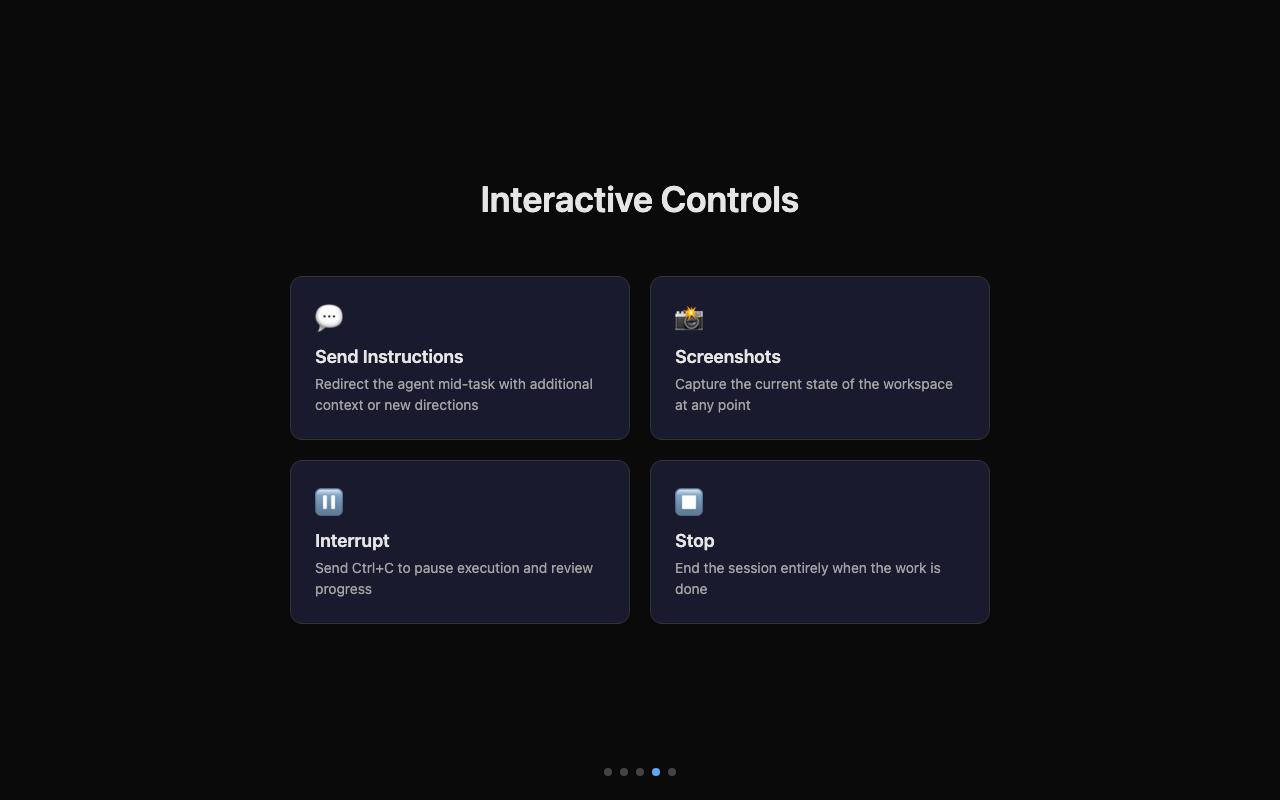
- Send instructions — type additional context or redirect the agent mid-task
- Take screenshots — capture the current state of the workspace
- Interrupt — send a Ctrl+C signal to pause execution
- Stop — end the session entirely
There's also a prompt system. Save frequently-used instructions as templates, and apply them with one click. If you've set up skills in UnDercontrol, you can reference those too — pipe a skill's content directly to the agent.
The Workspaces Dashboard
The Workspaces page gives you a bird's-eye view of all active sessions and connected daemons.
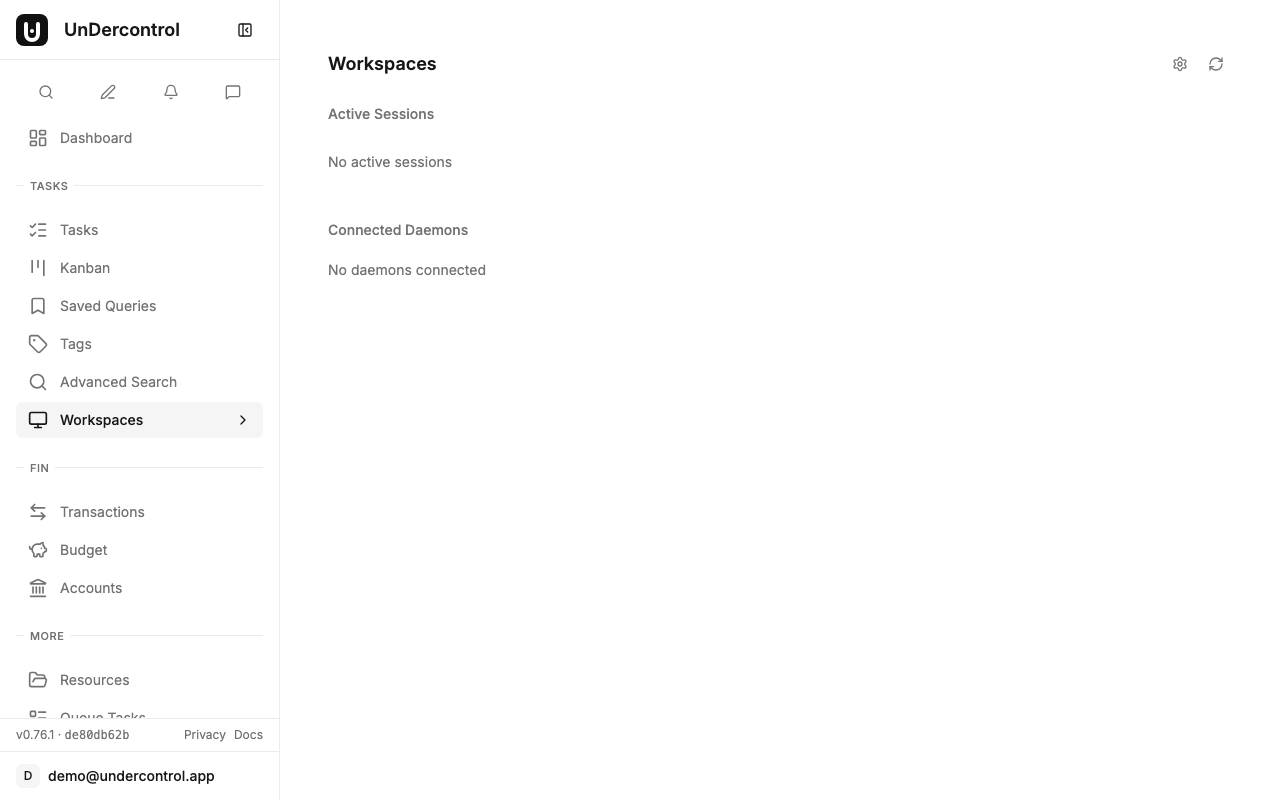
Each session card shows the task it's working on, which daemon is running it, how long it's been going, and the latest notes. Daemons are listed with their online/offline status, machine name, platform, and sharing permissions.
You can register your device right from this page — one click and you're online.
Security
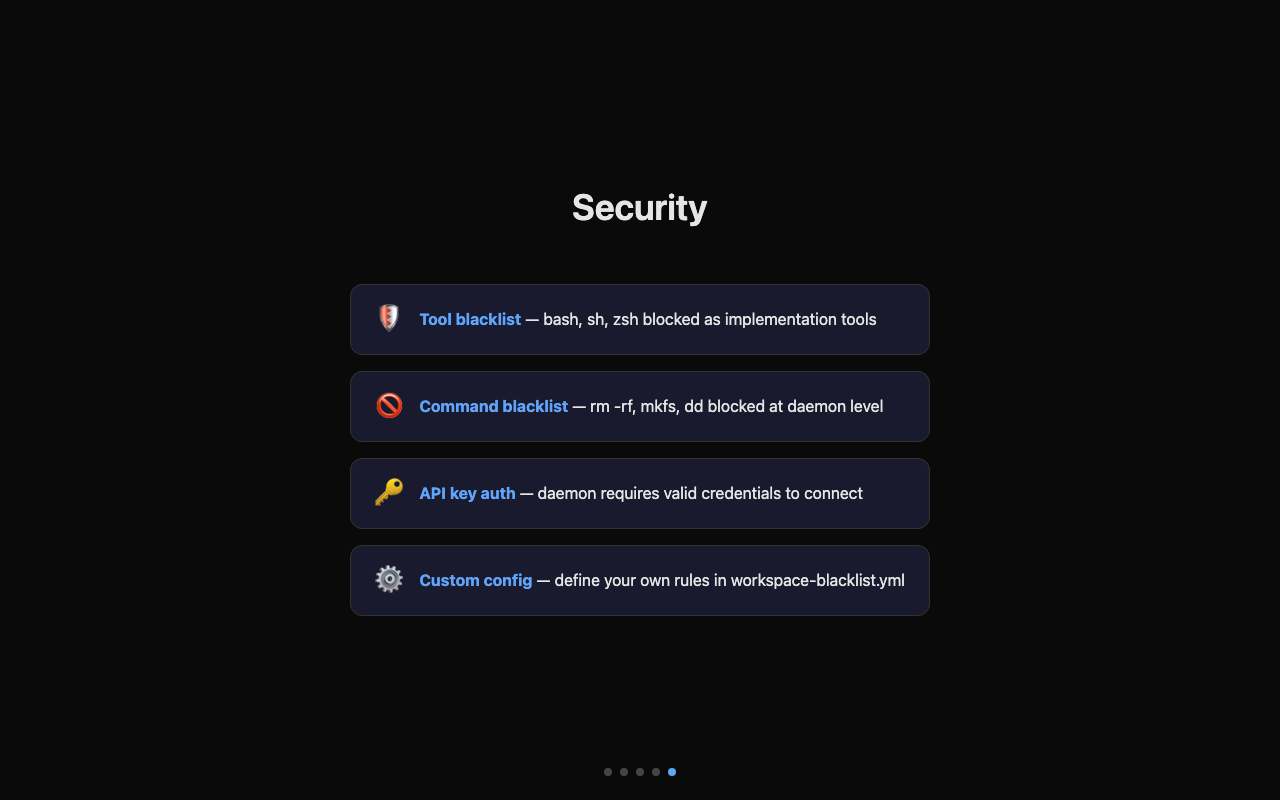
Running AI agents remotely raises obvious safety questions. Remote Workspace handles this with a layered blacklist system:
Built-in protections:
- Tools like
bash,sh,zshare blocked as the implementation tool — the agent runs through a controlled interface, not a raw shell - Destructive commands (
rm -rf,mkfs,dd) are blocked at the daemon level
Custom configuration: Drop a YAML file at ~/.config/ud/workspace-blacklist.yml to define your own rules:
blocked_tools:
  - bash
  - sh
allowed_tools:
  - claude
blocked_commands:
  - "rm -rf"
  - "mkfs"
The daemon also requires proper authentication — the Electron app uses your logged-in session tokens, so unauthorized access isn't possible without your credentials.
Sharing Daemons
In team setups, you can share a daemon with your group. Set the sharing permissions so teammates can trigger workspace sessions on your machine — useful for shared build servers or dedicated CI machines.
Sharing is controlled through the daemon's permissions: read-only lets others see the daemon status, read-write lets them initiate sessions.
Why This Matters
Most developer tools treat task management and code execution as separate concerns. You plan in one app, execute in another, and manually bridge the gap with copy-paste and context switching.
Remote Workspace merges them. Your task description is the instruction. Your browser is the control panel. The work happens on your machine, with your tools, in your environment — you just don't have to be in the terminal to start it.
For solo developers, it means less context switching. Write the task, trigger the agent, review the output — all in the same interface. For teams, it means a shared queue of work that machines can pick up and execute, with full visibility into what's happening.
The architecture also means you're not locked into any particular AI tool. Today it works with Claude Code; tomorrow it could work with any agent that runs in a terminal. The protocol is simple: receive a task, do the work, report progress.
Getting Started
- Download the UnDercontrol desktop app
- Install Claude Code:
npm install -g @anthropic-ai/claude-code - Open the Workspaces page and click Register this device
- Open any task, click the globe icon, and select your daemon
Check the documentation for the full setup guide, including security configuration and troubleshooting.