AI-Powered Workflows in UnDercontrol — From Receipt to Record in Seconds

· 5 min read
Creator of UnDercontrol

The part of personal finance and task management that nobody enjoys is the data entry. You finish lunch, you have a receipt, and now you have to open an app, tap through a form, type in the amount, pick a category, and save. Multiply that by every coffee, taxi, and grocery run and it becomes a real friction point.

UnDercontrol's AI assistant is built to eliminate that friction. Here is how it actually works in practice.
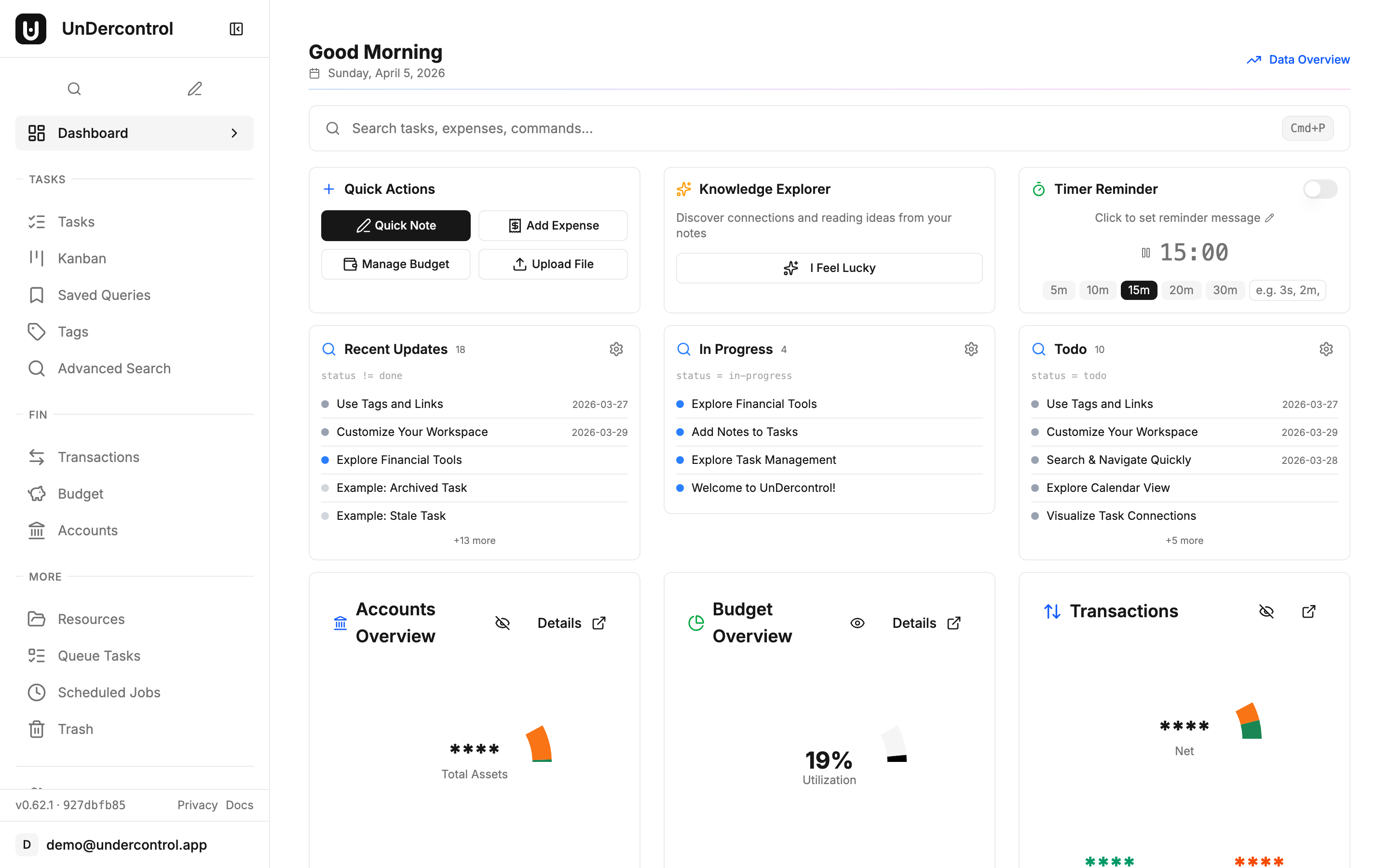
UnDercontrol dashboard — AI assistant integrates across all features

Snap a Receipt, Skip the Form

The most immediately useful AI feature is receipt scanning. When you create a new expense, you can upload a photo — drag and drop, paste from clipboard, or select a file. The AI reads the image and extracts the amount, currency, merchant name, date, and a suggested category.

It handles crumpled receipts, tilted angles, and different receipt formats reasonably well. The key practical tip: good lighting matters more than perfect alignment. A clear photo in decent light will almost always parse correctly. A blurry photo taken in a dim restaurant probably will not.

You can also batch-upload multiple receipts at once, which is useful after a work trip or a week where you let things pile up.

Text Input for Quick Logging

Not every expense comes with a receipt. For those, you can just describe it in plain English:

  • "Lunch at the noodle place, 18 dollars"
  • "Uber home from the airport, 34 EUR"
  • "Monthly Figma subscription 15 USD"

The AI parses the description into a structured expense with the right fields filled in. It is faster than tapping through a form, especially on mobile.

The same pattern works for tasks. Instead of filling out a task form, you describe what needs to happen:

  • "Follow up with the accountant about Q1 taxes"
  • "Buy a birthday gift for Sarah before Friday"
  • "Research self-hosted backup solutions"
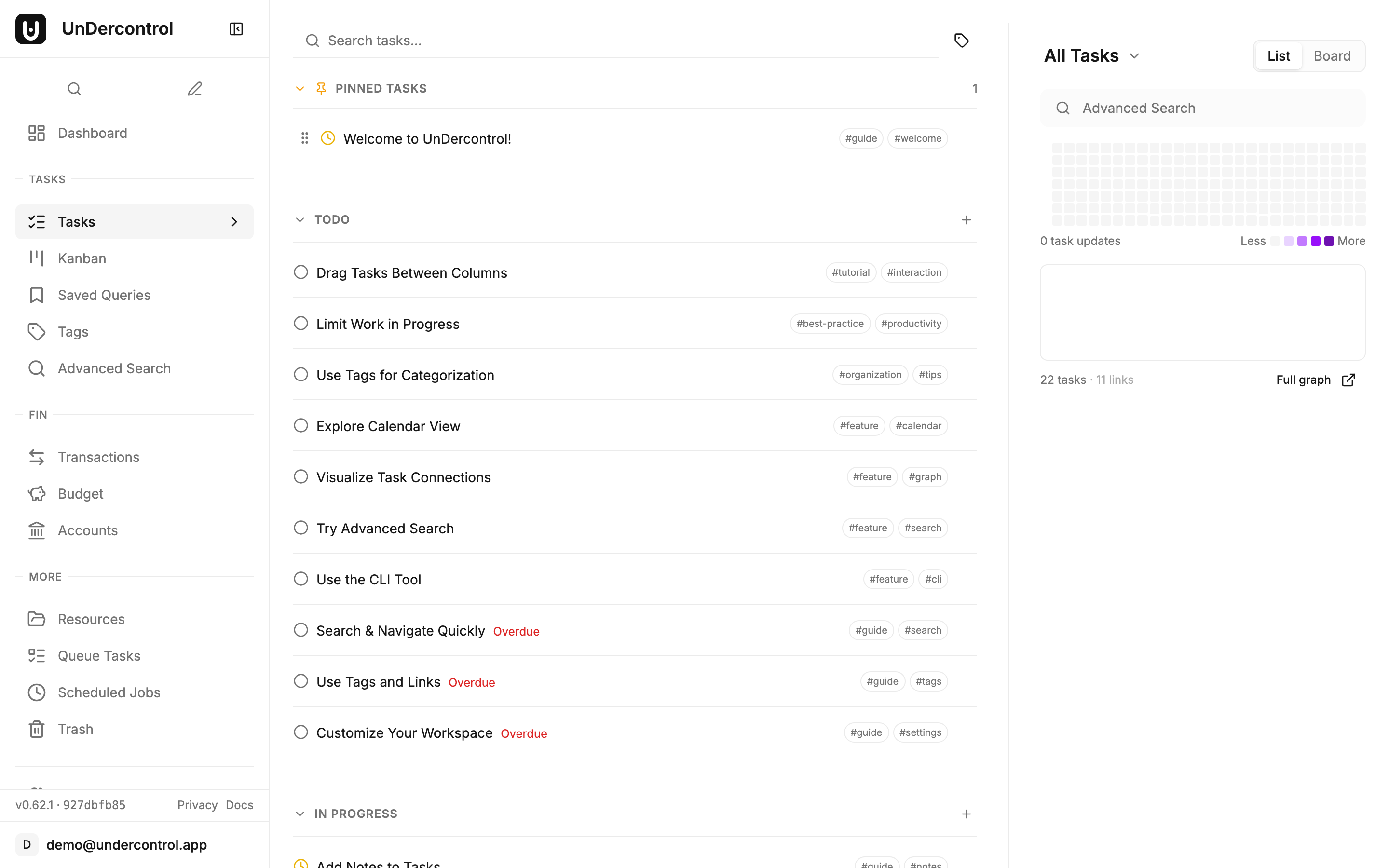
Task list — AI can create and manage tasks from text or voice input

UnDercontrol creates a structured task from the description, including a title, any relevant tags it can infer, and a description. You review it, adjust anything that looks off, and save.

AI assistant chat interface for logging expenses and creating tasks

Natural Language Queries

Once you have tasks and expenses in the system, you can ask questions about them in plain language. Things like "show me overdue tasks" or "what is due this week" get translated into a query and return the matching results. It is not magic — it works best with straightforward questions — but it removes the need to remember UnDercontrol's query syntax for everyday lookups.

Apple Shortcuts Integration

On iOS and macOS, UnDercontrol provides Apple Shortcuts that wire the AI features into the system share sheet and shortcut automation. The practical upside is one-tap capture from anywhere on your device.

The most useful shortcut: snap a photo with your camera, run the shortcut, and the receipt gets logged as an expense without ever opening the app. You can also share text — a copied email snippet, a message, a note — and have a task created from it directly.

The shortcuts are available to download from the Subscribe/Download page in your UnDercontrol instance.

Bring Your Own AI Provider

UnDercontrol does not lock you into one AI backend. You can connect your own API key from OpenAI, Anthropic, or any OpenAI-compatible service. There is also support for local models via Ollama or LM Studio if you want everything running on your own hardware with no external API calls at all.

Setup is straightforward: go to Profile settings, find the AI Providers section, add your provider and API key, pick a model, and test the connection. You can add multiple providers and prioritize them. The first working provider in your list is what gets used.

If you are running a shared UnDercontrol instance, an administrator can also configure system-level providers that are available to all users — useful for a family server or a small team.

What to Keep in Mind

AI extraction is good but not perfect. Always glance at the parsed result before saving, especially the amount and date fields. A receipt where the total is visually close to a subtotal line can confuse the parser. Two seconds of review is faster than hunting down a mis-logged expense later.

For text input, more specific descriptions give better results. "Coffee" is harder to categorize than "coffee at the airport before the flight, 6.50 USD."

Getting Started

If you are already running UnDercontrol, head to your Profile settings and add an AI provider. Then try uploading a receipt the next time you log an expense — the difference in workflow is noticeable immediately.

If you have not set up UnDercontrol yet, the self-hosting guide covers everything from Docker deployment to configuration: UnDercontrol Documentation.
Take Control of Your Personal Finances with UnDercontrol's Budget Tracker

· 5 min read
Creator of UnDercontrol

Most personal finance tools make you choose between privacy and functionality. Either you hand over your financial data to a cloud service, or you settle for a spreadsheet that breaks the moment your situation gets even slightly complicated. UnDercontrol takes a different approach: a full-featured budget tracker that runs on your own infrastructure, with your data staying exactly where it belongs.

Here's a practical look at how budget tracking works in UnDercontrol.

Creating a Budget That Reflects Reality

Setting up a budget in UnDercontrol starts with the basics: a name, an initial amount, a start date, and a recurrence frequency. Weekly, monthly, quarterly, or yearly — pick whatever matches how you actually think about money.

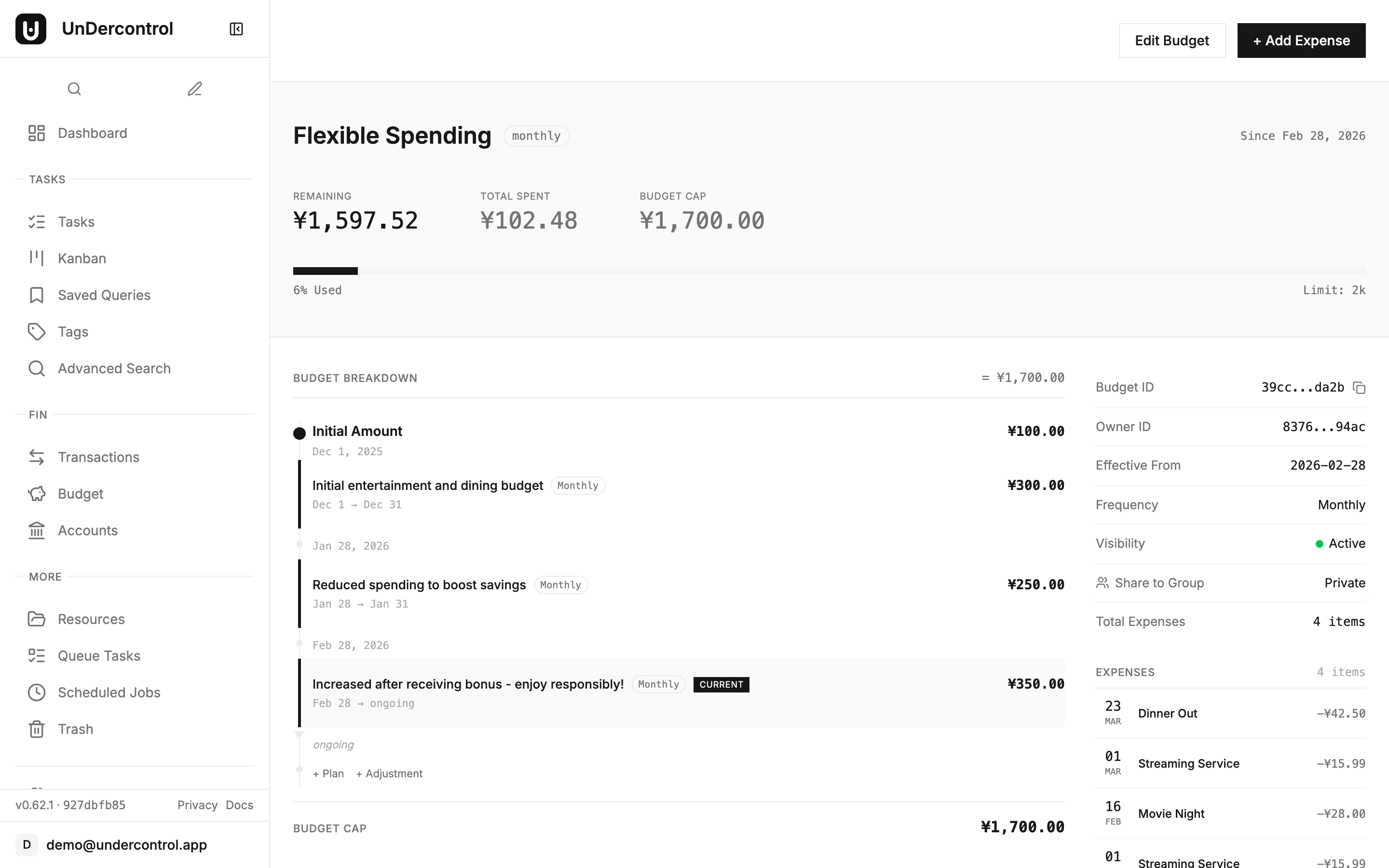
But the real power comes from budget plans. Instead of locking you into a single fixed amount, UnDercontrol lets you add new plans over time. Say you start the year with a $500/month grocery budget, then prices go up and you need to revise it to $650 in March. You add a new plan with the updated amount. The system handles the math — calculating totals based on which plan was active during which periods — so your historical data stays accurate and your current view is always up to date.

One-time adjustments fill in the gaps that recurring plans can't cover. Got an unexpected refund? A bonus allocation from a project? A correction to fix a data entry mistake? Each adjustment records an amount, a date, and an optional reason. Future you will appreciate those reasons when reconciling months later.

Logging Expenses and Linking Them to Budgets

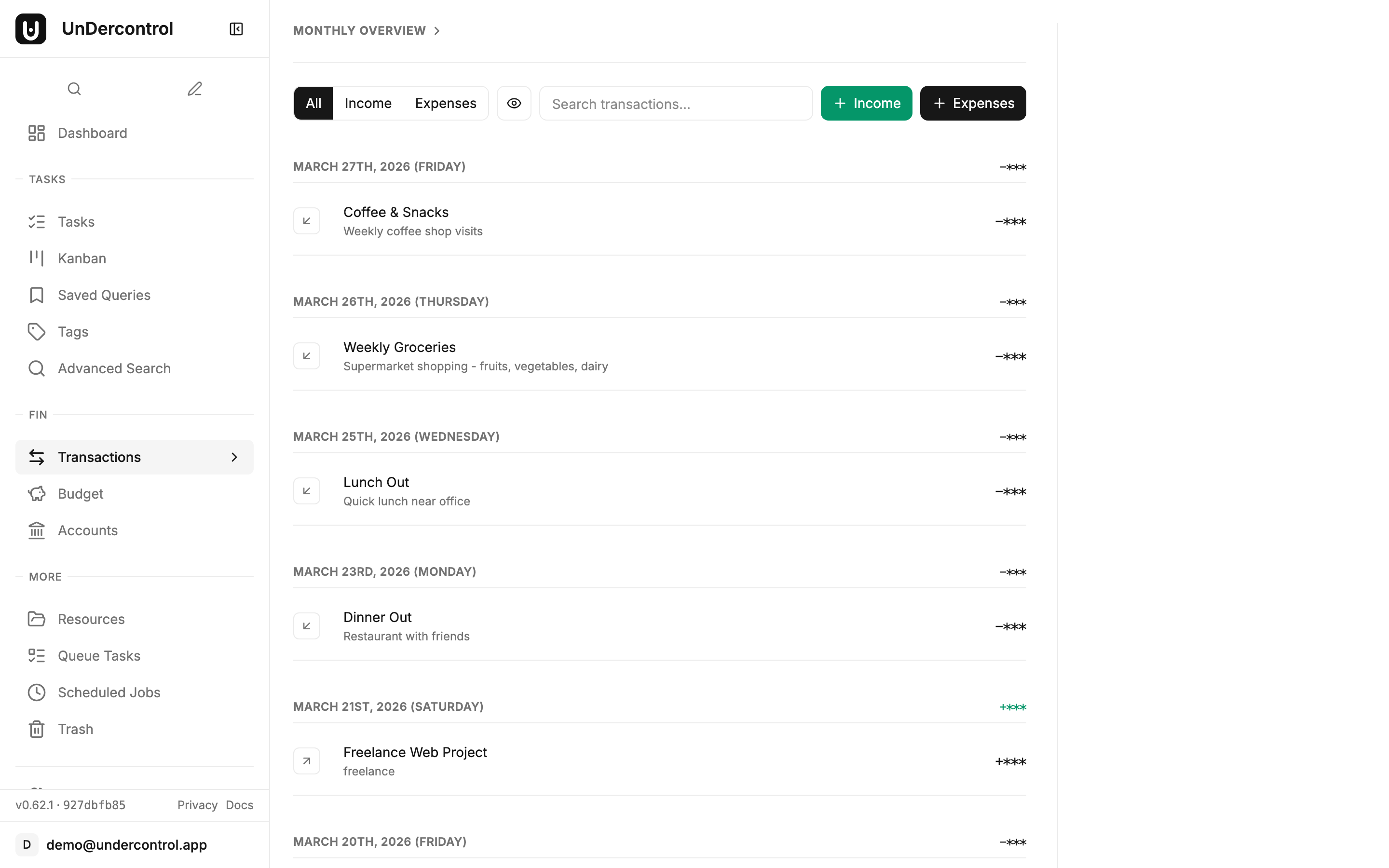
Expenses in UnDercontrol are first-class records. When you log an expense, you can link it to a specific budget. That link is what powers the "budget vs. actual" view — the expense amount rolls up into the budget's spent total, and it appears in that budget's ledger.

Transaction list with expense entries

This design means you can also have expenses that aren't tied to any budget, which is intentional. Not every transaction needs to be categorized immediately. You can log it, come back later, and link it when it makes sense.

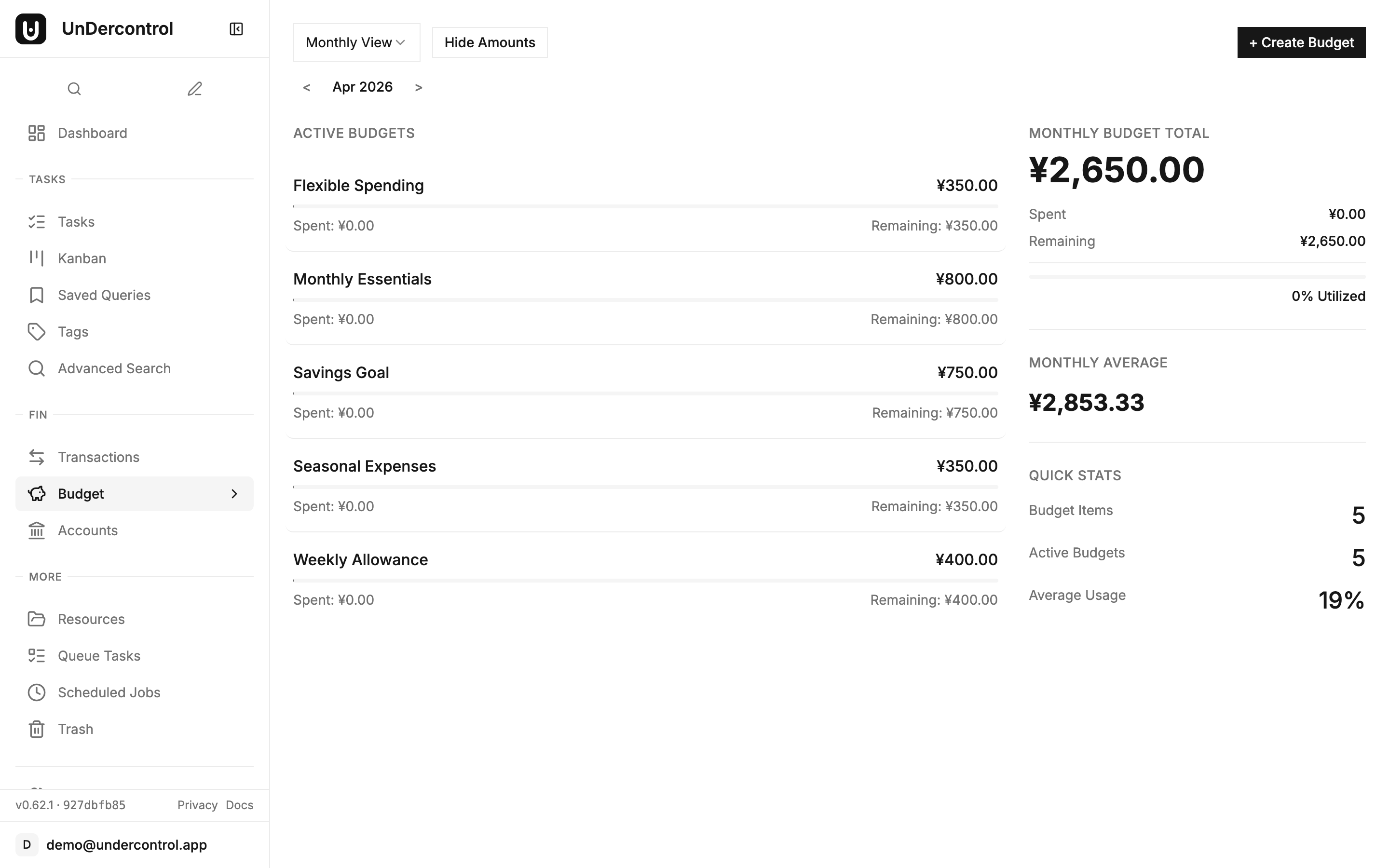
The budget detail page brings everything together: a hero section showing total allocated, total spent, and remaining balance at a glance, plus a spending trend chart that plots your actual spend against the budget line over 7, 30, or 90 days. If you're running a monthly grocery budget and the chart shows you've crossed the allocation line by day 22, that's a clear signal — no mental math required.

Budget detail with spending trend chart

Multi-Account Support and the Full Picture

UnDercontrol's account system lets you track money across multiple sources — checking, savings, a separate business account, whatever your setup looks like. Budget accounts contribute to your overall available balance, so when you're planning a new budget, you're working with real numbers rather than guesswork.

This becomes especially useful when you're managing finances for a small team or household. The collaboration system lets you share budgets with other users, so multiple people can log expenses against the same budget and see the same real-time totals. No more emailing spreadsheets back and forth or manually reconciling two separate tracking systems.

Staying on Top of Spending Without the Overhead

The budget list page is designed to give you a quick read on everything at once. Progress bars, spent and remaining amounts, and a summary sidebar with aggregated totals across all budgets. Search to find specific budgets quickly. A "Show hidden" toggle for budgets you want to archive without deleting.

Budget overview with progress bars showing spent vs remaining

Privacy mode deserves a mention: toggle it to hide all monetary amounts across the interface. Useful when you're screen sharing during a meeting and don't need to explain your personal grocery budget to coworkers.

For reporting and data portability, UnDercontrol supports data export so you can pull your expense history out in a structured format. Since you're self-hosting, you also have direct access to the underlying database if you need to run your own queries or pipe data into another tool.

Self-Hosted, Your Rules

Everything described here runs on your own server. Your financial data doesn't pass through anyone else's infrastructure. You control the backups, the access, and the retention policy. For anyone who's ever felt uncomfortable typing their bank transactions into a third-party app, that matters.

If you want to get started, the self-deployment guide walks through setting up UnDercontrol with Docker. The budget documentation covers every feature in detail, including how budget totals are calculated and how to use adjustments effectively.

Set up your first budget, link a few expenses, and check back in a week. The spending trend chart will tell you more than any spreadsheet ever did.

Visual Project Management with Kanban Boards in UnDercontrol

· 4 min read
Creator of UnDercontrol

If you have been managing tasks through a flat list and wondering when things started feeling unwieldy, kanban boards are probably the answer. UnDercontrol's kanban view gives you a column-based layout over your existing tasks — no separate system to maintain, no data duplication, just a better way to see what is actually happening.

The Board is a View, Not a Silo

This is the part worth understanding before anything else. In UnDercontrol, a kanban board is a visual layer on top of your task system. When you drag a card from "Todo" to "In Progress," you are not just moving a card on a board — you are updating the task's status. That change shows up immediately in your task list, your CLI queries, everywhere. There is no synchronization problem because there is only one source of truth.

This means you can switch between kanban and list views freely without worrying about things getting out of sync.

Getting Started: The All Tasks Board

Every account comes with a built-in "All Tasks" board. Open it and you will see all your tasks organized across six columns: Todo, In Progress, Pending, Stale, Done, and Archived. This board cannot be deleted and it always appears first.

It is a good place to start. Drag a task from Todo to In Progress, and watch the status update instantly. That is the basic loop — visual placement drives task state, not the other way around.

Custom Boards with Query-Based Columns

Where things get interesting is when you create your own boards. Each column is defined by a filter condition — essentially a query that determines which tasks belong there. A "Blocked" column might filter for tasks tagged blocked. A "Due This Week" column could filter on due date. The column is not just a label; it is a live query.

When you configure column actions, moving a card becomes a trigger. Drag a task into the "Done" column and it gets marked done automatically. Move something into a "Needs Review" column and it can be tagged and assigned in one gesture. You define what dragging into a column means, and the board handles the bookkeeping.

This is genuinely useful for multi-step workflows. If your process is something like Draft -> Review -> Ready to Ship -> Done, you can model that exactly — with each column transition doing the right thing to the underlying task data.

Private and Shared Boards

Private boards are scoped to you. You can create as many as you need — one for a side project, one for your weekly planning, one for a home renovation. They all pull from your full task pool, filtered through whatever columns you configure.

Shared boards work differently. When you share a board with a group, the board only shows tasks that belong to that group. Everyone in the group can see the board and move cards around based on their permissions. It is a clean model: the board's scope is the group, and access is controlled through group membership.

This makes shared boards practical for small teams. A sprint board for a two- or three-person team, where everyone can see what is in progress and what is blocked, is easy to set up and does not require any additional tooling.

A Few Workflow Patterns Worth Trying

If you are not sure how to structure a board, here are a few approaches that work well:

A status-based board mirrors the default setup — Todo, In Progress, Done. Simple, low-overhead, good for solo work.

A time-based board uses columns like Backlog, This Week, Today, and Done. The filter conditions look at due dates or custom fields rather than status. Dragging a task into "Today" can update a priority field automatically.

A project board with shared access uses the group feature to scope tasks to a specific project. Columns map to your team's actual workflow stages, and everyone operates from the same board.

Everything Stays Connected

Because boards are built on top of the same task and tag system as the rest of UnDercontrol, they compose naturally with other features. Tags you use in task filters work as column conditions. Custom fields you create for a project can drive column membership and be updated by column actions. The board is not a separate module — it is the task system made visual.

If you want to see how this fits into the broader setup, the Kanban Boards documentation covers column configuration, automatic actions, and sharing in detail. And if you are not running UnDercontrol yet, the self-hosting guide will get you up and running in under an hour — your data stays on your infrastructure, always.