AI-Powered Workflows in UnDercontrol — From Receipt to Record in Seconds
The part of personal finance and task management that nobody enjoys is the data entry. You finish lunch, you have a receipt, and now you have to open an app, tap through a form, type in the amount, pick a category, and save. Multiply that by every coffee, taxi, and grocery run and it becomes a real friction point.
UnDercontrol's AI assistant is built to eliminate that friction. Here is how it actually works in practice.
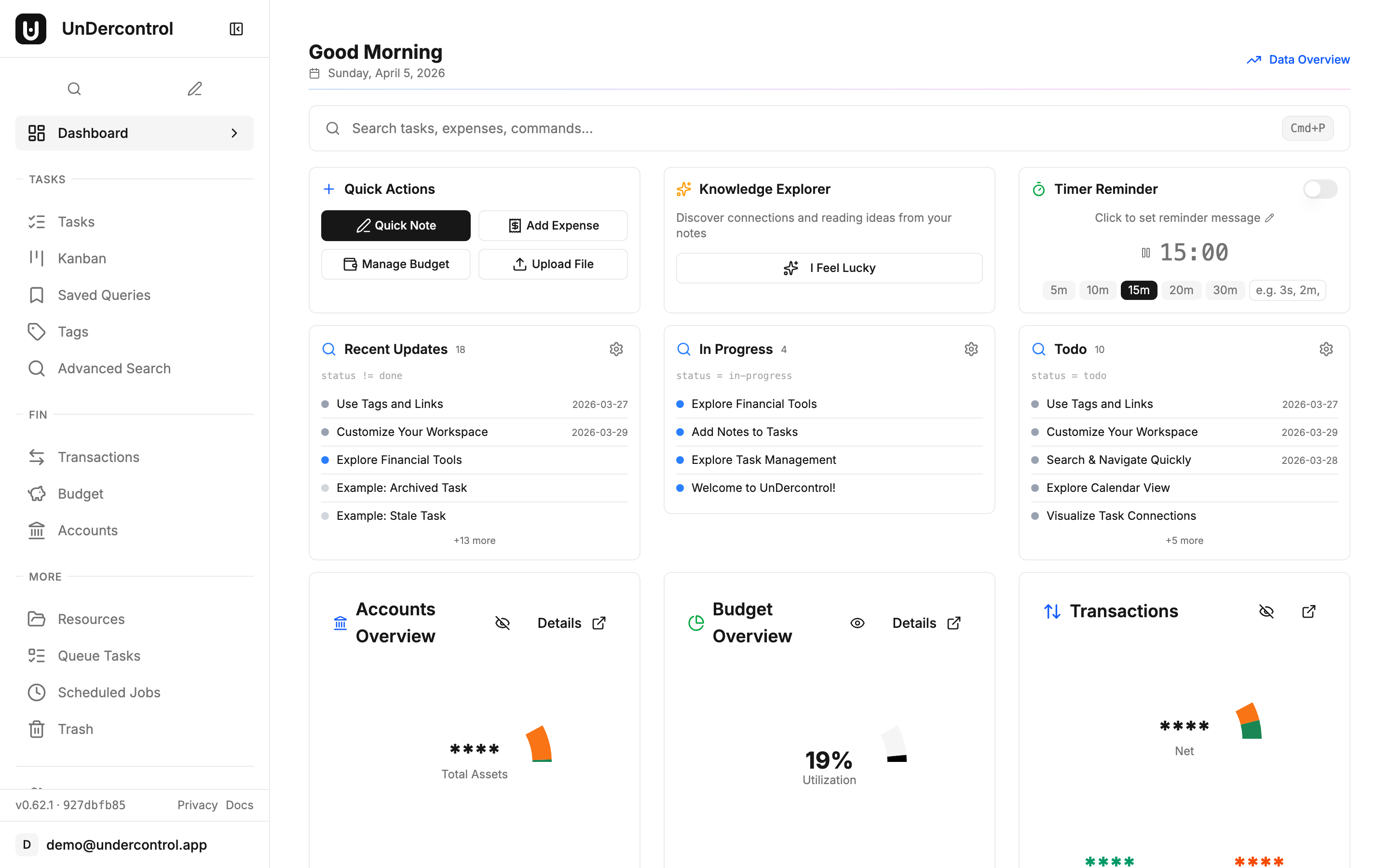
Snap a Receipt, Skip the Form
The most immediately useful AI feature is receipt scanning. When you create a new expense, you can upload a photo — drag and drop, paste from clipboard, or select a file. The AI reads the image and extracts the amount, currency, merchant name, date, and a suggested category.
It handles crumpled receipts, tilted angles, and different receipt formats reasonably well. The key practical tip: good lighting matters more than perfect alignment. A clear photo in decent light will almost always parse correctly. A blurry photo taken in a dim restaurant probably will not.
You can also batch-upload multiple receipts at once, which is useful after a work trip or a week where you let things pile up.
Text Input for Quick Logging
Not every expense comes with a receipt. For those, you can just describe it in plain English:
- "Lunch at the noodle place, 18 dollars"
- "Uber home from the airport, 34 EUR"
- "Monthly Figma subscription 15 USD"
The AI parses the description into a structured expense with the right fields filled in. It is faster than tapping through a form, especially on mobile.
The same pattern works for tasks. Instead of filling out a task form, you describe what needs to happen:
- "Follow up with the accountant about Q1 taxes"
- "Buy a birthday gift for Sarah before Friday"
- "Research self-hosted backup solutions"
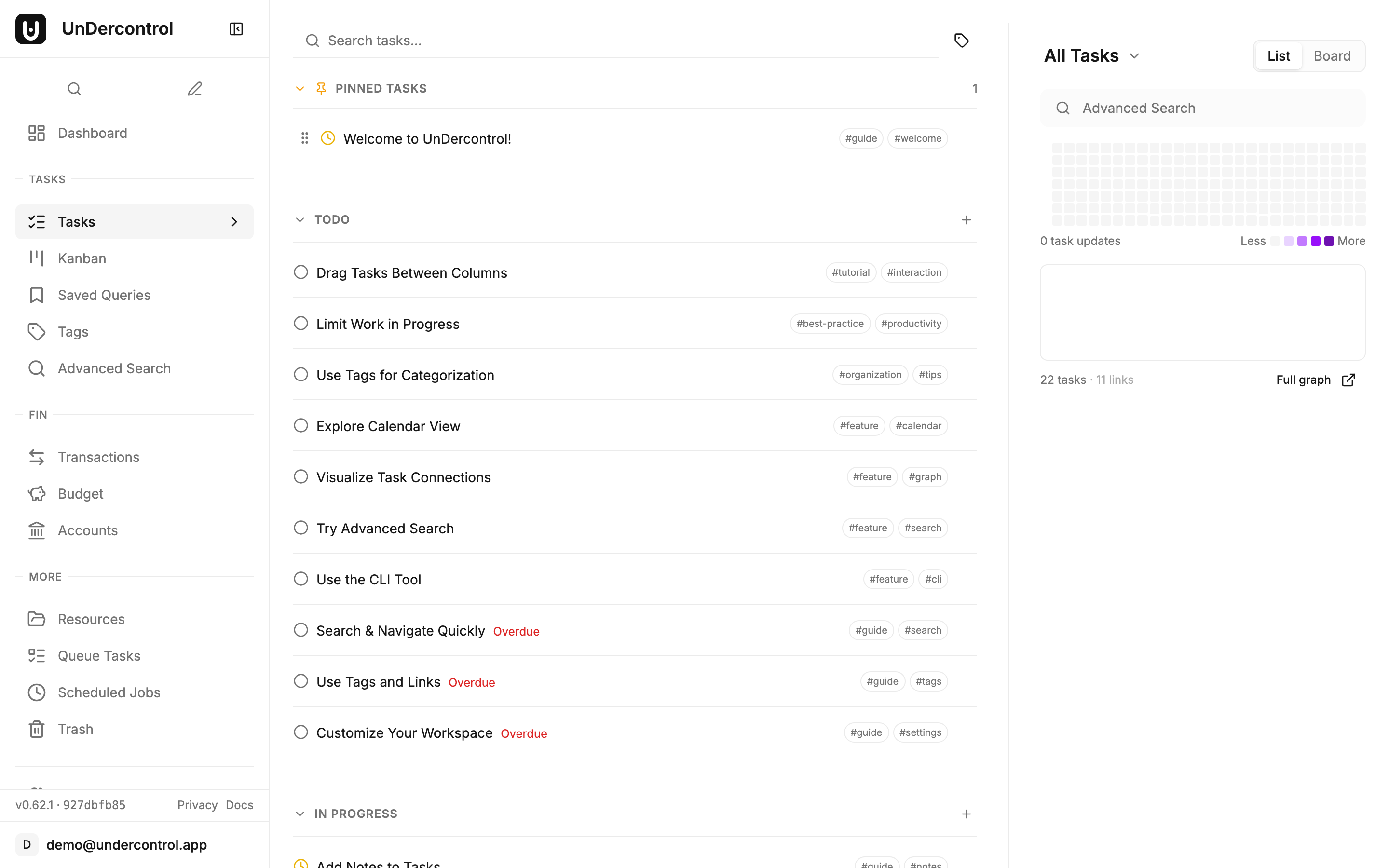
UnDercontrol creates a structured task from the description, including a title, any relevant tags it can infer, and a description. You review it, adjust anything that looks off, and save.

Natural Language Queries
Once you have tasks and expenses in the system, you can ask questions about them in plain language. Things like "show me overdue tasks" or "what is due this week" get translated into a query and return the matching results. It is not magic — it works best with straightforward questions — but it removes the need to remember UnDercontrol's query syntax for everyday lookups.
Apple Shortcuts Integration
On iOS and macOS, UnDercontrol provides Apple Shortcuts that wire the AI features into the system share sheet and shortcut automation. The practical upside is one-tap capture from anywhere on your device.
The most useful shortcut: snap a photo with your camera, run the shortcut, and the receipt gets logged as an expense without ever opening the app. You can also share text — a copied email snippet, a message, a note — and have a task created from it directly.
The shortcuts are available to download from the Subscribe/Download page in your UnDercontrol instance.
Bring Your Own AI Provider
UnDercontrol does not lock you into one AI backend. You can connect your own API key from OpenAI, Anthropic, or any OpenAI-compatible service. There is also support for local models via Ollama or LM Studio if you want everything running on your own hardware with no external API calls at all.
Setup is straightforward: go to Profile settings, find the AI Providers section, add your provider and API key, pick a model, and test the connection. You can add multiple providers and prioritize them. The first working provider in your list is what gets used.
If you are running a shared UnDercontrol instance, an administrator can also configure system-level providers that are available to all users — useful for a family server or a small team.
What to Keep in Mind
AI extraction is good but not perfect. Always glance at the parsed result before saving, especially the amount and date fields. A receipt where the total is visually close to a subtotal line can confuse the parser. Two seconds of review is faster than hunting down a mis-logged expense later.
For text input, more specific descriptions give better results. "Coffee" is harder to categorize than "coffee at the airport before the flight, 6.50 USD."
Getting Started
If you are already running UnDercontrol, head to your Profile settings and add an AI provider. Then try uploading a receipt the next time you log an expense — the difference in workflow is noticeable immediately.
If you have not set up UnDercontrol yet, the self-hosting guide covers everything from Docker deployment to configuration: UnDercontrol Documentation.