跳到主要内容

在 UnderControl 中使用看板进行可视化项目管理

· 阅读需 5 分钟
Creator of UnderControl

如果你一直用平铺列表管理任务,却越来越觉得力不从心,那看板很可能就是你需要的答案。UnderControl 的看板视图在你现有任务系统之上提供了一套基于列的布局——无需维护独立系统,无需重复数据,只是一种更直观地掌握全局的方式。

看板是视图,而非数据孤岛

在了解其他内容之前,这一点值得先搞清楚。在 UnderControl 中,看板是任务系统之上的一层可视化界面。当你把一张卡片从"待办"拖到"进行中"时,你不只是在移动看板上的一张卡——你是在更新该任务的状态。这个变更会立即反映在任务列表、CLI 查询结果以及所有其他地方。不存在同步问题,因为始终只有一个数据来源。

这意味着你可以在看板视图和列表视图之间自由切换,完全不用担心数据不一致。

快速上手:全部任务看板

每个账户都内置了一个"全部任务"看板。打开它,你会看到所有任务按六个列排列:待办、进行中、待定、已搁置、已完成和已归档。这个看板无法删除,且始终显示在最前面。

这是一个很好的起点。把一个任务从"待办"拖到"进行中",状态会立即更新。这就是基本的操作逻辑——卡片的位置决定任务状态,而非反过来。

基于查询条件的自定义列

真正有意思的地方在于你创建自己的看板时。每一列都由一个过滤条件定义——本质上是一个查询,决定哪些任务属于这一列。"被阻塞"列可以过滤出打了 blocked 标签的任务,"本周到期"列可以按截止日期过滤。列不只是一个标签,而是一个实时查询。

当你为列配置操作后,移动卡片就变成了一个触发器。把任务拖入"已完成"列,它会自动标记为完成;把任务移入"待审核"列,可以一次性完成打标签和指派操作。你来定义拖入某一列意味着什么,看板负责处理后续的数据更新。

这对多步骤工作流非常实用。如果你的流程是草稿 -> 审核 -> 待发布 -> 完成,你可以完整地建模这个流程——每次列间转换都会对底层任务数据做出正确的变更。

私有看板与共享看板

私有看板只对你可见。你可以按需创建任意数量——为某个副业项目创建一个,为每周计划创建一个,为家装项目创建一个。它们都从你的完整任务池中拉取数据,并通过你配置的列条件进行过滤。

共享看板的工作方式有所不同。当你把看板共享给一个群组时,该看板只显示属于该群组的任务。群组中的每个人都可以看到这个看板,并根据各自的权限移动卡片。这是一个清晰的模型:看板的数据范围由群组决定,访问权限通过群组成员身份控制。

这让共享看板对小团队来说非常实用。为一个两三人的团队搭建一个迭代看板,让所有人都能看到哪些任务在进行、哪些被阻塞,配置简单,也不需要任何额外工具。

几种值得尝试的工作流模式

如果你还不确定如何规划看板结构,以下几种方式效果都不错:

基于状态的看板与默认设置类似——待办、进行中、已完成。结构简单、维护成本低,适合个人使用。

基于时间的看板使用积压、本周、今日、已完成这样的列结构。过滤条件基于截止日期或自定义字段,而非任务状态。把任务拖入"今日"列可以自动更新优先级字段。

带共享访问的项目看板利用群组功能将任务范围限定在特定项目内。列的划分对应团队实际的工作流阶段,所有人在同一个看板上协作。

所有内容保持连通

由于看板构建在与 UnderControl 其他功能相同的任务和标签系统之上,它能与其他功能自然地组合使用。你在任务过滤器中使用的标签同样可以作为列的条件。你为项目创建的自定义字段可以驱动列的归属,并通过列操作自动更新。看板不是一个独立模块,而是任务系统的可视化呈现。

如果你想了解它如何融入整体配置,看板文档详细介绍了列配置、自动操作和共享功能。如果你还没有运行 UnderControl,自托管部署指南可以帮你在一小时内完成搭建——你的数据始终保存在自己的基础设施上。

How UnderControl Handles Task Management: Views, Links, and the CLI

· 阅读需 4 分钟
Creator of UnderControl

Most task managers give you a list. Maybe a kanban board if you're lucky. UnderControl takes a different approach: your tasks are a data structure you can view, query, and manipulate from multiple angles — whether you're in the browser, the desktop app, or a terminal.

Here's a practical walkthrough of how the task system works.

Six Statuses That Actually Mean Something

Tasks in UnderControl move through six statuses: Todo, In Progress, Pending, Done, Stale, and Archived.

The distinction between Pending and Stale is one I find genuinely useful. Pending means you're deliberately waiting — on a reply, a dependency, a decision. Stale means the task just hasn't been touched in a while. That difference matters when you're doing a weekly review and trying to figure out what to act on versus what to clean up.

Pick the View That Matches Your Mental Model

Different work calls for different views. UnderControl gives you seven:

  • List — The default. Fast, filterable, keyboard-friendly.
  • Kanban — Drag cards between status columns. Good for sprint-style work.
  • Calendar — Tasks plotted by deadline. Useful before a busy week.
  • Tree — Hierarchical view of parent and child tasks. Great for projects with nested sub-tasks.
  • Graph — A node-link diagram of all your bidirectional task relationships. Looks cool, but also genuinely useful for spotting how things connect.
  • Mindmap — Freeform brainstorming layout.
  • Trash — Review and restore deleted tasks.

Switching between views doesn't change your data — it's the same tasks, just rendered differently. The Graph view in particular is worth trying if you use linked tasks heavily.

Bidirectional Linking

You can link any two tasks together, and the connection is bidirectional — follow it from either side. Over time, this turns your task list into something closer to a knowledge graph. The Graph view is where this becomes visible: nodes are tasks, edges are links, and you can see clusters form around related work.

Derived tasks (parent-child relationships) work differently. When you create a task from an existing one, the child inherits context from the parent and links back to it automatically. This is the right pattern for breaking down a large project into concrete steps.

Markdown Notes with Edit History

Every task has a notes section. Notes support full markdown — headers, code blocks, lists, links. More importantly, every note keeps a full edit history. If you wrote something, changed your mind, and want to go back, you can revert to any previous version.

I use notes for things like decision logs, blockers, and meeting summaries attached to a task. It keeps everything in one place instead of scattered across documents and chat threads.

Filtering and Queries

The quick filters cover the common cases: filter by status, tags, or deadline range (overdue, today, this week, and so on). For more specific needs, there's a structured query language:

status = 'pending' AND tag:work = 'true'

If you don't want to write the query yourself, the AI assistant accepts plain English — something like "show me overdue tasks tagged with client work" — and translates it into a filter.

File Attachments and Sharing

Attach any file to a task — images, PDFs, diagrams, exported reports. The attachments live on your server, under your control.

For sharing, you can generate a public link to a specific task with an optional expiration date. Or share with a group and set whether they get read or read-write access.

The CLI Is a First-Class Interface

If you work in a terminal, ud gives you the full task API from the command line:

ud task list
ud task create "Review Q2 metrics"
ud task done <id>
ud task query "status = 'todo' AND deadline < '2026-05-01'"
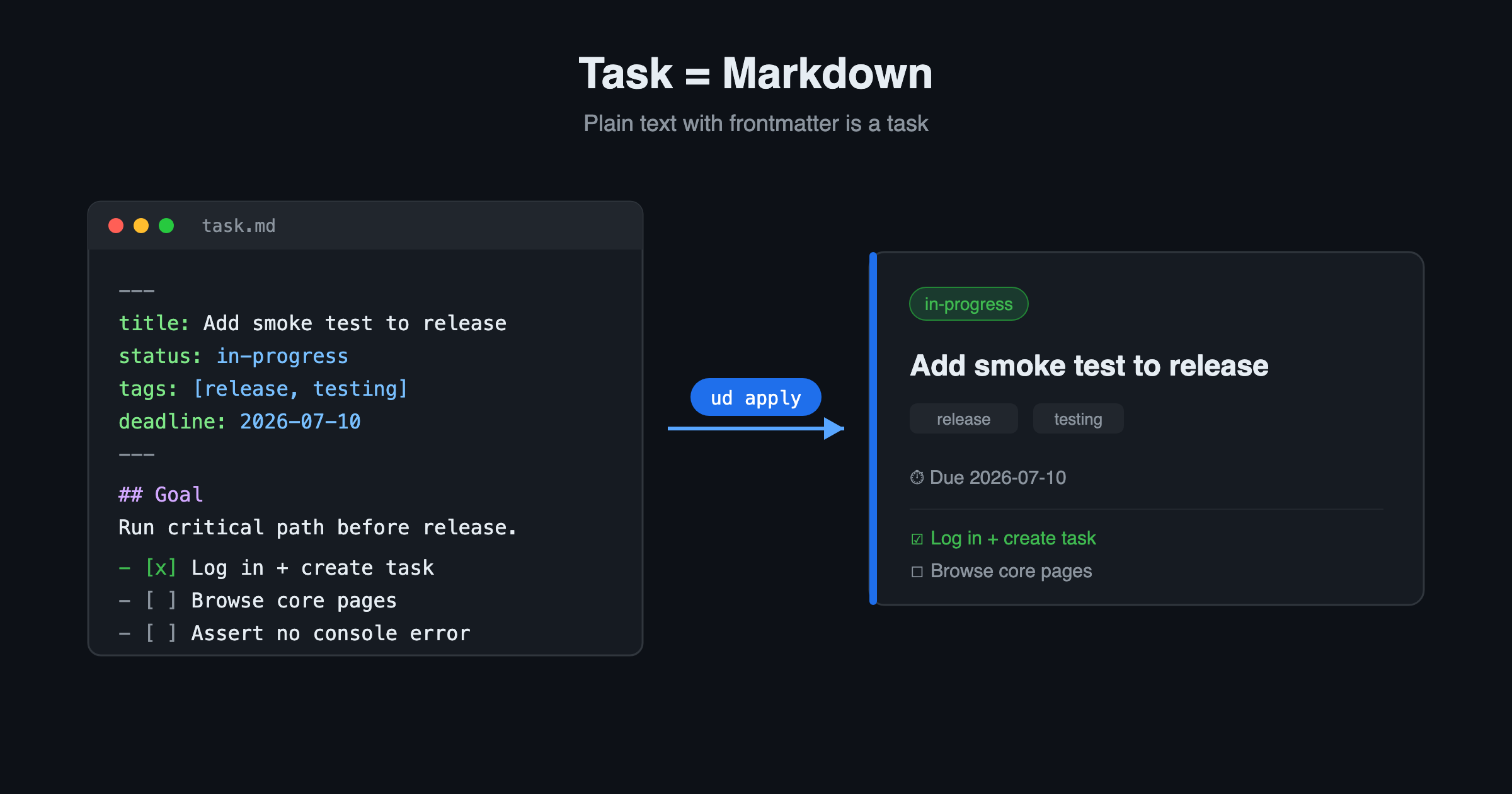
ud task apply -f task.md

The apply command is particularly useful — you can write a task in a markdown file and push it to UnderControl, which fits nicely into scripting and automation workflows. The CLI follows kubectl-style conventions, so if you spend time in Kubernetes or similar tools, the patterns feel familiar.

Recurring Tasks and Check-ins

For repeating work, recurring tasks generate new task instances on a schedule — daily standups, weekly reviews, monthly reports. You can use presets or write a custom CRON expression.

Check-ins are a lighter-weight alternative for habit tracking: each check-in increments a counter and records a timestamp, giving you a simple log of consistency without the overhead of a full task lifecycle.

Try It Yourself

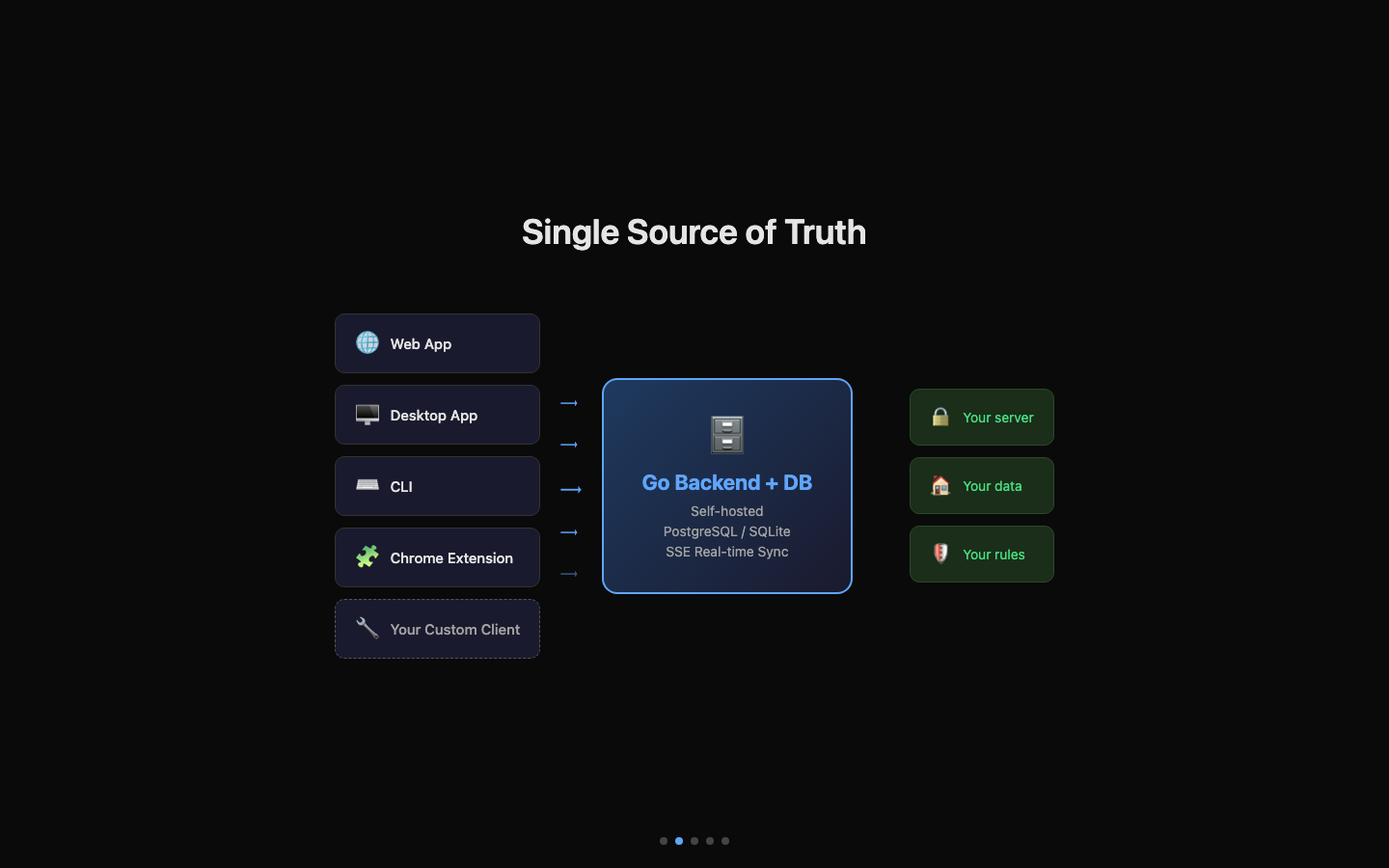
All of this runs on your own infrastructure. No data leaves your server, no subscriptions, no vendor lock-in.

The full task management documentation is at undercontrol.dev/docs/tasks, and the self-hosting guide covers deployment with Docker or the prebuilt binaries. If you run into anything, the GitHub repo is the right place to file issues or ask questions.