Visual Project Management with Kanban Boards in UnderControl

· 4 min read
Creator of UnderControl

If you have been managing tasks through a flat list and wondering when things started feeling unwieldy, kanban boards are probably the answer. UnderControl's kanban view gives you a column-based layout over your existing tasks — no separate system to maintain, no data duplication, just a better way to see what is actually happening.

The Board is a View, Not a Silo

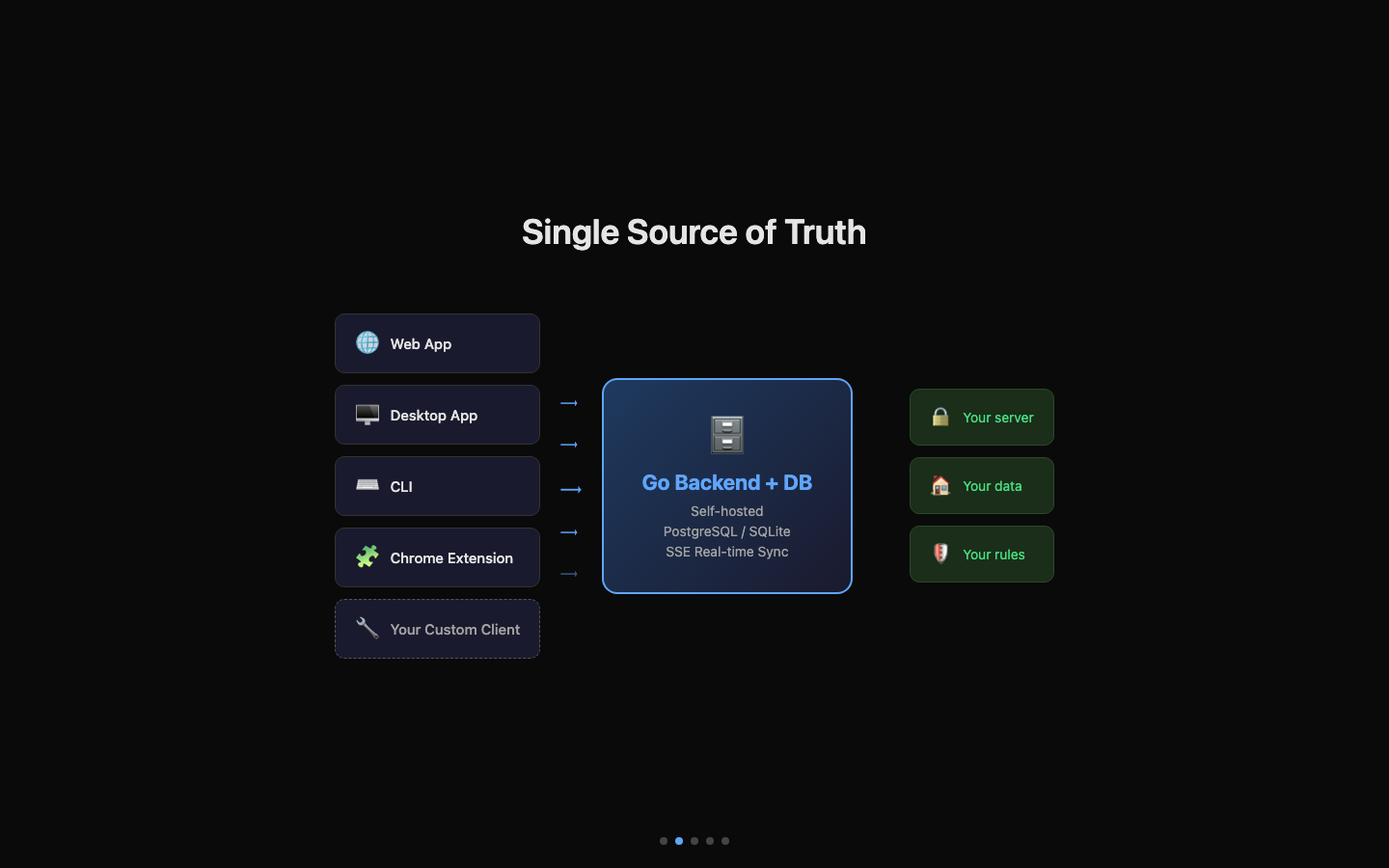
This is the part worth understanding before anything else. In UnderControl, a kanban board is a visual layer on top of your task system. When you drag a card from "Todo" to "In Progress," you are not just moving a card on a board — you are updating the task's status. That change shows up immediately in your task list, your CLI queries, everywhere. There is no synchronization problem because there is only one source of truth.

This means you can switch between kanban and list views freely without worrying about things getting out of sync.

Getting Started: The All Tasks Board

Every account comes with a built-in "All Tasks" board. Open it and you will see all your tasks organized across six columns: Todo, In Progress, Pending, Stale, Done, and Archived. This board cannot be deleted and it always appears first.

It is a good place to start. Drag a task from Todo to In Progress, and watch the status update instantly. That is the basic loop — visual placement drives task state, not the other way around.

Custom Boards with Query-Based Columns

Where things get interesting is when you create your own boards. Each column is defined by a filter condition — essentially a query that determines which tasks belong there. A "Blocked" column might filter for tasks tagged blocked. A "Due This Week" column could filter on due date. The column is not just a label; it is a live query.

When you configure column actions, moving a card becomes a trigger. Drag a task into the "Done" column and it gets marked done automatically. Move something into a "Needs Review" column and it can be tagged and assigned in one gesture. You define what dragging into a column means, and the board handles the bookkeeping.

This is genuinely useful for multi-step workflows. If your process is something like Draft -> Review -> Ready to Ship -> Done, you can model that exactly — with each column transition doing the right thing to the underlying task data.

Private and Shared Boards

Private boards are scoped to you. You can create as many as you need — one for a side project, one for your weekly planning, one for a home renovation. They all pull from your full task pool, filtered through whatever columns you configure.

Shared boards work differently. When you share a board with a group, the board only shows tasks that belong to that group. Everyone in the group can see the board and move cards around based on their permissions. It is a clean model: the board's scope is the group, and access is controlled through group membership.

This makes shared boards practical for small teams. A sprint board for a two- or three-person team, where everyone can see what is in progress and what is blocked, is easy to set up and does not require any additional tooling.

A Few Workflow Patterns Worth Trying

If you are not sure how to structure a board, here are a few approaches that work well:

A status-based board mirrors the default setup — Todo, In Progress, Done. Simple, low-overhead, good for solo work.

A time-based board uses columns like Backlog, This Week, Today, and Done. The filter conditions look at due dates or custom fields rather than status. Dragging a task into "Today" can update a priority field automatically.

A project board with shared access uses the group feature to scope tasks to a specific project. Columns map to your team's actual workflow stages, and everyone operates from the same board.

Everything Stays Connected

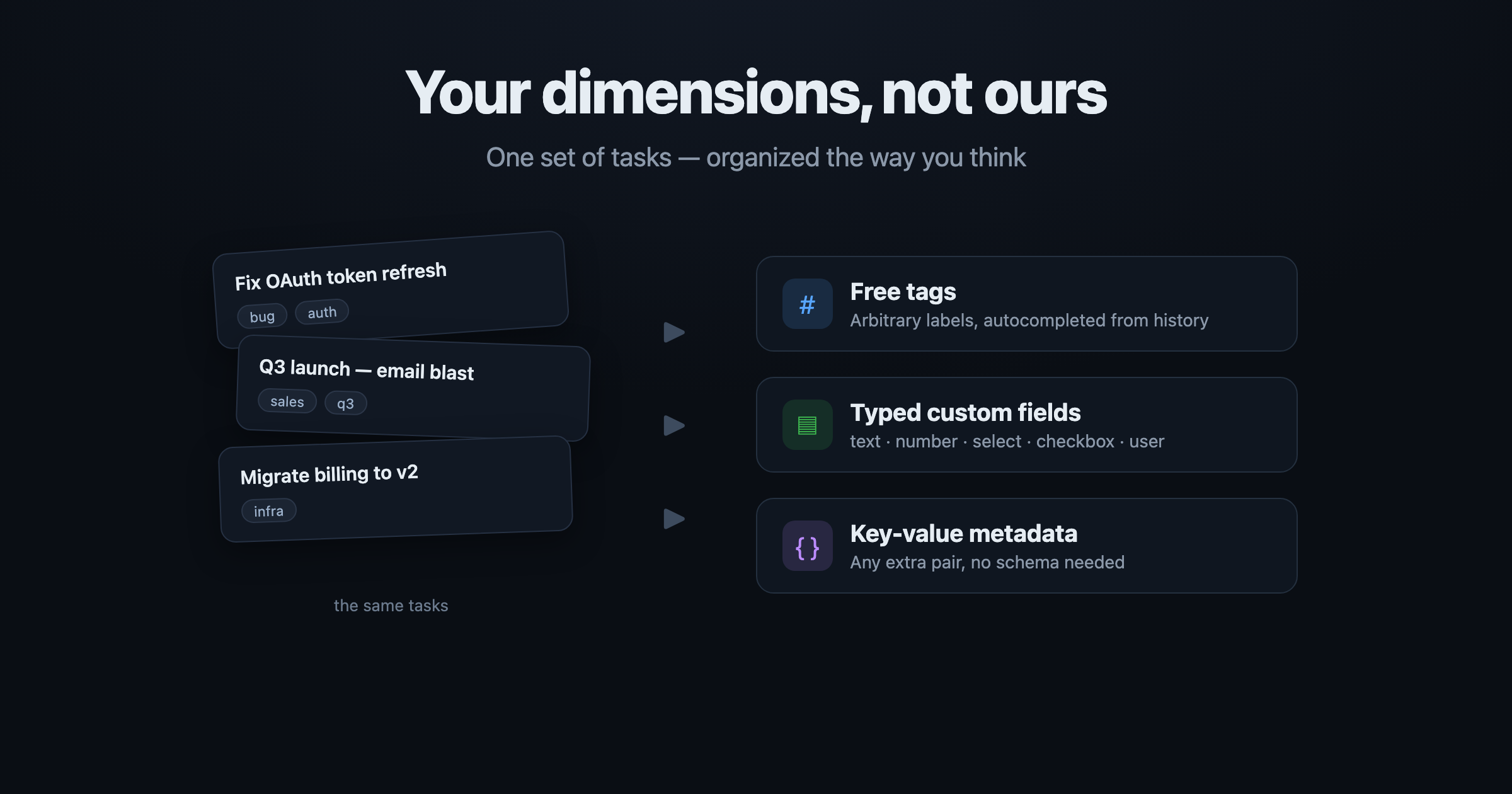
Because boards are built on top of the same task and tag system as the rest of UnderControl, they compose naturally with other features. Tags you use in task filters work as column conditions. Custom fields you create for a project can drive column membership and be updated by column actions. The board is not a separate module — it is the task system made visual.

If you want to see how this fits into the broader setup, the Kanban Boards documentation covers column configuration, automatic actions, and sharing in detail. And if you are not running UnderControl yet, the self-hosting guide will get you up and running in under an hour — your data stays on your infrastructure, always.

How UnderControl Handles Task Management: Views, Links, and the CLI

· 4 min read
Creator of UnderControl

Most task managers give you a list. Maybe a kanban board if you're lucky. UnderControl takes a different approach: your tasks are a data structure you can view, query, and manipulate from multiple angles — whether you're in the browser, the desktop app, or a terminal.

Here's a practical walkthrough of how the task system works.

Six Statuses That Actually Mean Something

Tasks in UnderControl move through six statuses: Todo, In Progress, Pending, Done, Stale, and Archived.

The distinction between Pending and Stale is one I find genuinely useful. Pending means you're deliberately waiting — on a reply, a dependency, a decision. Stale means the task just hasn't been touched in a while. That difference matters when you're doing a weekly review and trying to figure out what to act on versus what to clean up.

Pick the View That Matches Your Mental Model

Different work calls for different views. UnderControl gives you seven:

  • List — The default. Fast, filterable, keyboard-friendly.
  • Kanban — Drag cards between status columns. Good for sprint-style work.
  • Calendar — Tasks plotted by deadline. Useful before a busy week.
  • Tree — Hierarchical view of parent and child tasks. Great for projects with nested sub-tasks.
  • Graph — A node-link diagram of all your bidirectional task relationships. Looks cool, but also genuinely useful for spotting how things connect.
  • Mindmap — Freeform brainstorming layout.
  • Trash — Review and restore deleted tasks.

Switching between views doesn't change your data — it's the same tasks, just rendered differently. The Graph view in particular is worth trying if you use linked tasks heavily.

Bidirectional Linking

You can link any two tasks together, and the connection is bidirectional — follow it from either side. Over time, this turns your task list into something closer to a knowledge graph. The Graph view is where this becomes visible: nodes are tasks, edges are links, and you can see clusters form around related work.

Derived tasks (parent-child relationships) work differently. When you create a task from an existing one, the child inherits context from the parent and links back to it automatically. This is the right pattern for breaking down a large project into concrete steps.

Markdown Notes with Edit History

Every task has a notes section. Notes support full markdown — headers, code blocks, lists, links. More importantly, every note keeps a full edit history. If you wrote something, changed your mind, and want to go back, you can revert to any previous version.

I use notes for things like decision logs, blockers, and meeting summaries attached to a task. It keeps everything in one place instead of scattered across documents and chat threads.

Filtering and Queries

The quick filters cover the common cases: filter by status, tags, or deadline range (overdue, today, this week, and so on). For more specific needs, there's a structured query language:

status = 'pending' AND tag:work = 'true'

If you don't want to write the query yourself, the AI assistant accepts plain English — something like "show me overdue tasks tagged with client work" — and translates it into a filter.

File Attachments and Sharing

Attach any file to a task — images, PDFs, diagrams, exported reports. The attachments live on your server, under your control.

For sharing, you can generate a public link to a specific task with an optional expiration date. Or share with a group and set whether they get read or read-write access.

The CLI Is a First-Class Interface

If you work in a terminal, ud gives you the full task API from the command line:

ud task list
ud task create "Review Q2 metrics"
ud task done <id>
ud task query "status = 'todo' AND deadline < '2026-05-01'"
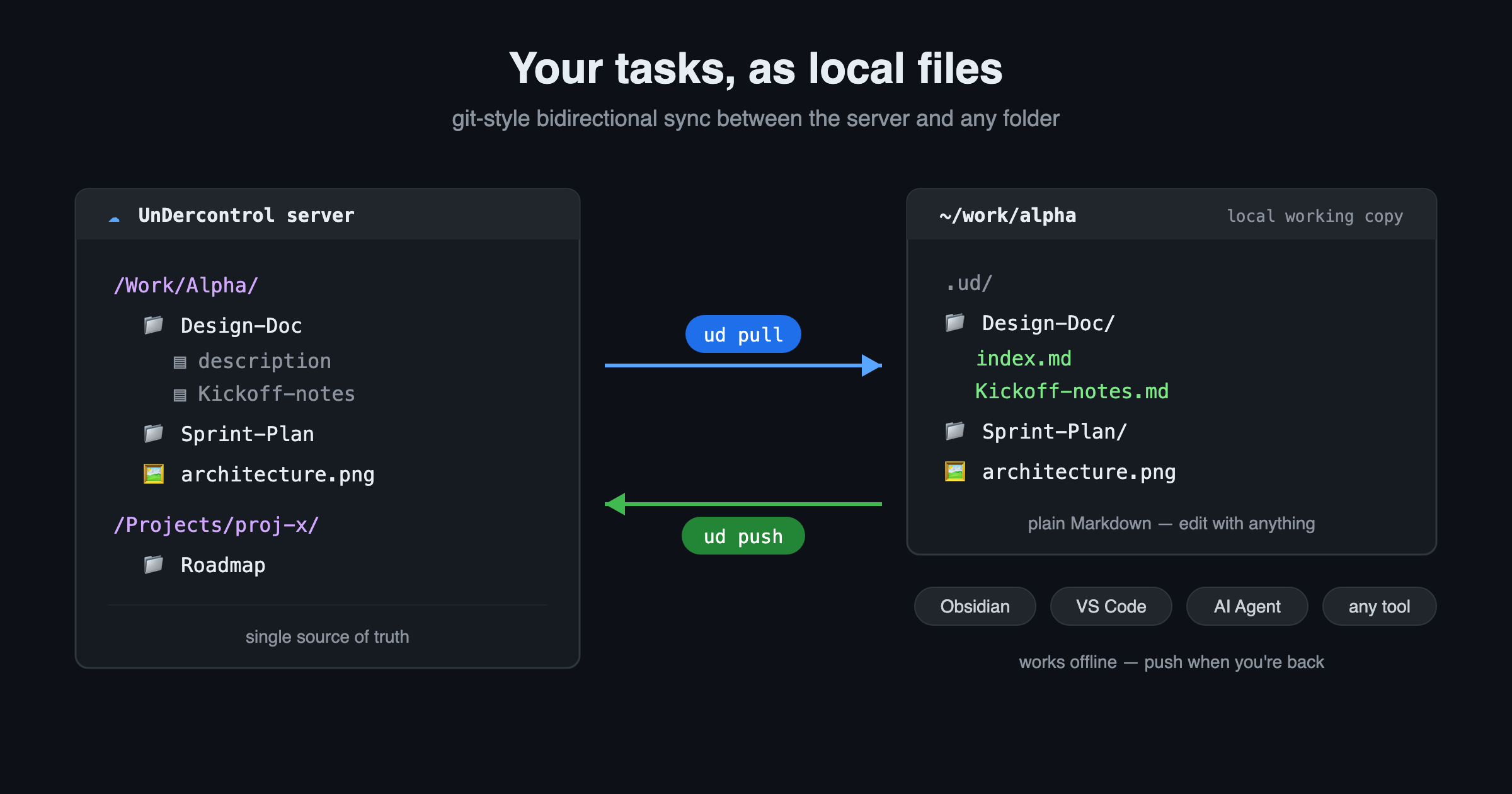
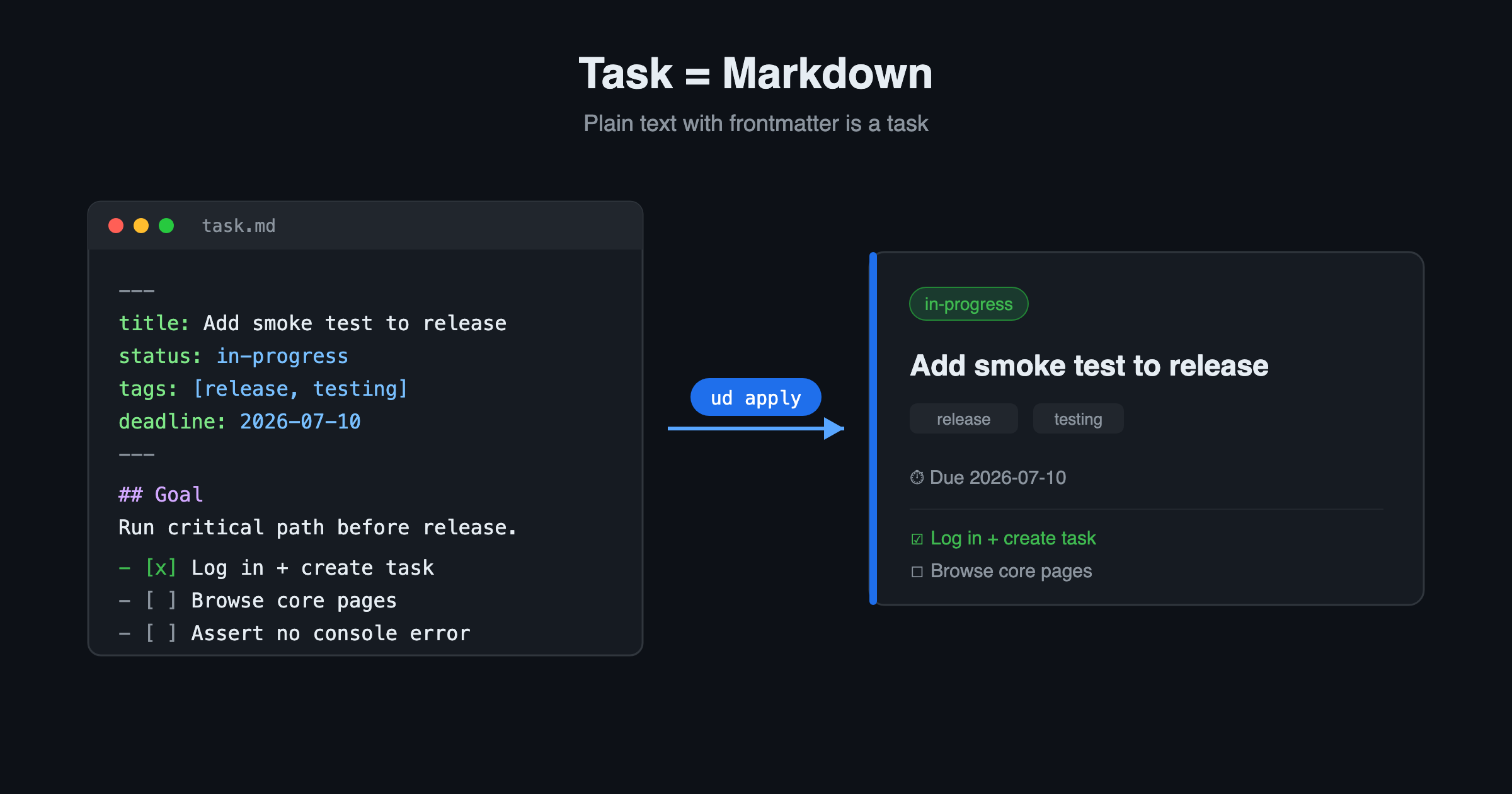
ud task apply -f task.md

The apply command is particularly useful — you can write a task in a markdown file and push it to UnderControl, which fits nicely into scripting and automation workflows. The CLI follows kubectl-style conventions, so if you spend time in Kubernetes or similar tools, the patterns feel familiar.

Recurring Tasks and Check-ins

For repeating work, recurring tasks generate new task instances on a schedule — daily standups, weekly reviews, monthly reports. You can use presets or write a custom CRON expression.

Check-ins are a lighter-weight alternative for habit tracking: each check-in increments a counter and records a timestamp, giving you a simple log of consistency without the overhead of a full task lifecycle.

Try It Yourself

All of this runs on your own infrastructure. No data leaves your server, no subscriptions, no vendor lock-in.

The full task management documentation is at undercontrol.dev/docs/tasks, and the self-hosting guide covers deployment with Docker or the prebuilt binaries. If you run into anything, the GitHub repo is the right place to file issues or ask questions.